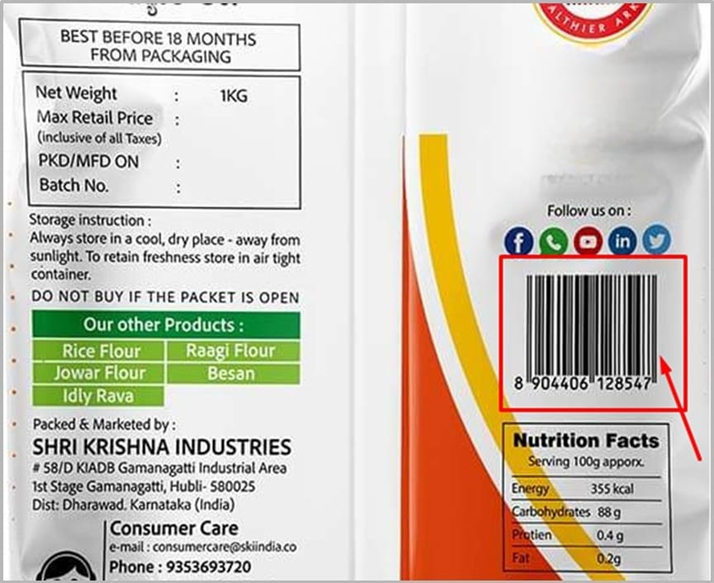
A barcode is a set of lines and spaces that stores product information, such as ID or price. It helps in fast and accurate tracking of items in sales, purchases, and inventory. Example:Cornflour 1 kg can have a unique barcode like 8904406128547.
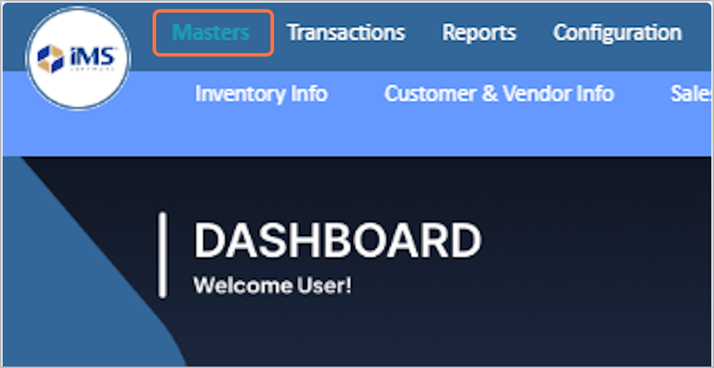
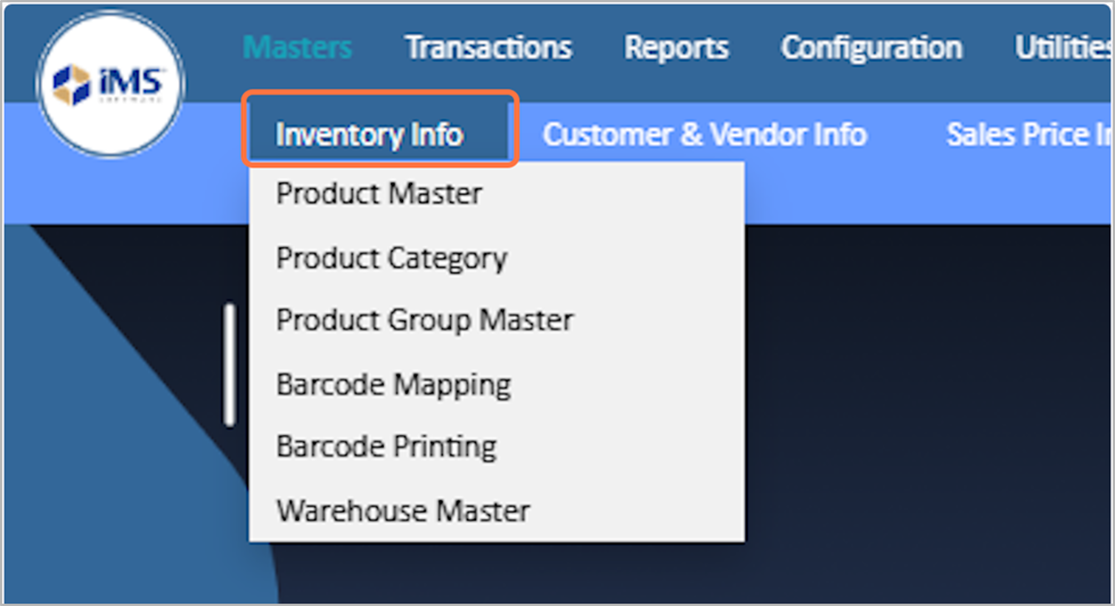
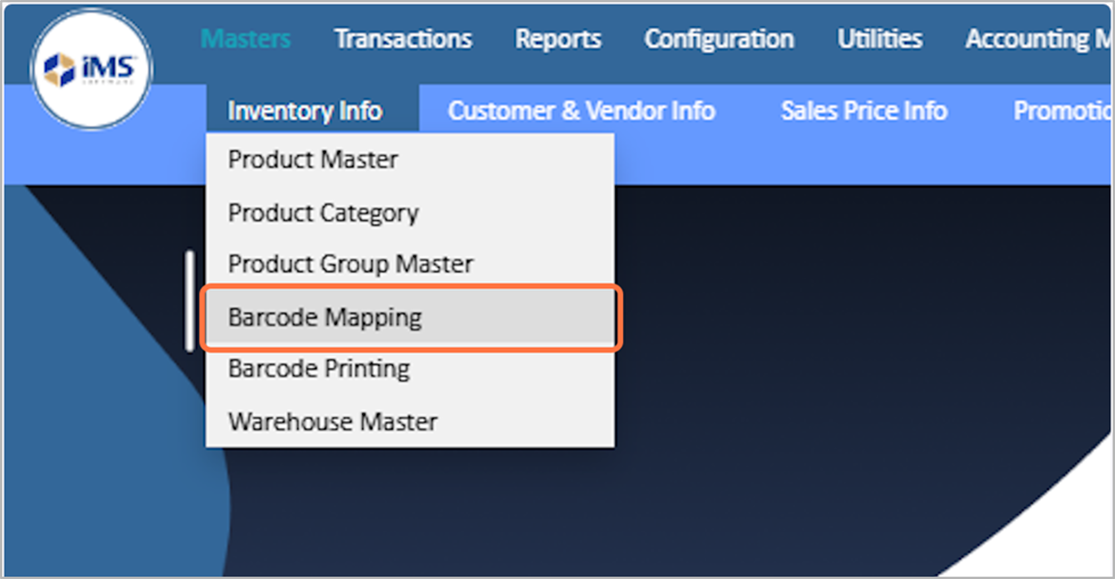
3. Select Barcode Mapping from the dropdown menu.
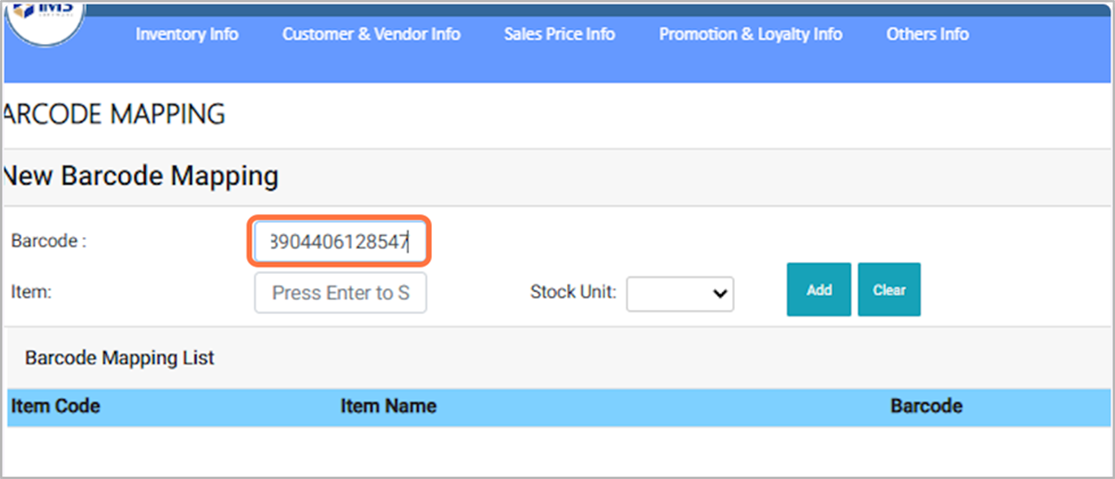
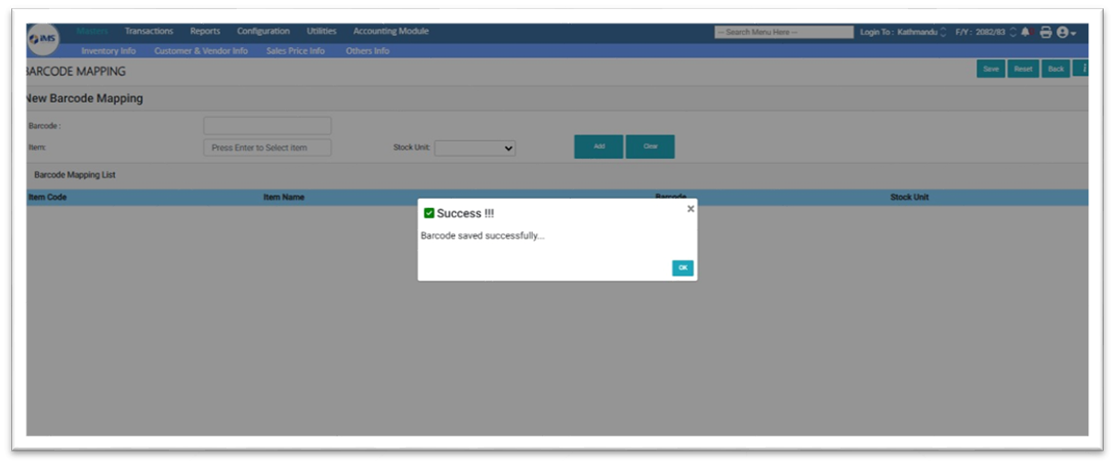
4. Enter the barcode number in the Barcode field.For Eg: 8904406128547
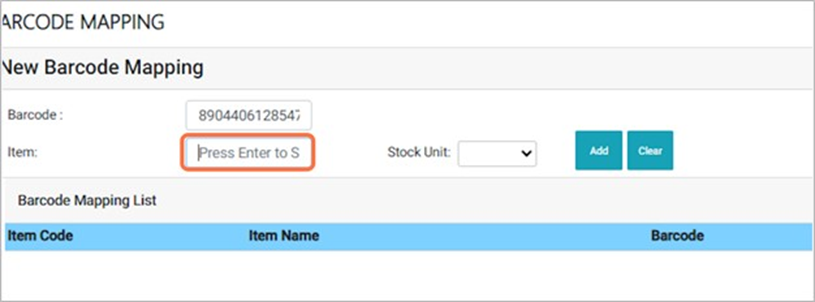
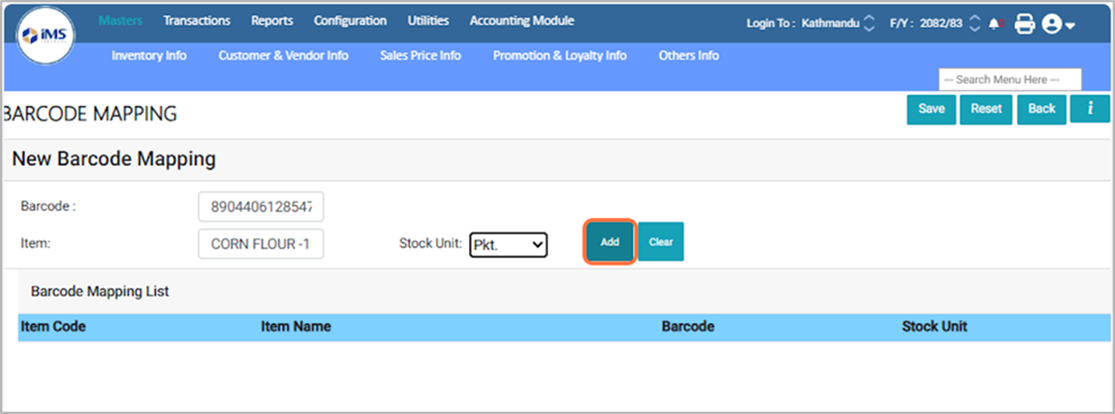
5. Select the Item Name to which you want to map the barcode. Ensure that the product has already been created in the system, for Eg: Corn flour 1 kg.
6. Select the unit for the mapped barcode, which will be triggered when the barcode is scanned.For Eg: PKT
7. Click "Add" to add the item to the grid; to map multiple barcodes, repeat the process, or click "Clear" to remove any existing mappings before adding.
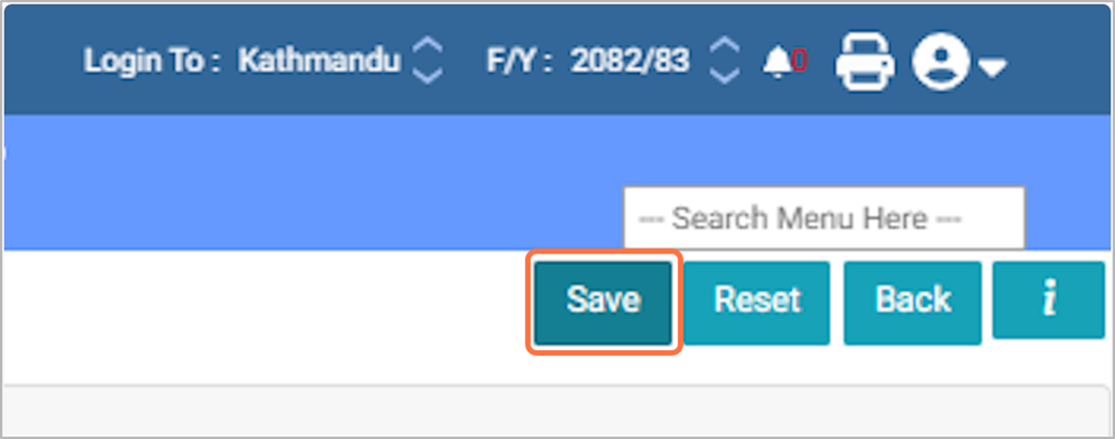
8. Click on the Save button to save the barcode mapping.
9. After clicking the Save button, a pop-up message saying "Barcode Saved Successfully" will appear. Click OK to complete the process.
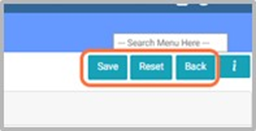
10. Use the buttons as follows: Reset – clears the currently mapped grid data; Save – saves the mapped data in the system; Back – returns to the previous screen or main menu.