WEB-POS ACCOUNT GETTING STARTED »
Steps to Generate Party Balance Confirmation
Party Balance Confirmation is a report that shows the outstanding balances of customers or suppliers at a specific date. It helps verify accuracy, detect discrepancies, and ensure accounts are properly reconciled.
Steps to Generate Party Balance Confirmation
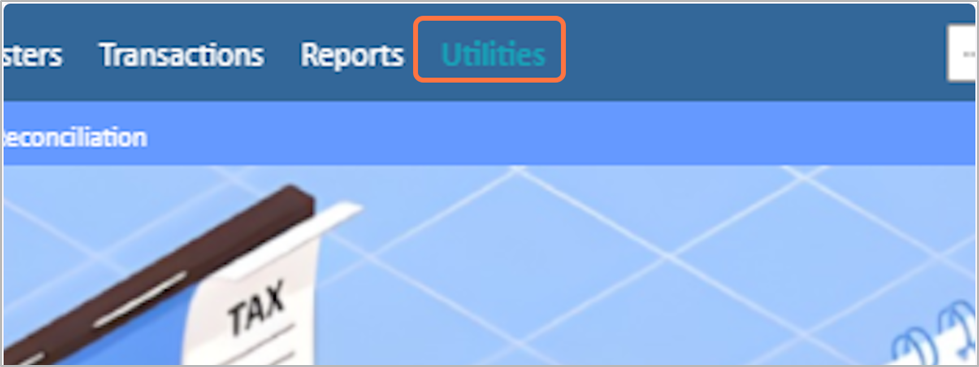
1. Go to Utilities from the main menu
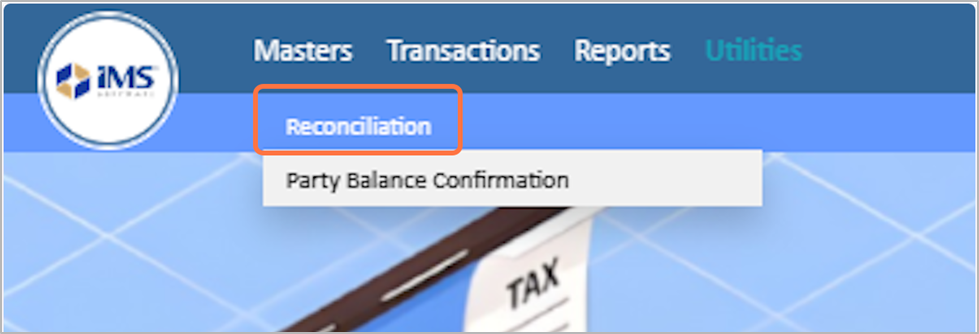
2. Click on the Reconciliation
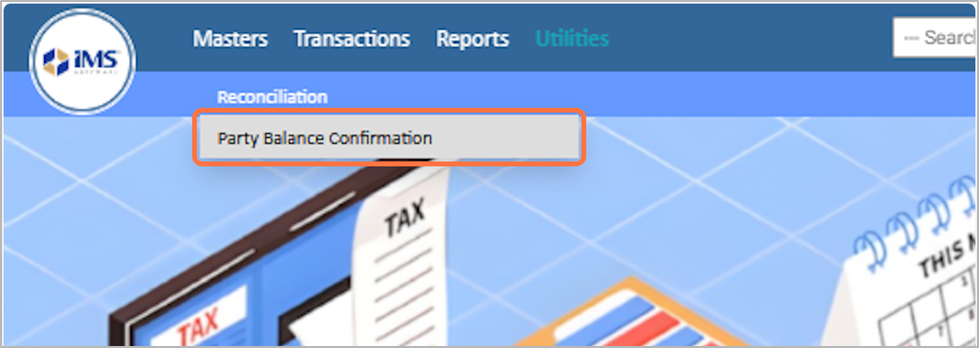
3. Choose the Party Balance Confirmation option
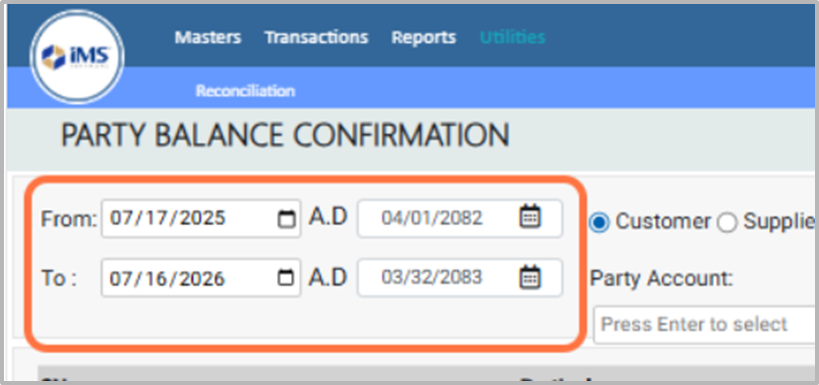
4. Choose the From Date and To Date to view balances of parties (customers or vendors) within the selected period.
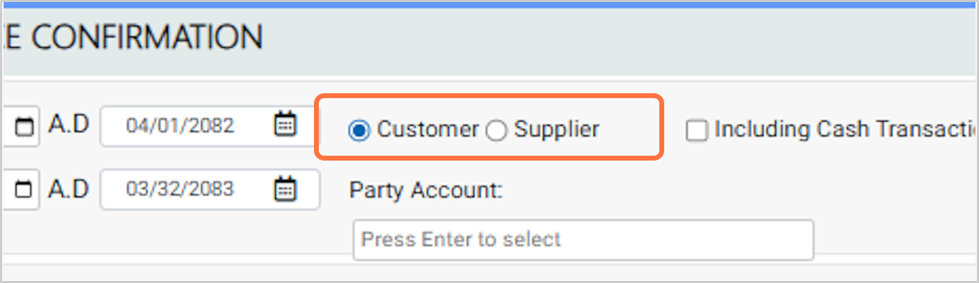
5. Choose the option Customer or Supplier to view balances specific to either customers or suppliers.
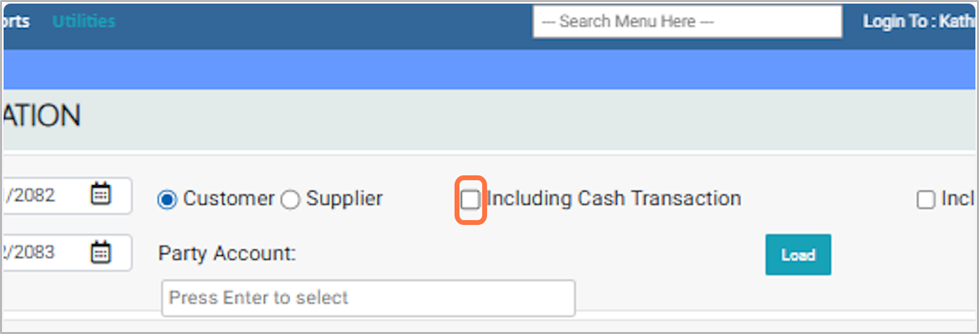
6. Tick “Including Cash Transaction” to include cash transactions.
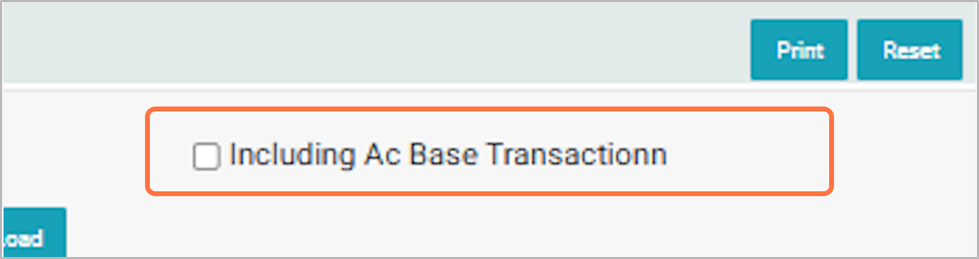
7. Tick “Including A/C Base Transaction” to include account-based transactions
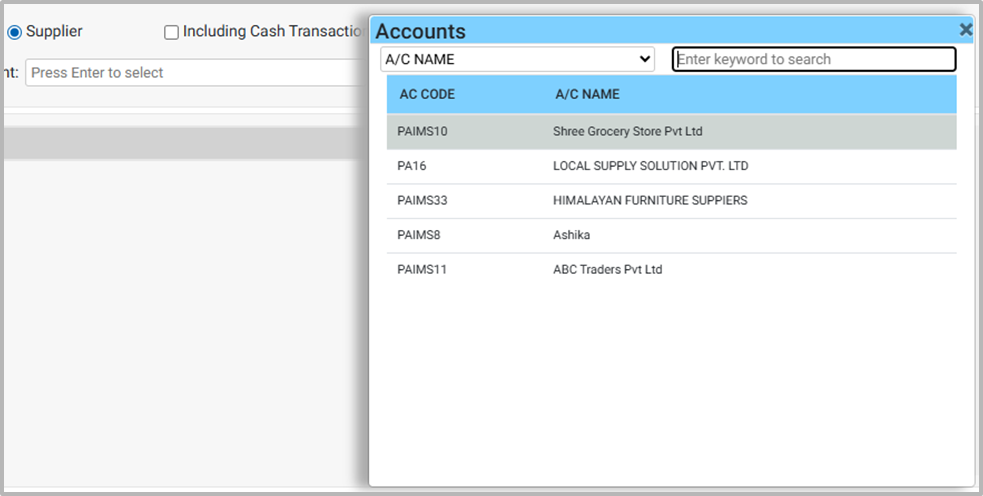
8. You can choose the party name from the Party Account.
9. From the Account List Pop Up, search or select the specific name to generate the report for the chosen party.
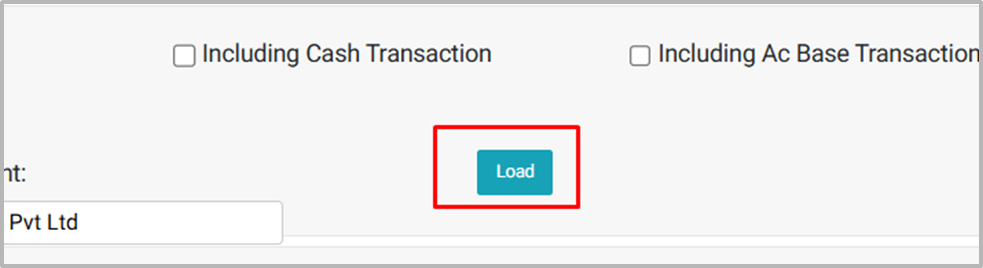
10. Click the Load button to generate the Party Balance Confirmation report with the selected filters.
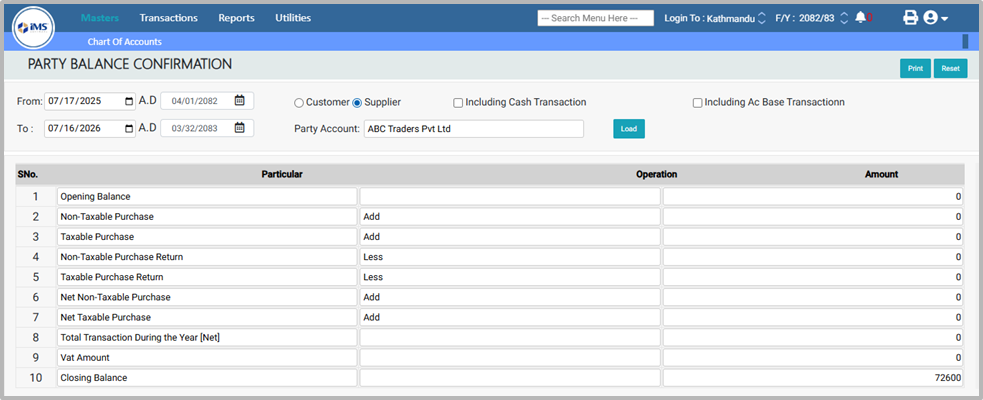
11. Party Balance Confirmation Loaded:
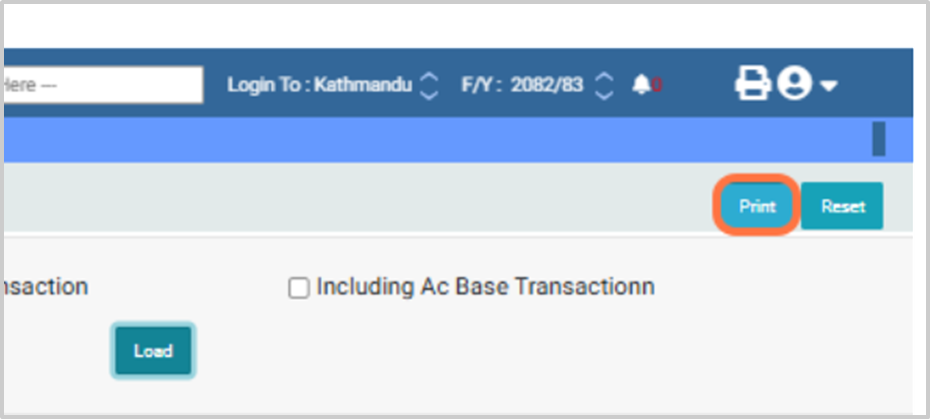
12. Click the Print option to print the Party Balance Confirmation report.
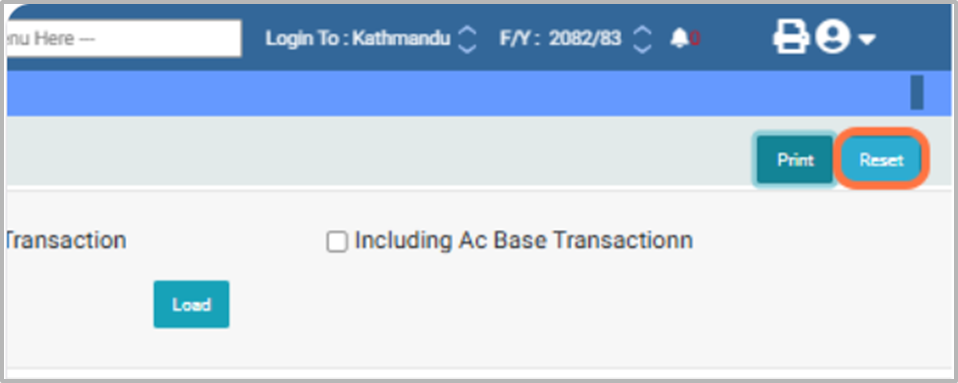
13. Click the Reset button to clear all selected filters and start fresh.
Files (13)
clipboard-202601221745-lkszs.png (317 KB)
clipboard-202601221745-lkszs.png
Sujata Khatri, 01/22/2026 12:00 PM
clipboard-202601221745-m9xlt.png (300 KB)
clipboard-202601221745-m9xlt.png
Sujata Khatri, 01/22/2026 12:00 PM
clipboard-202601221746-i7eio.png (414 KB)
clipboard-202601221746-i7eio.png
Sujata Khatri, 01/22/2026 12:01 PM
clipboard-202601221746-turou.png (153 KB)
clipboard-202601221746-turou.png
Sujata Khatri, 01/22/2026 12:01 PM
clipboard-202601221746-oedsb.png (104 KB)
clipboard-202601221746-oedsb.png
Sujata Khatri, 01/22/2026 12:01 PM
clipboard-202601221746-yvboq.png (88.6 KB)
clipboard-202601221746-yvboq.png
Sujata Khatri, 01/22/2026 12:01 PM
clipboard-202601221746-niyk1.png (54 KB)
clipboard-202601221746-niyk1.png
Sujata Khatri, 01/22/2026 12:01 PM
clipboard-202601221746-nuuvm.png (52.4 KB)
clipboard-202601221746-nuuvm.png
Sujata Khatri, 01/22/2026 12:01 PM
clipboard-202601221746-izwjp.png (71.2 KB)
clipboard-202601221746-izwjp.png
Sujata Khatri, 01/22/2026 12:01 PM
clipboard-202601221746-ncxxp.png (46 KB)
clipboard-202601221746-ncxxp.png
Sujata Khatri, 01/22/2026 12:01 PM
clipboard-202601221748-hgdym.png (103 KB)
clipboard-202601221748-hgdym.png
Sujata Khatri, 01/22/2026 12:03 PM
clipboard-202601221748-8xisy.png (78.3 KB)
clipboard-202601221748-8xisy.png
Sujata Khatri, 01/22/2026 12:03 PM
clipboard-202601221748-rk9y3.png (82.2 KB)
clipboard-202601221748-rk9y3.png
Sujata Khatri, 01/22/2026 12:03 PM