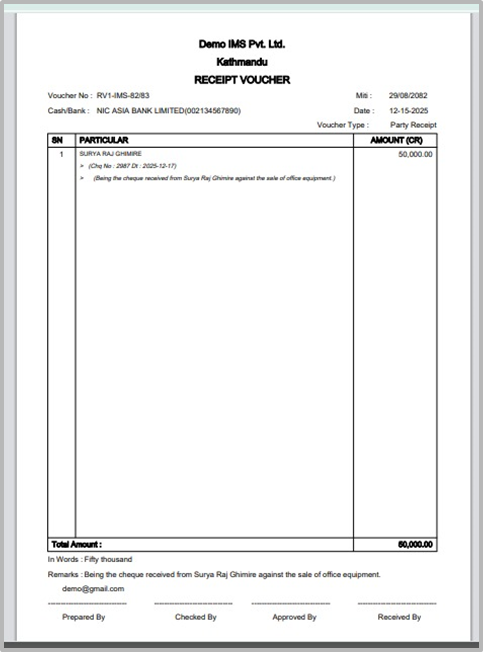
Steps to Create a Receipt Voucher
Receipt Voucher is used to record money received by a business through cash or bank. It tracks all incoming funds.
It helps maintain accurate records of all incoming receipts and ensures proper financial tracking.
Steps to Create a Receipt Voucher:
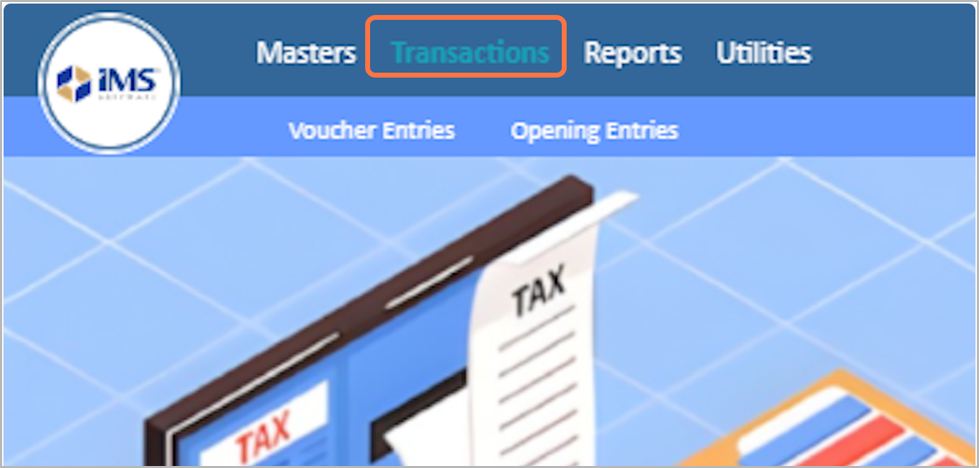
1. Click on the Transactions from main menu
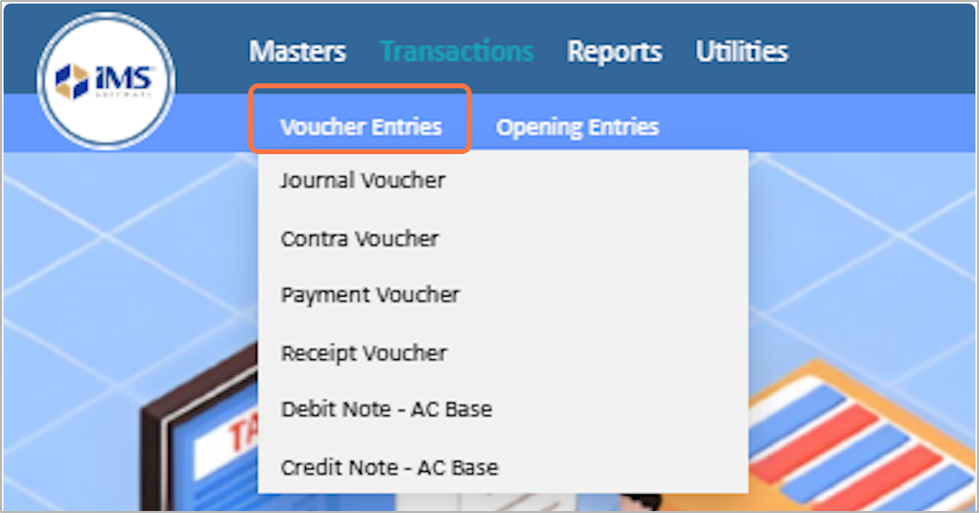
2. Click on The Voucher Entries
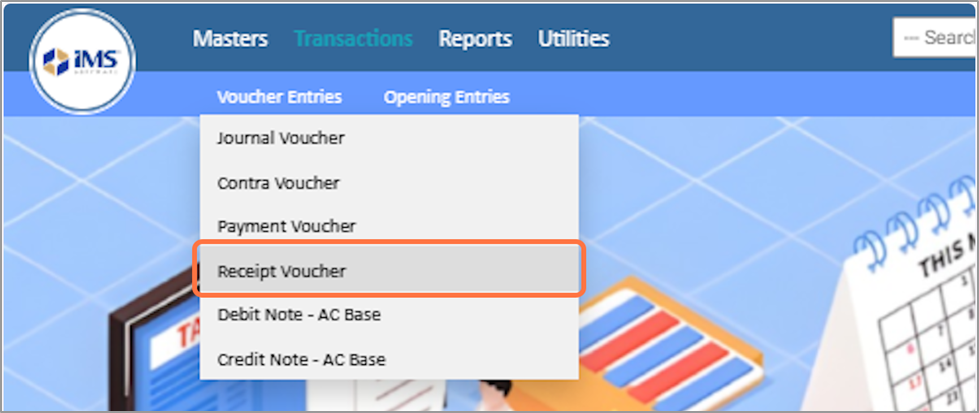
3. Choose the Receipt Voucher from the dropdown menu option
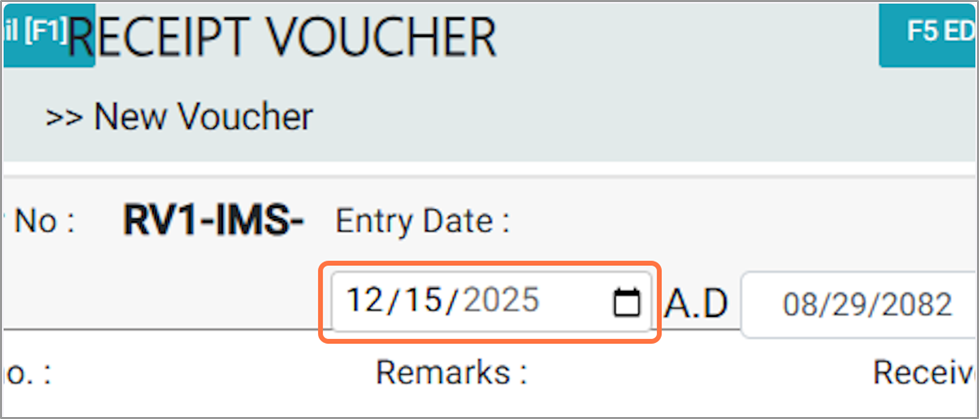
4. Choose the Voucher Entry Date, For EG: 2025-12-15
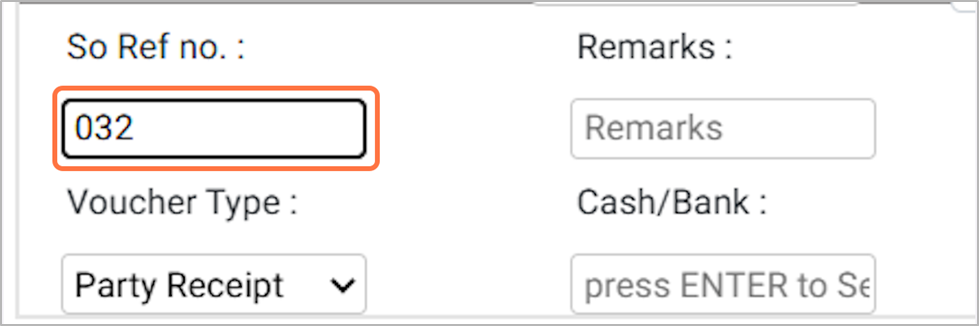
5. Enter the Reference Number Of The Voucher(RefNO), For EG: 032
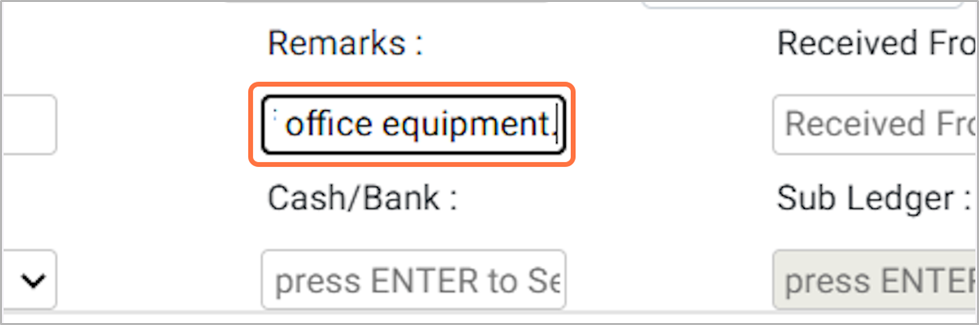
6.In the Narration field, enter a brief description of the transaction for future reference.
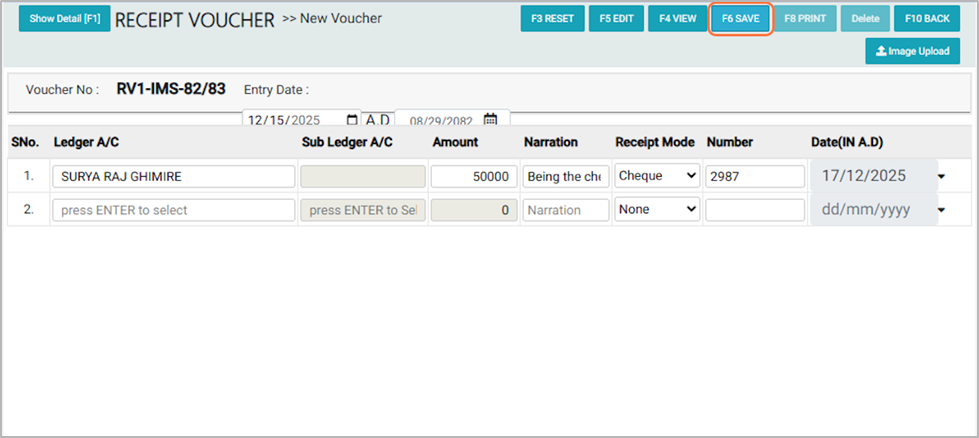
Example: Being the cheque received from Surya Raj Ghimire against the sale of office equipment.
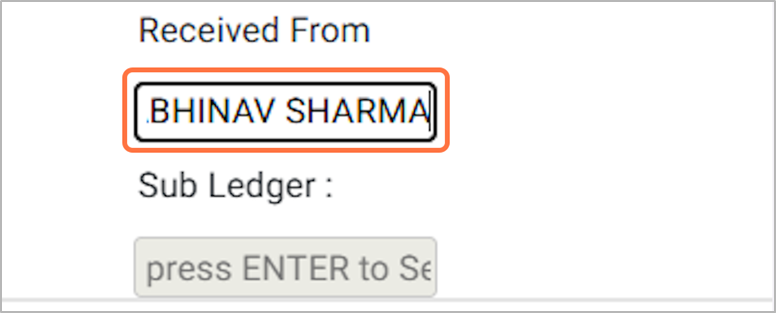
7. In the Received From field, enter the name of the person or party from whom the payment is received, For example ABHINAV SHARMA
8. Select The Voucher Type:
- Income Voucher – Select this if the transaction is income only, such as interest received, rent received, or other income not linked to a party.
- Party Receipt – Select this if the payment is received from a customer or supplier.
- Mixed Receipt – Select this if the transaction includes both party and other income/expense heads in a single voucher.
Eg: Receiving payment from a customer for goods sold → Party Receipt
Eg: Receiving payment from a customer for goods sold → Party Receipt
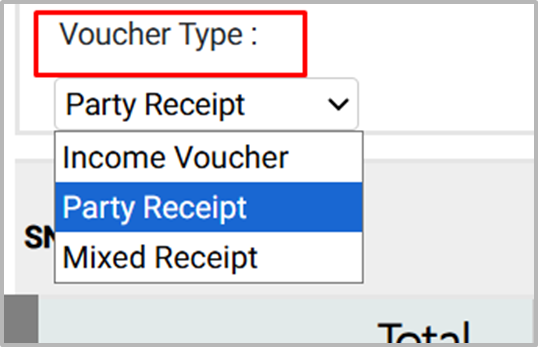
9. In the Cash/Bank field, select the appropriate Cash or Bank ledger account for the voucher, for example NIC Asia Bank Limited

Add a sub-ledger if required for detailed tracking of the transaction.

10. Click ENTER in the Ledger A/C field to open the ledger list
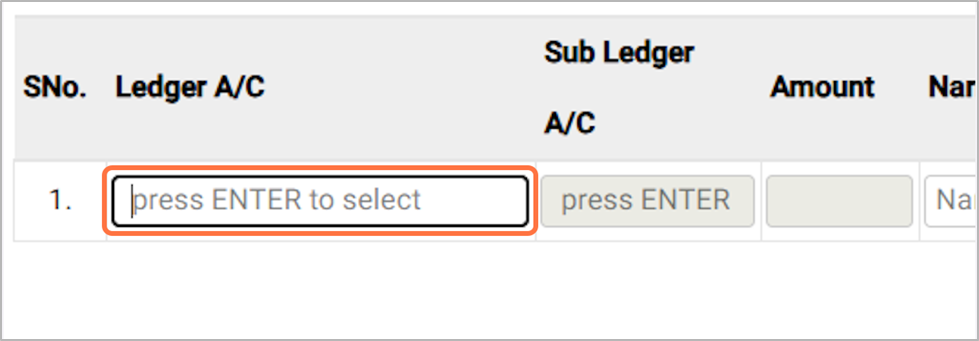
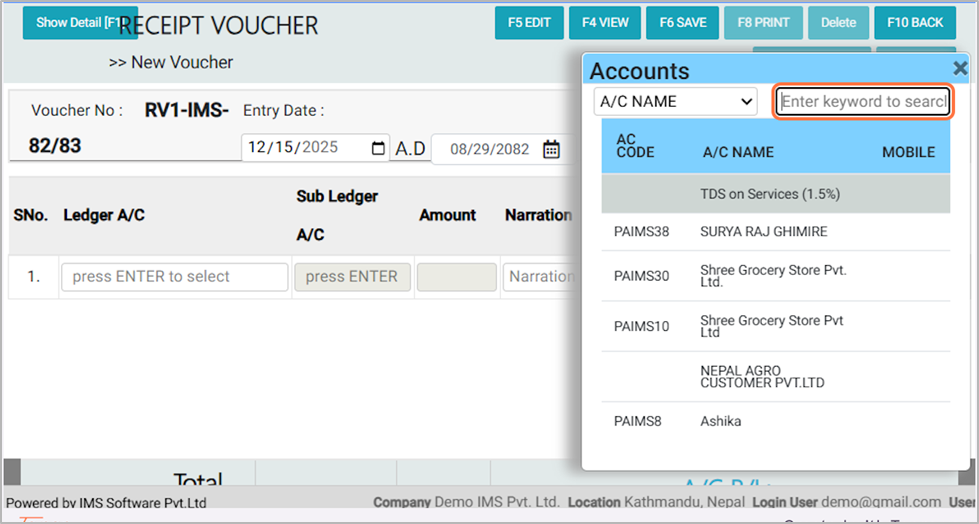
11. From the Pop up Ledger list, search or select the appropriate ledger account for the transaction.
Eg:SURYA RAJ GHIMIRE
12. In the Amount field, type the transaction amount to be recorded in the voucher, For EG: 50000
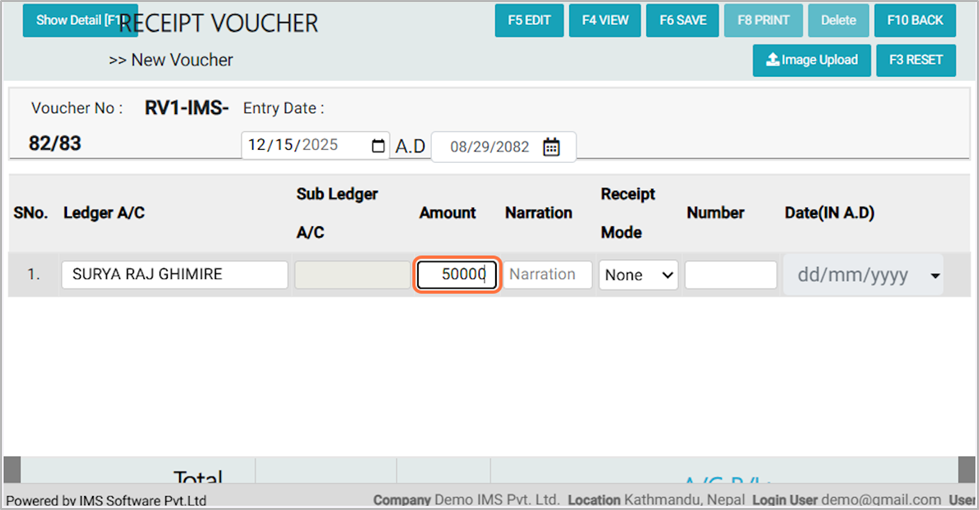
13. In the Narration field, enter a brief description of the transaction for future reference.
Example: Being the cheque received from Surya Raj Ghimire against the sale of office equipment.
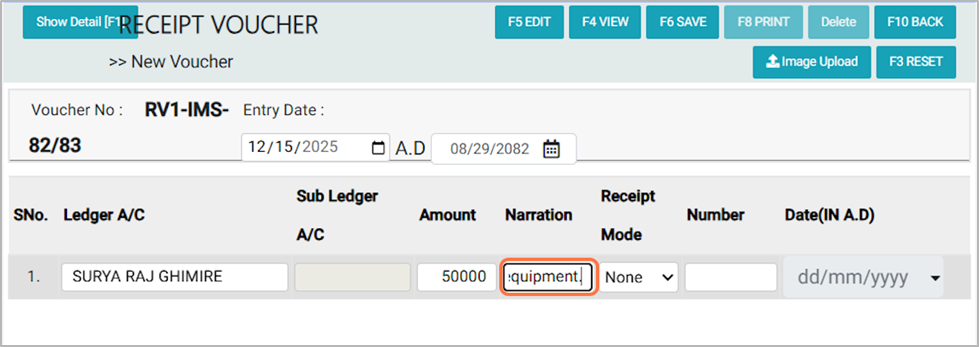
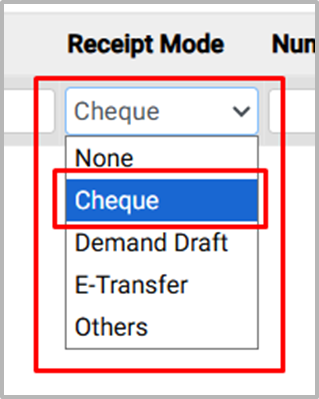
14. In the Receipt Mode field, select the appropriate payment method from the available options:
- None – No specific payment mode; used for internal adjustments or cashless entries.
- Cheque – Payment received using a bank cheque.
- Demand Draft – Payment received via a bank-issued demand draft.
- E-Transfer – Payment received through electronic transfer (online banking).
- Others – Any other mode of payment not listed above.
For this transaction, select Cheque as the payment mode.
For this transaction, select Cheque as the payment mode.
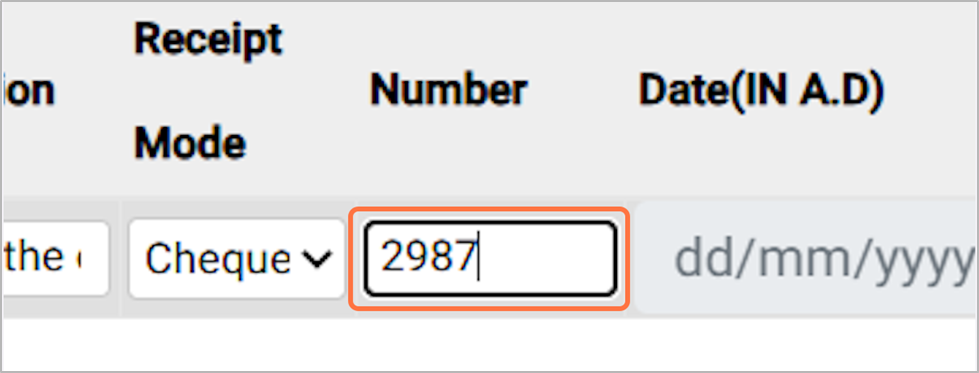
15. Enter the Cheque number Of the Payment for Eg:2987
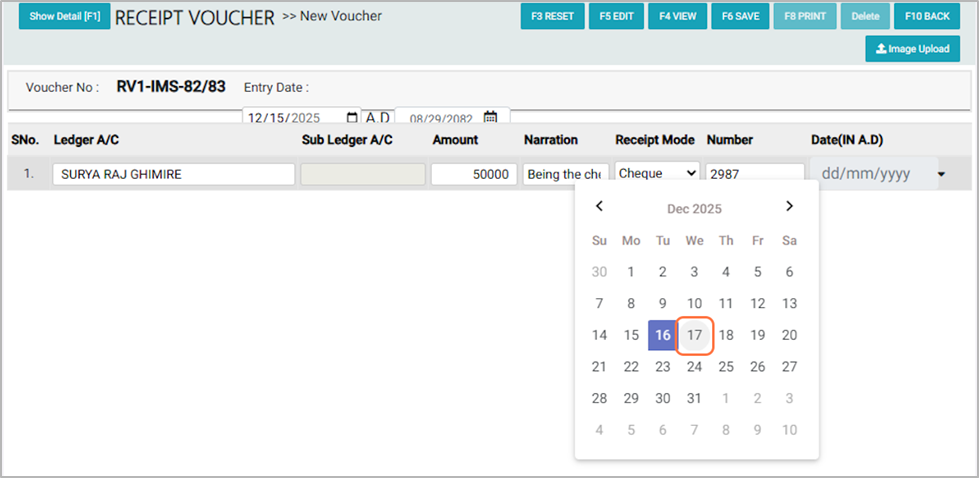
16. In the Cheque Date field, select the date on which the cheque was issue, For EG:2025-12-17
17. After entering all required details, click the Save button to record the receipt voucher.
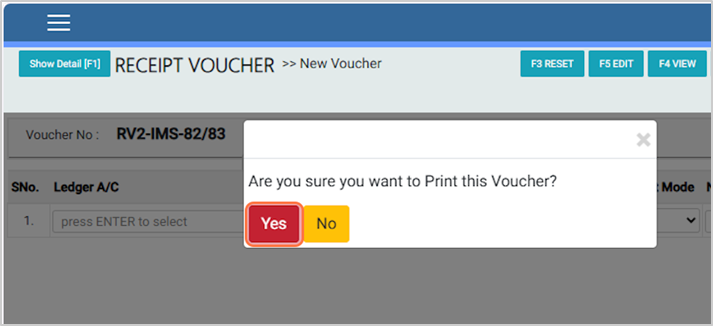
18. The message : “Are you sure you want to print this voucher?”Click OK to proceed with printing the voucher.
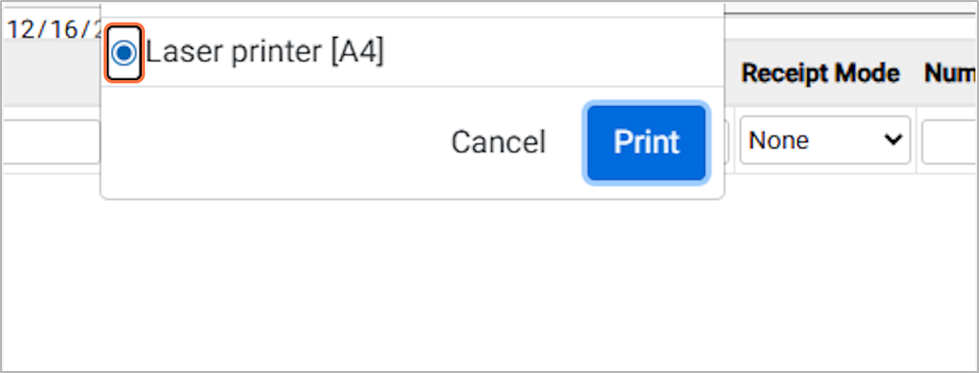
19. In the Available Printing Device Supported option, Choose the option as your need and then click the Print button.
Laser Printer[A4]
20. Voucher Print Format – Sample