Steps to Create a Payment Voucher
A Payment Voucher is an accounting used to record cash or bank payments made by a business. It shows who was paid, why the payment was made, how much was paid, and the payment mode (cash, cheque, or bank transfer).
Steps to Create a Payment Voucher:
1. Click on the Transactions from main menu

2. Click on the Voucher Entries
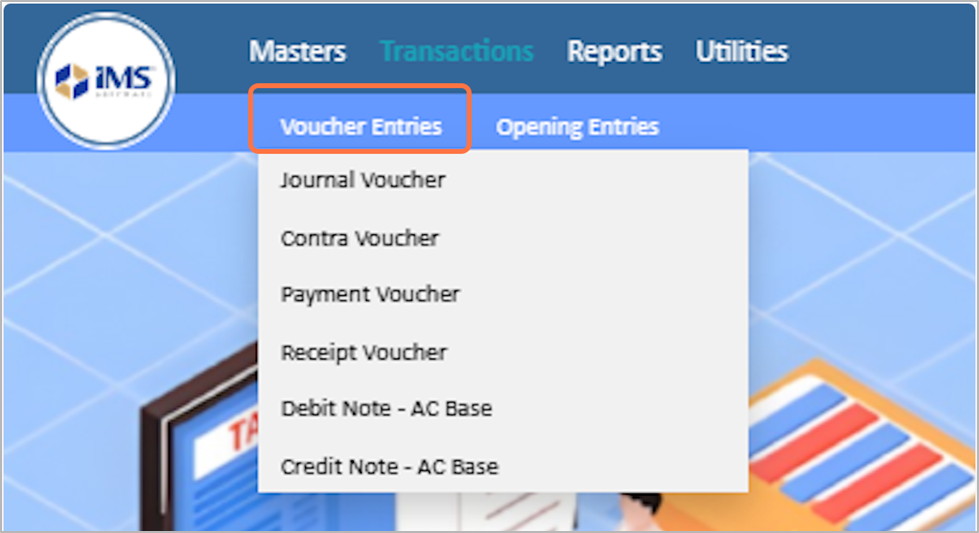
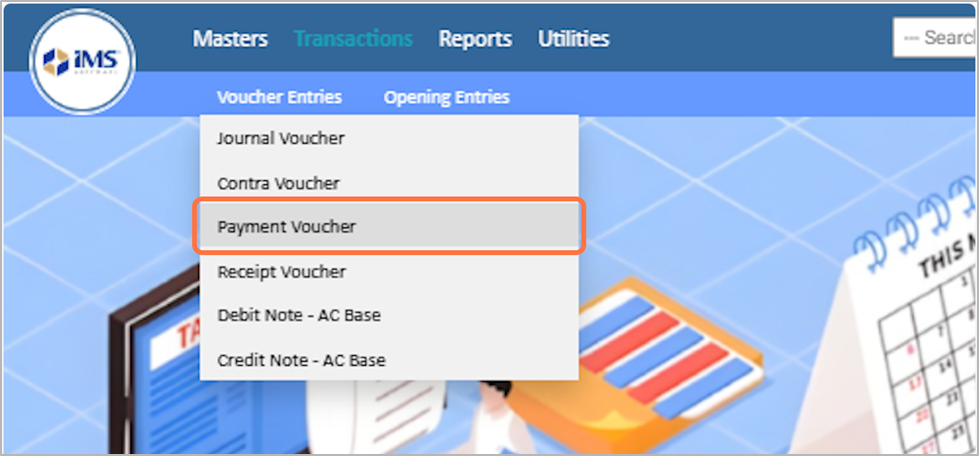
3. Choose the Payment Voucher from the dropdown option
4. Enter the Reference Number Of The Voucher(RefNO), For EG: 015
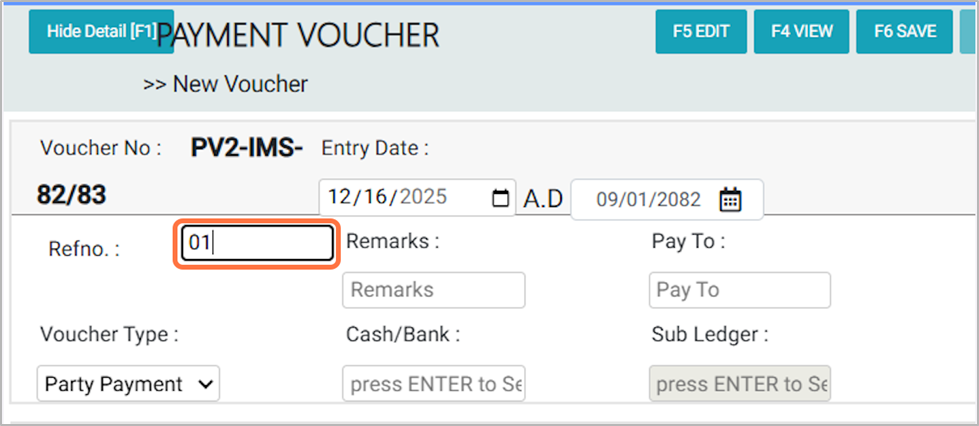
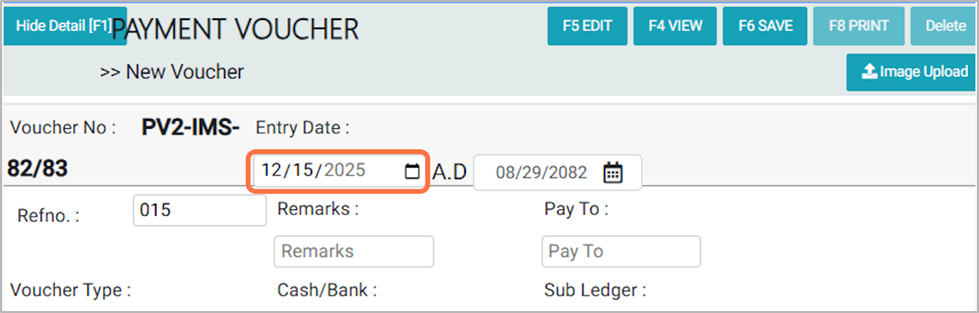
5. Choose the Voucher Entry Date: For example, 2025-12-15
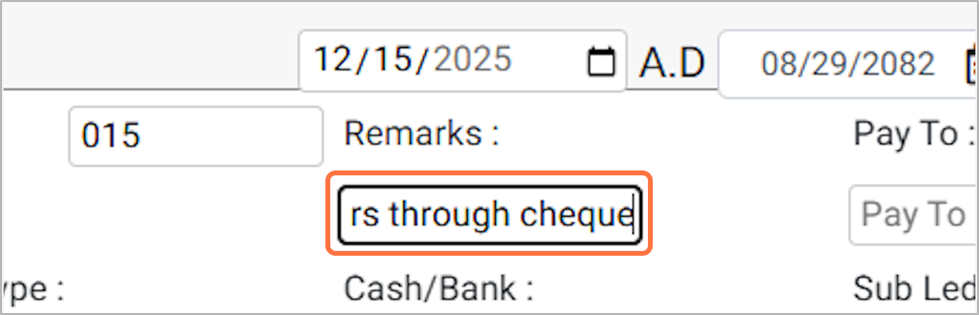
6. Enter a brief description of the transaction for future reference (e.g., Being payment made to ABC SUPPLIERS PVT. LTD.through cheque).
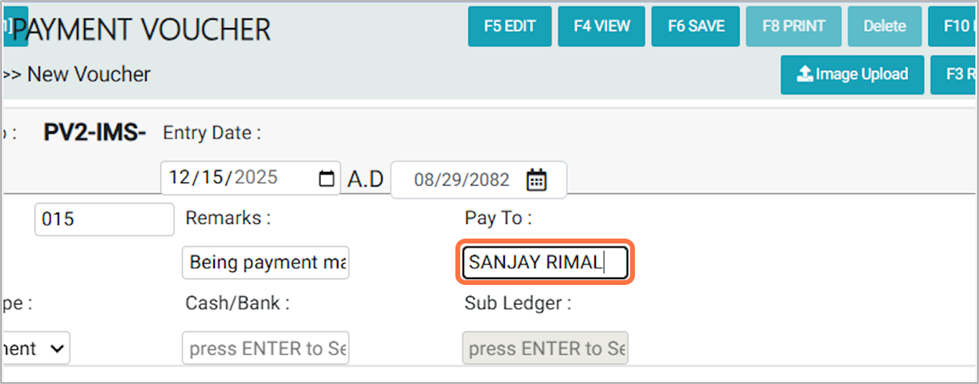
7. In the Pay To field Specify the name of the person or party to whom the payment is made, For Example:SANJAY RIMAL
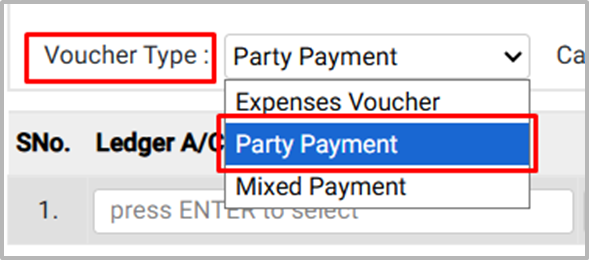
8. Select the voucher type from the available option:
- Select Expense Voucher if the transaction is made only for expenses.
- Select Party Payment if the payment is made to suppliers or customers.
- Select Mixed Voucher if the transaction includes both expense and party payments in a single voucher.
For this transaction, select Party Payment as the Voucher type.
For this transaction, select Party Payment as the Voucher type.
9. In the Cash/Bank field, select the appropriate Cash or Bank ledger account for the voucher. Add a sub-ledger if required for detailed tracking of the transaction.
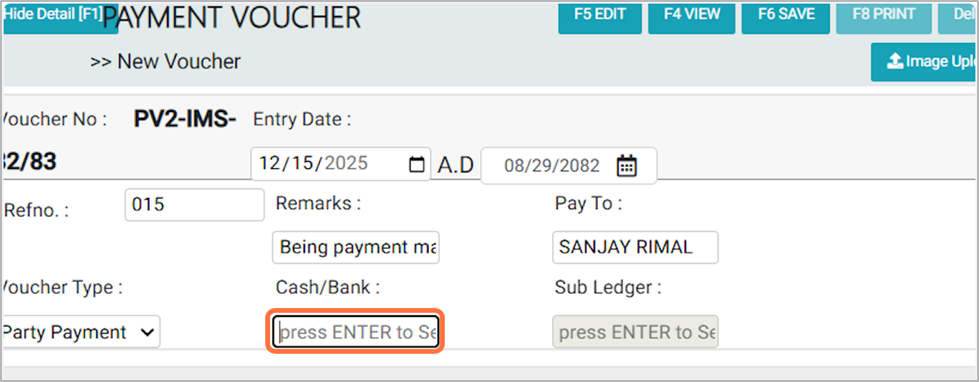
10. Click ENTER in the Ledger A/C field to open the ledger list.
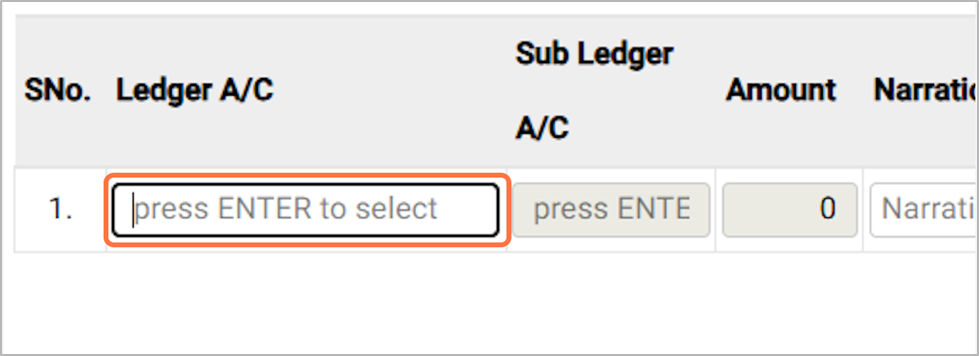
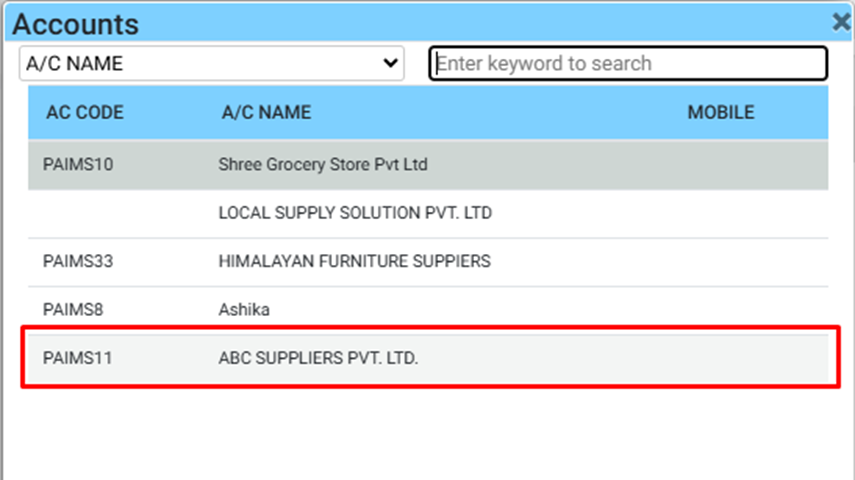
11. From the Pop Up list, search or select the appropriate ledger account for the transaction, For EG: ABC SUPPLIERS PVT. LTD.
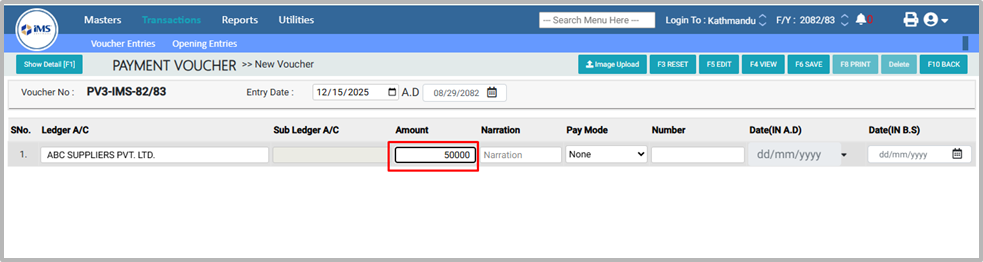
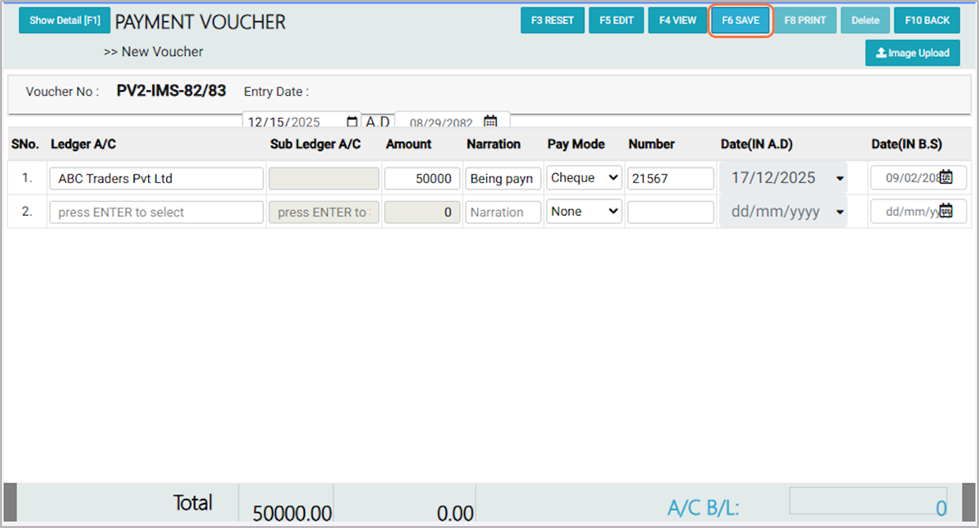
12. In the Amount field, Enter the transaction amount to be recorded in the voucher. For EG: 50000
13. In the Narration field, enter a brief description of the transaction for future reference (e.g., Being payment made to ABC SUPPLIERS PVT. LTD. through cheque).
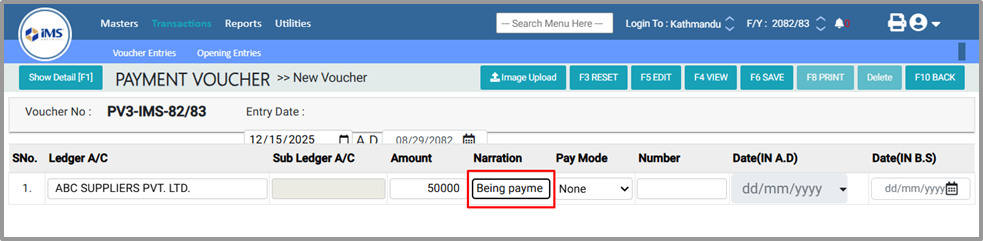
14. In the Pay Mode field, select the appropriate payment method from the available options:
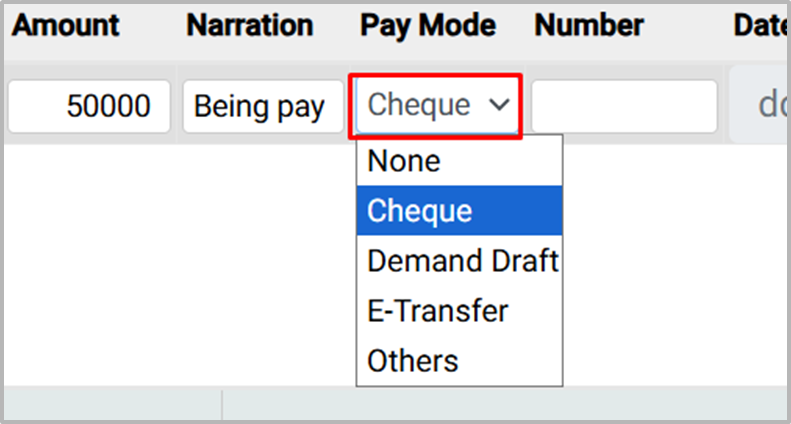
- None – No specific payment mode; used for internal adjustments or cashless entries.
- Cheque – Payment made using a bank cheque.
- Demand Draft – Payment made via a bank-issued demand draft.
- E-Transfer – Payment made through electronic transfer (online banking).
- Others – Any other mode of payment not listed above.
For this transaction, select Cheque as the payment mode.
For this transaction, select Cheque as the payment mode.
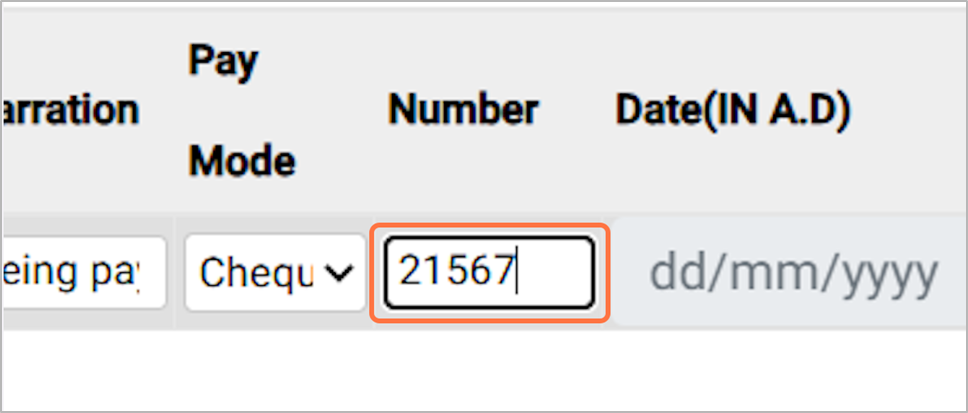
15. Enter the Cheque number, For Eg: 21567
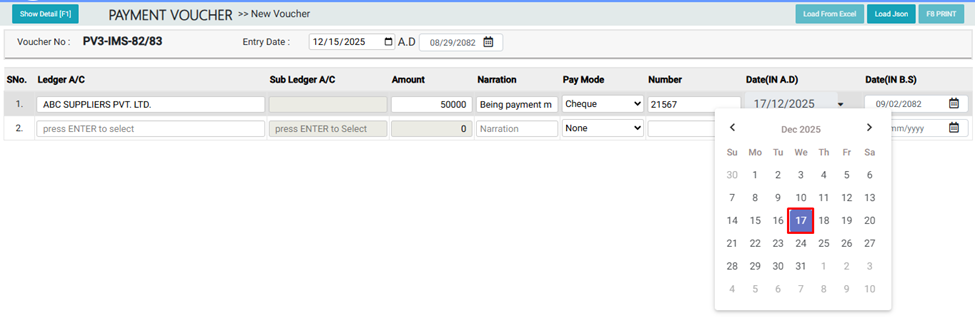
16. In the Cheque Date field, Select the date exactly as mentioned on the cheque, EG: 2025-12-17
17. After entering all required details, click the Save button to record the voucher
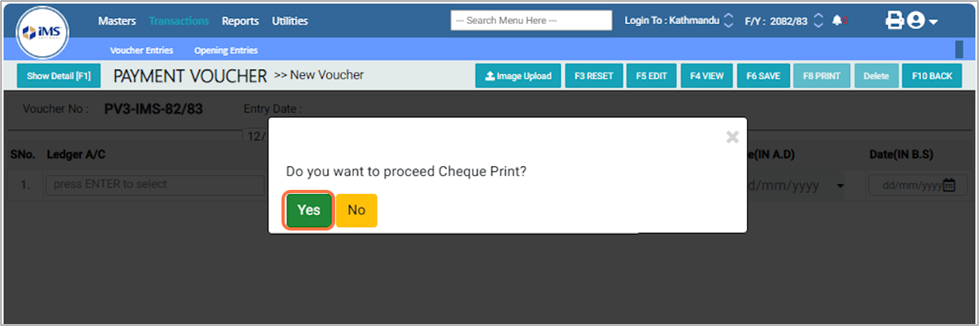
18. message: “Do you want to proceed with cheque print?”Click OK to continue the cheque printing process.
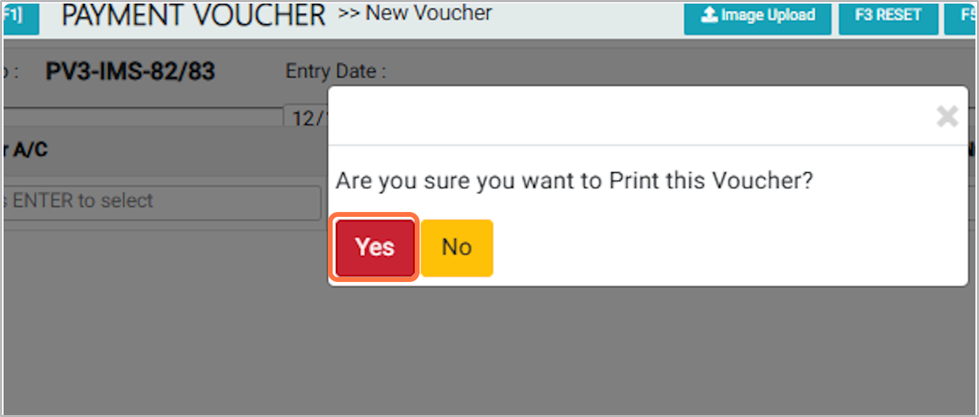
19. The message : “Are you sure you want to print this voucher?”Click OK to proceed with printing the voucher.
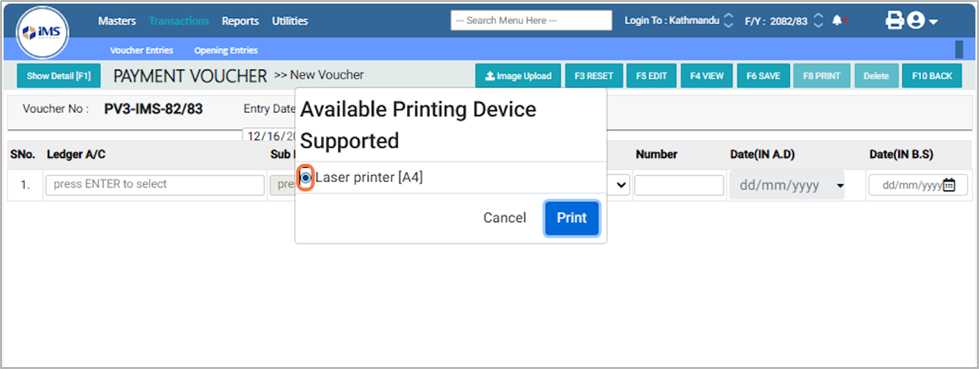
20. In the Available Printing Device Supported option, Choose the option as your need and then click the Print button, For EG: Laser Printer [A4]
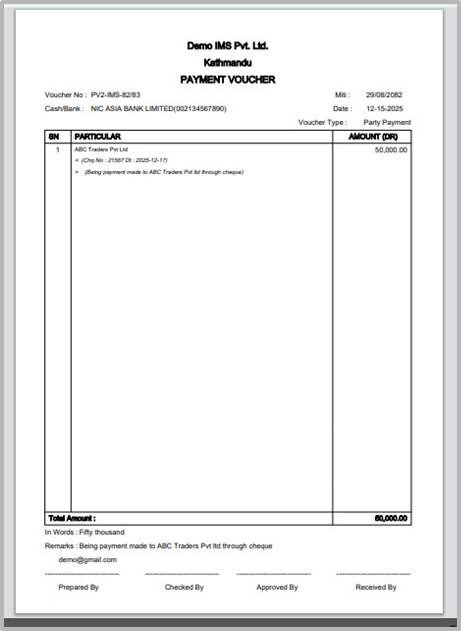
21. Voucher Print Format – Sample