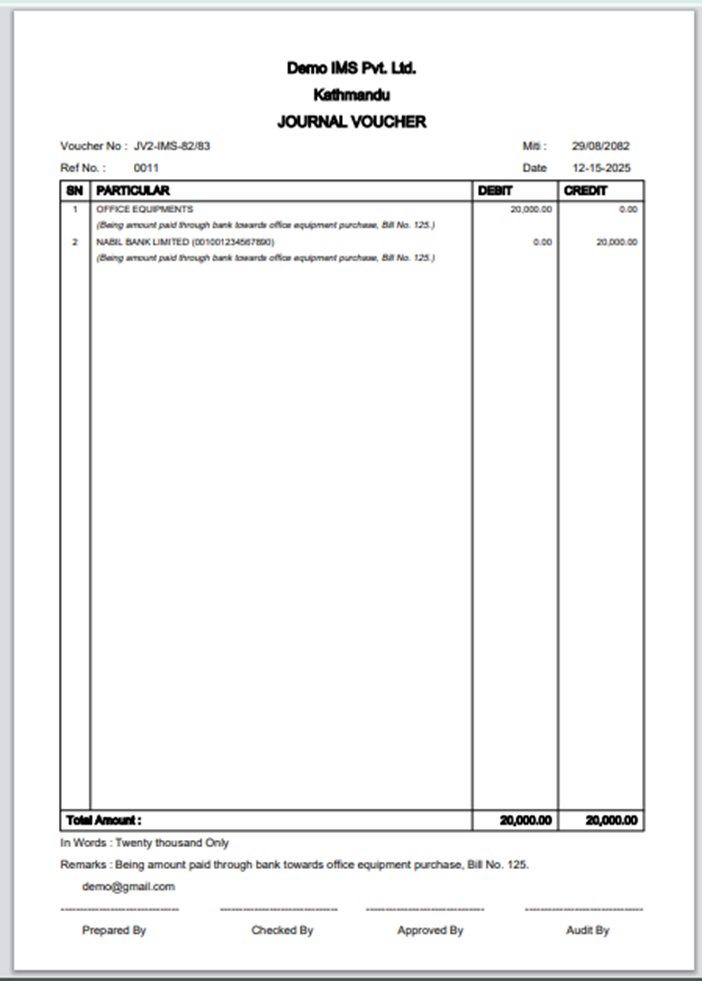
|
clipboard-202601221113-karam.png (592 KB)
clipboard-202601221113-karam.png |
|
Sujata Khatri, 01/22/2026 05:28 AM
|
|
|
clipboard-202601221113-n5u4k.png (414 KB)
clipboard-202601221113-n5u4k.png |
|
Sujata Khatri, 01/22/2026 05:28 AM
|
|
|
clipboard-202601221113-ak46w.png (335 KB)
clipboard-202601221113-ak46w.png |
|
Sujata Khatri, 01/22/2026 05:28 AM
|
|
|
clipboard-202601221113-wy7km.png (161 KB)
clipboard-202601221113-wy7km.png |
|
Sujata Khatri, 01/22/2026 05:28 AM
|
|
|
clipboard-202601221113-4trx1.png (85.9 KB)
clipboard-202601221113-4trx1.png |
|
Sujata Khatri, 01/22/2026 05:28 AM
|
|
|
clipboard-202601221113-vfbzo.png (77.2 KB)
clipboard-202601221113-vfbzo.png |
|
Sujata Khatri, 01/22/2026 05:28 AM
|
|
|
clipboard-202601221113-vupeo.png (122 KB)
clipboard-202601221113-vupeo.png |
|
Sujata Khatri, 01/22/2026 05:28 AM
|
|
|
clipboard-202601221114-7raep.png (78.5 KB)
clipboard-202601221114-7raep.png |
|
Sujata Khatri, 01/22/2026 05:29 AM
|
|
|
clipboard-202601221114-sfwar.png (82.6 KB)
clipboard-202601221114-sfwar.png |
|
Sujata Khatri, 01/22/2026 05:29 AM
|
|
|
clipboard-202601221114-il6at.png (85.3 KB)
clipboard-202601221114-il6at.png |
|
Sujata Khatri, 01/22/2026 05:29 AM
|
|
|
clipboard-202601221114-uoejc.png (68.1 KB)
clipboard-202601221114-uoejc.png |
|
Sujata Khatri, 01/22/2026 05:29 AM
|
|
|
clipboard-202601221115-dhoi9.png (142 KB)
clipboard-202601221115-dhoi9.png |
|
Sujata Khatri, 01/22/2026 05:30 AM
|
|
|
clipboard-202601221115-z92sv.png (94.6 KB)
clipboard-202601221115-z92sv.png |
|
Sujata Khatri, 01/22/2026 05:30 AM
|
|
|
clipboard-202601221116-wok6q.png (73.7 KB)
clipboard-202601221116-wok6q.png |
|
Sujata Khatri, 01/22/2026 05:31 AM
|
|
|
clipboard-202601221116-phqmc.png (106 KB)
clipboard-202601221116-phqmc.png |
|
Sujata Khatri, 01/22/2026 05:31 AM
|
|
|
clipboard-202601221116-n16tu.png (90.3 KB)
clipboard-202601221116-n16tu.png |
|
Sujata Khatri, 01/22/2026 05:31 AM
|
|
|
clipboard-202601221116-bh97q.png (97.7 KB)
clipboard-202601221116-bh97q.png |
|
Sujata Khatri, 01/22/2026 05:31 AM
|
|
|
clipboard-202601221116-vdpp0.png (125 KB)
clipboard-202601221116-vdpp0.png |
|
Sujata Khatri, 01/22/2026 05:31 AM
|
|