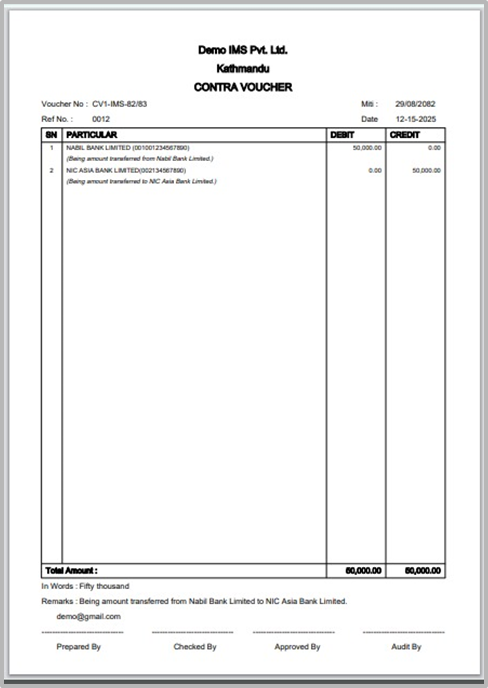
Steps to Create a Contra Voucher
A Contra Voucher is a type of accounting voucher used to record cash and bank transactions that involve transfers within the company’s own accounts.
It is mainly used for cash-to-bank, bank-to-cash, or bank-to-bank transfers.
Steps to Create a Contra Voucher :
1. Click On The Transactions From Main Menu
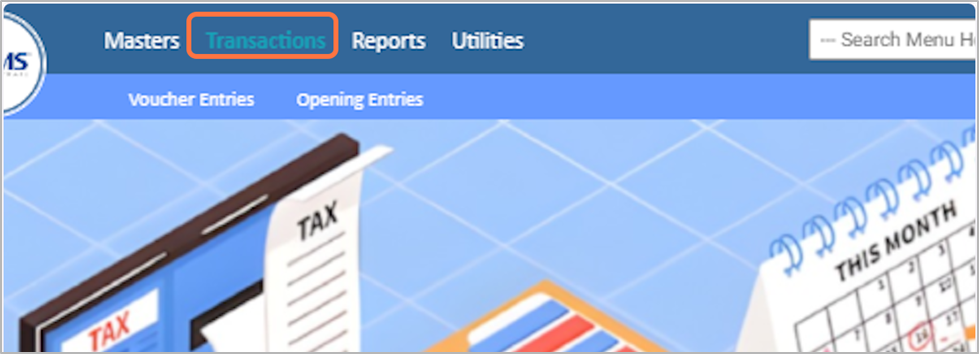
2. Click on the Voucher Entries
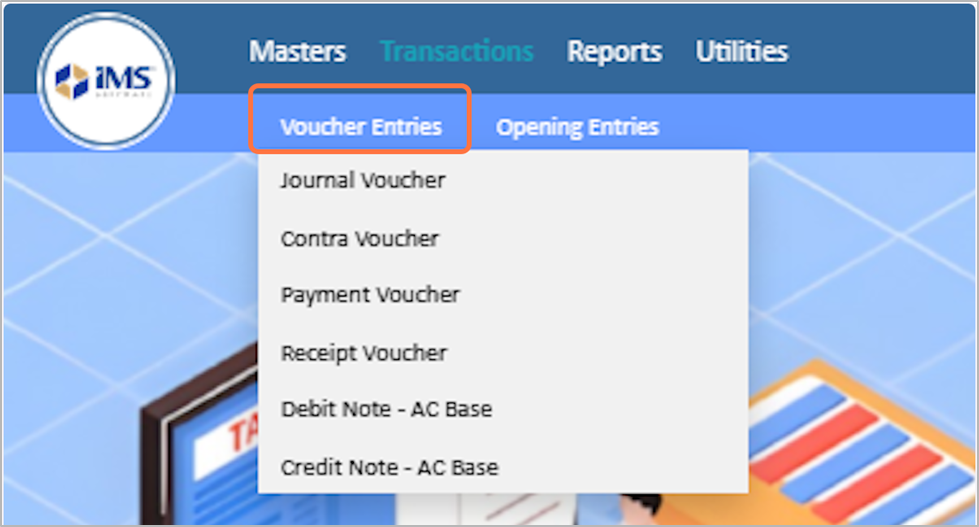
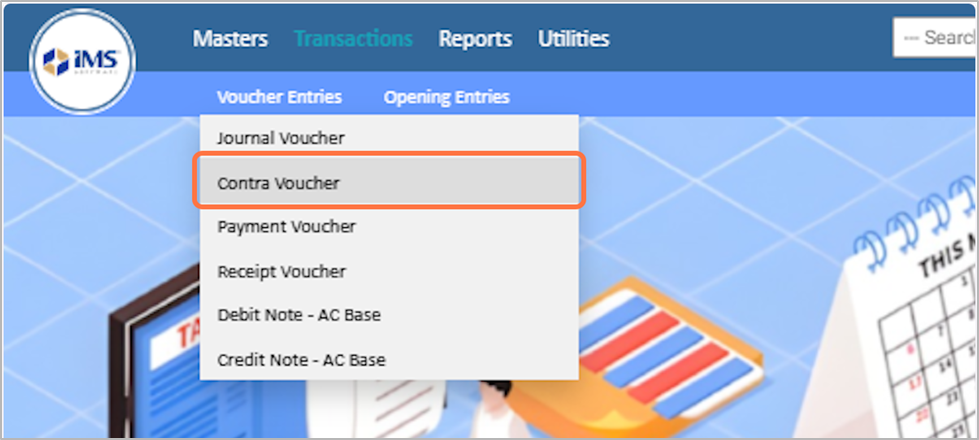
3. Choose the Contra Voucher option from the dropdown menu.
4. Enter the Voucher Entry Date, For Eg: 2025-12-01
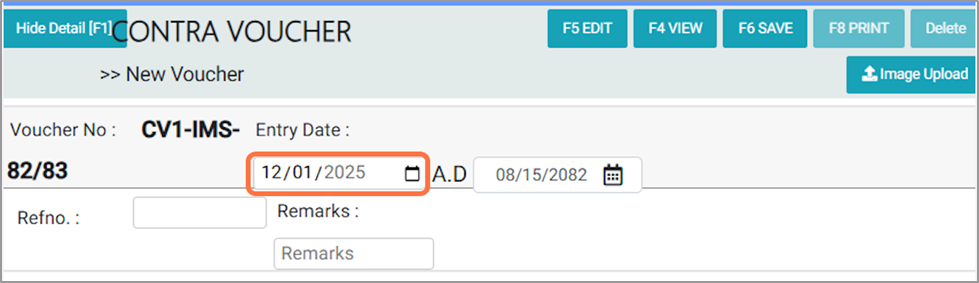
5. Enter the Reference Number Of Voucher(RefNO), For Eg: 0012
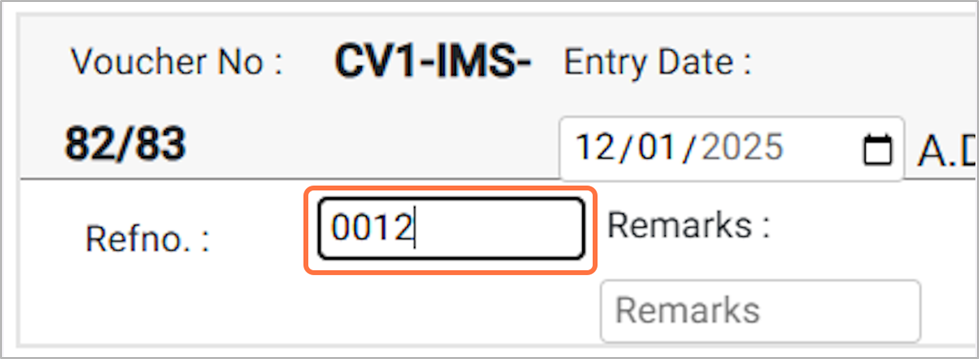
6. Enter remarks to explain the contra voucher transaction (e.g., cash deposited to bank, cash withdrawn from bank, or bank-to-bank transfer), Example: Being amount transferred from Nabil Bank Limited to NIC Asia Bank Limited.
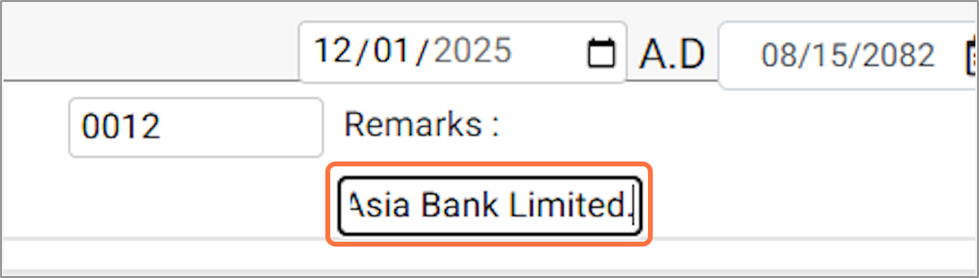
7. Press Enter in the Ledger A/C field.
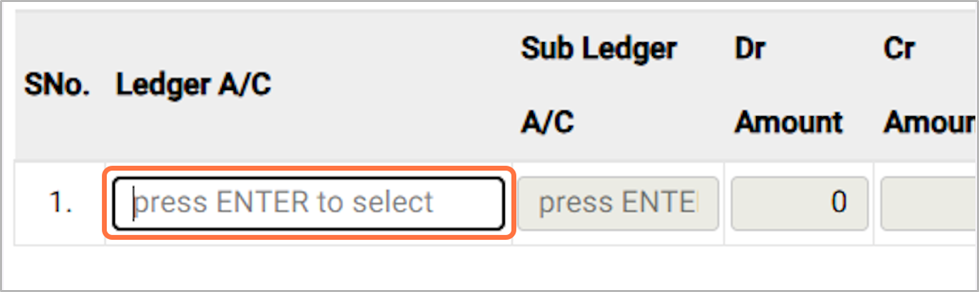
8. From the Account List pop-up, Search or choose the required ledger account, For Eg: NABIL BANK LIMITED (001001234567890)
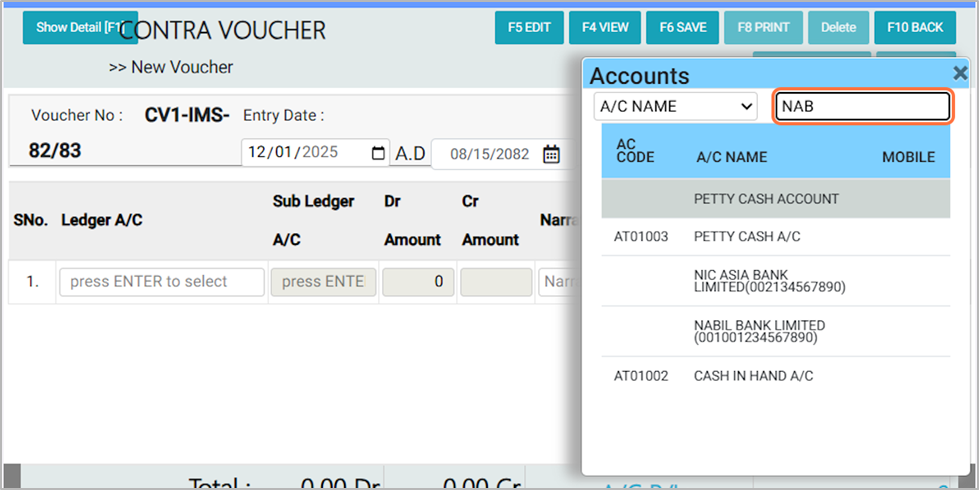
9. Enter the Debit (DR) amount for the selected account, For EG: 50000

10. In the Narration field, enter a description of the transaction (e.g., Being amount transferred from Nabil Bank Limited)
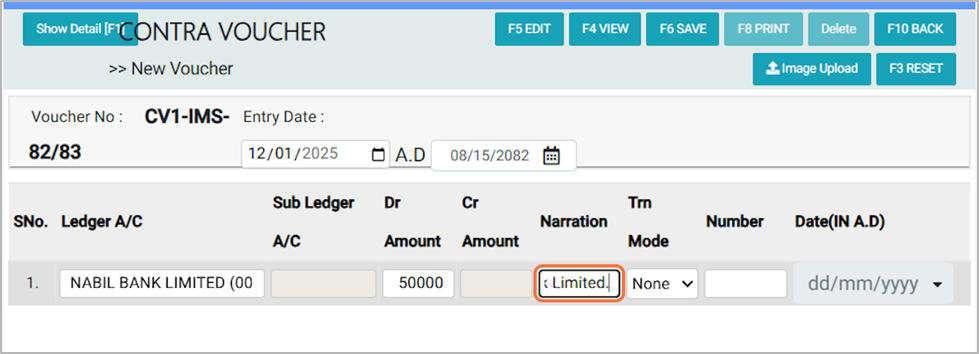
11. In the Trn Mode field, select the appropriate option from the available Choices:
- None – No specific payment mode; used for internal adjustments or cashless entries.
- Cheque – Payment made using a bank cheque.
- Demand Draft – Payment made via a bank-issued demand draft.
- E-Transfer – Payment made through electronic transfer (online banking).
- Others – Any other mode of payment not listed above.
For this transaction, select Cheque as the payment mode.
For this transaction, select Cheque as the payment mode.
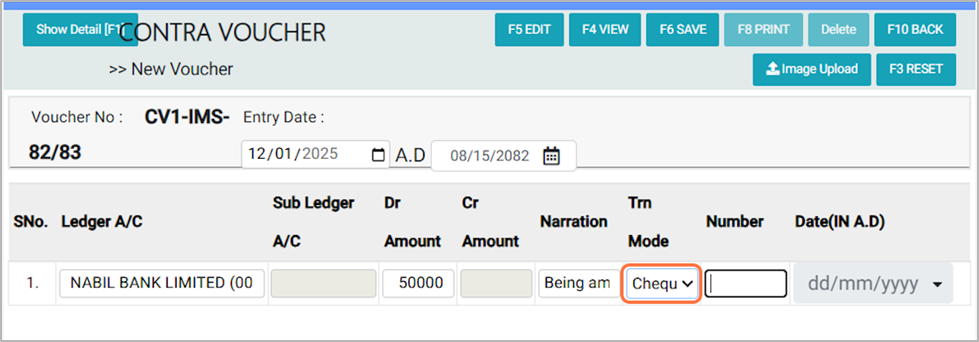
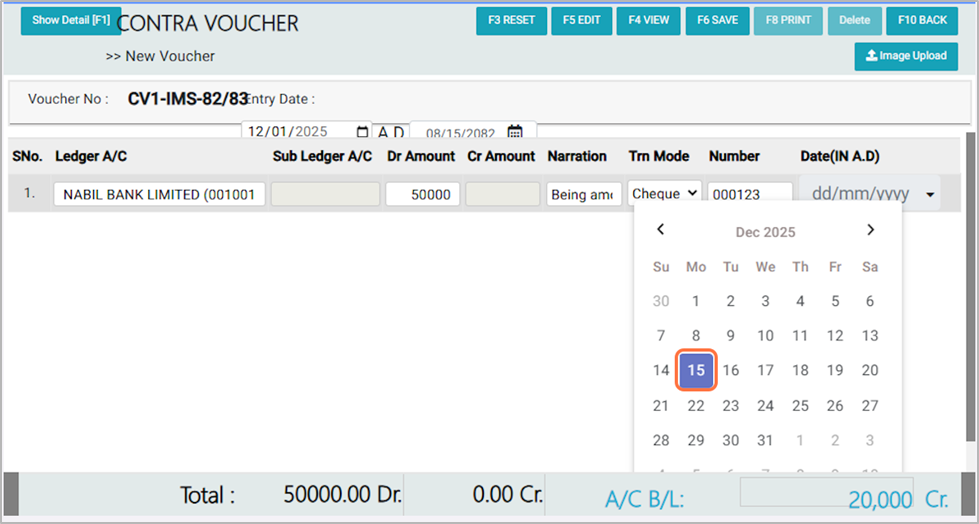
12. Enter the Cheque Number, for Eg: 000123
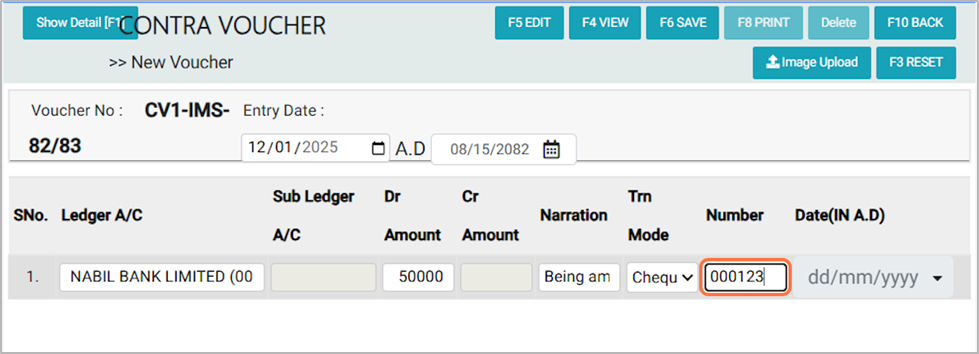
13. In the Date (AD) field, Choose the cheque issue date.
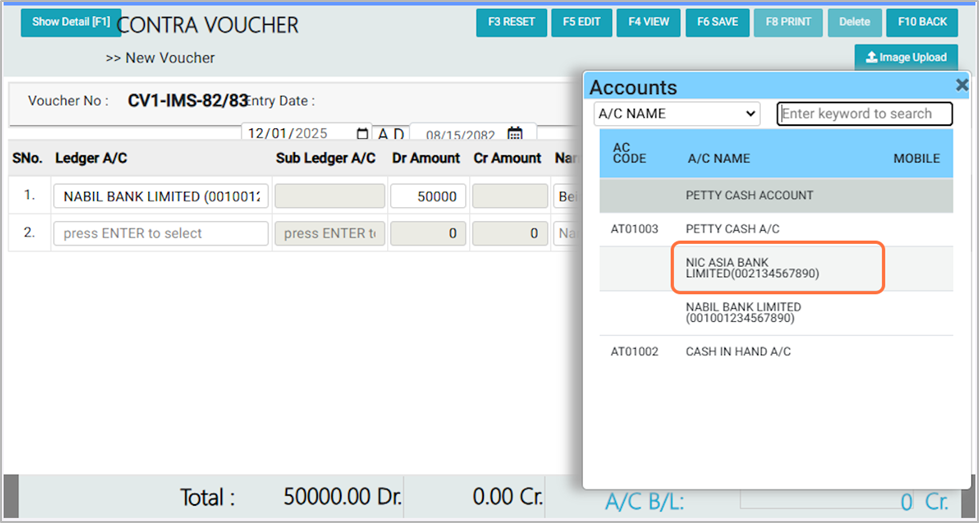
14. Click on the Ledger Account field and press Enter. From the account list, search or select the account name, For EG: NIC ASIA BANK LIMITED
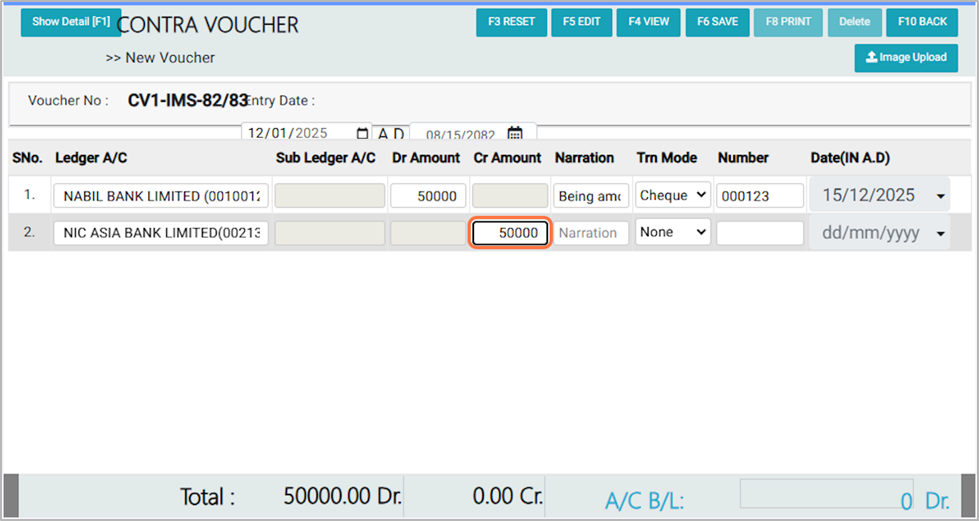
15. Enter the Credit (CR) amount for the selected ledger account. It must be equal to the Debit (DR) amount, for EG: 50000
16. In the Narration field, enter a description of the transaction (e.g., Being amount transferred to NIC Asia Bank Limited)
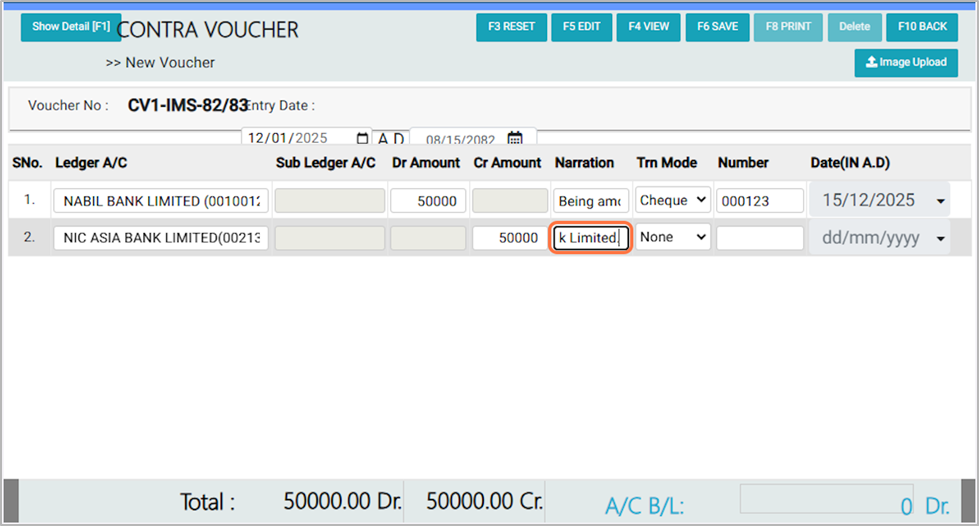
17. In the Trn Mode field, select the “Cheque” option from the available options.
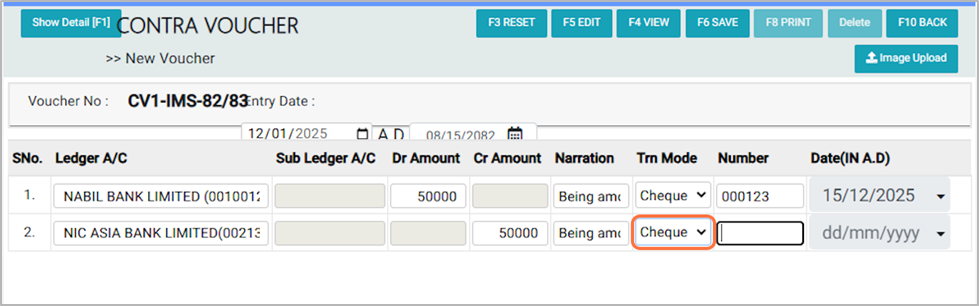
18. Enter the Cheque Number, For EG: 000123
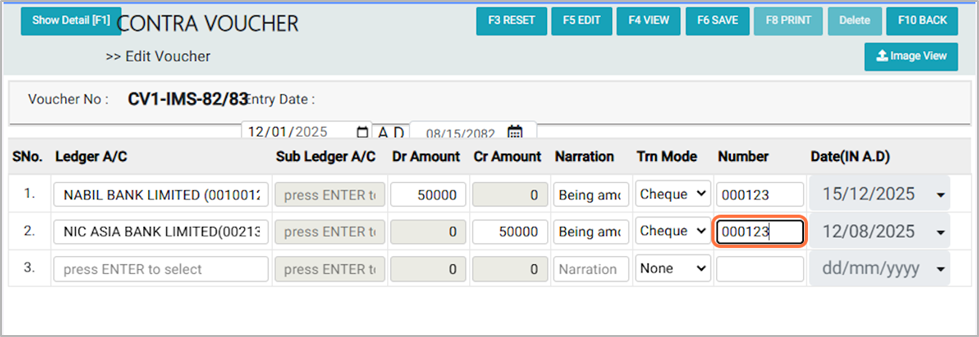
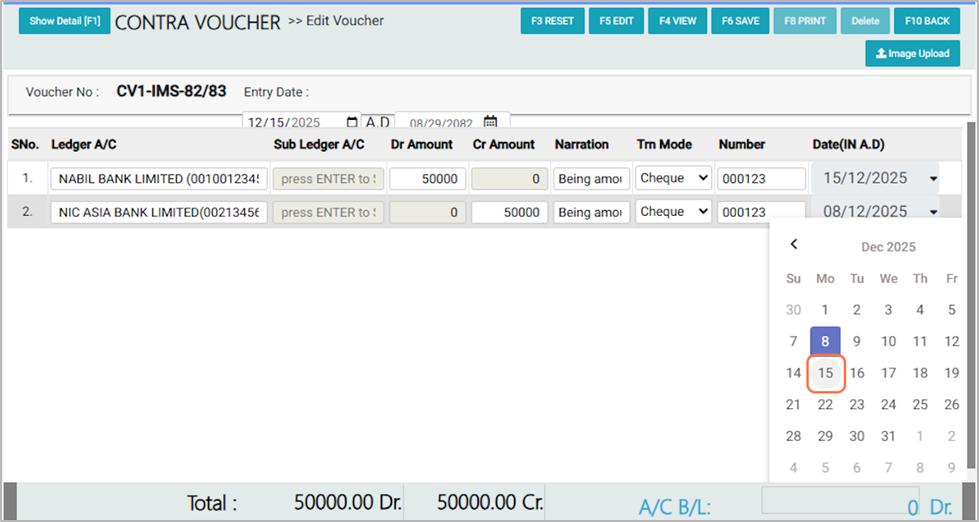
19. In the Date (AD) field, Select the date exactly as mentioned on the cheque
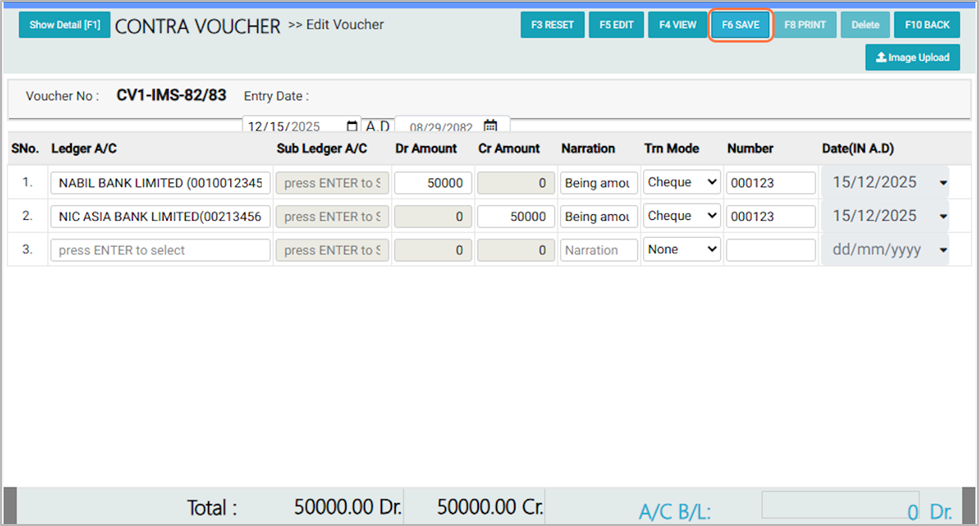
20. Click on The F6 or SAVE Button for save the Contra Voucher Entry.
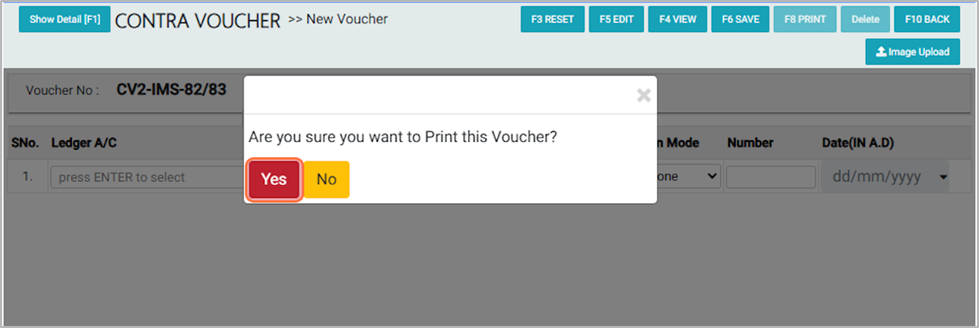
21. A confirmation pop-up will appear asking, "Are you sure you want to print this voucher?" Click Yes to print the voucher, or No to cancel the action.
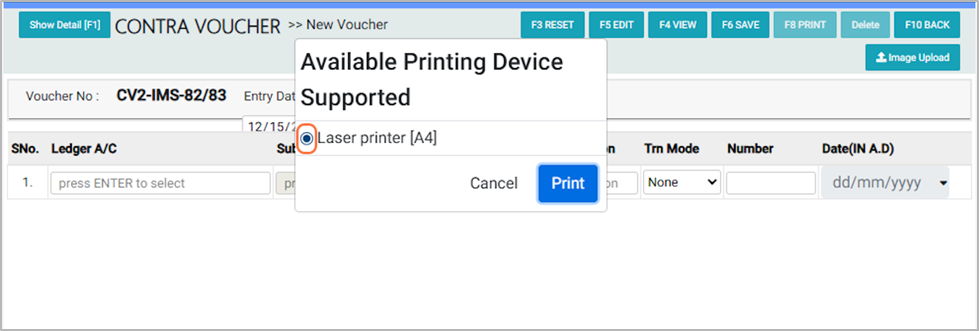
22. In the Available Printing Device Supported option, select the Laser Printer [F4] and then click the Print button.
23. Contra Voucher Transaction Bill Sample