Product Master is used to create and manage all product items in the system. It stores important details such as product name, item group, category, unit, pricing, and HS code. Correct product setup ensures accurate billing, stock management, reporting, and smooth inventory operations.
Click the link below to access the Product Master Bulk Upload Guide:
Click the link below to access the Bulk Product Update Guide.:
http://redmine.himshang.com.np:4000/projects/dashboard-overview/wiki/Product_Master_Update_Process
Steps to Create and Manage Products manually:
1. Go to the “Masters” menu
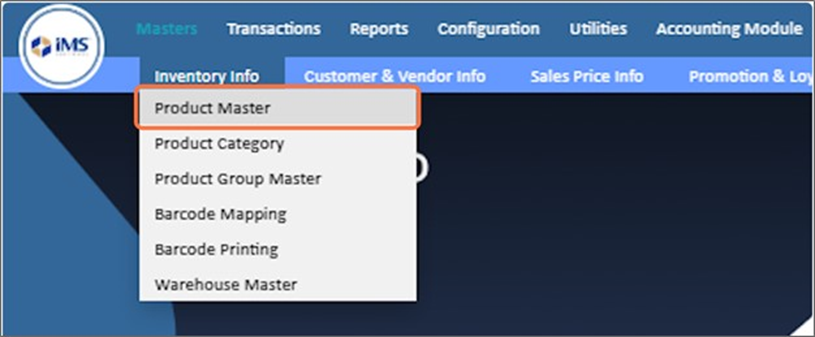
2. Click on "Inventory Info"
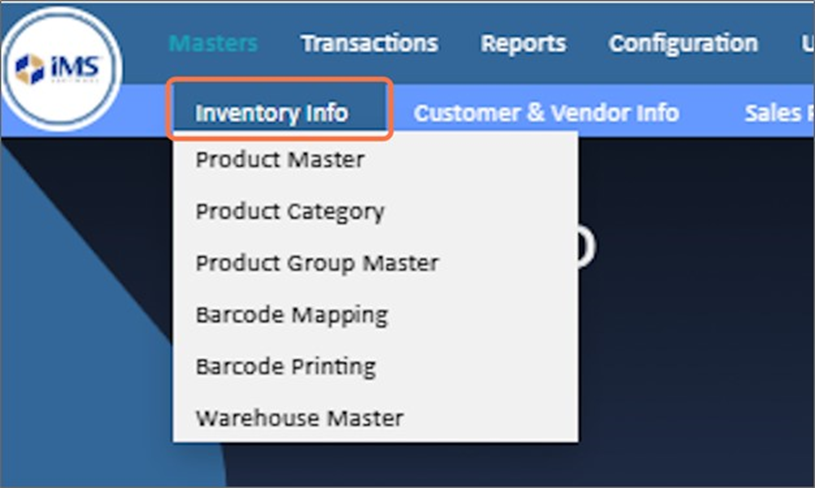
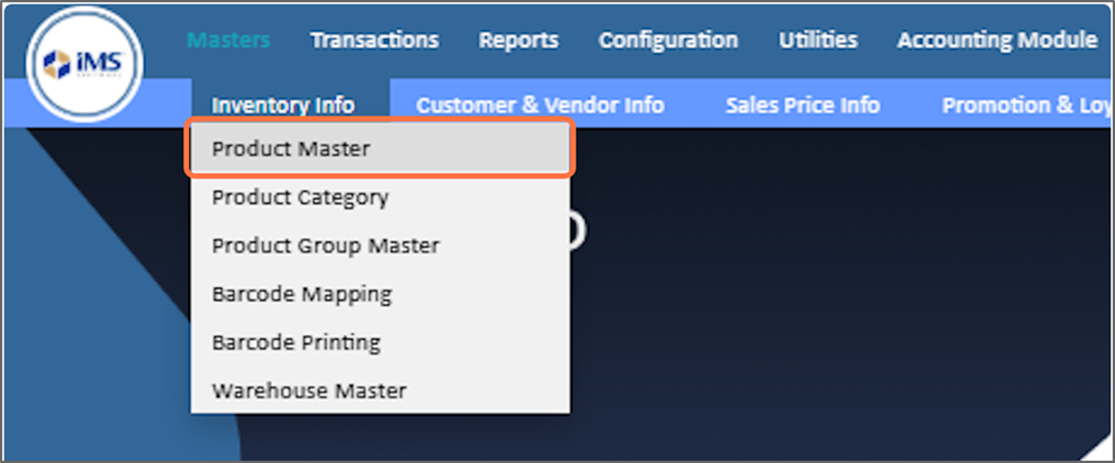
3. Select "Product Master"
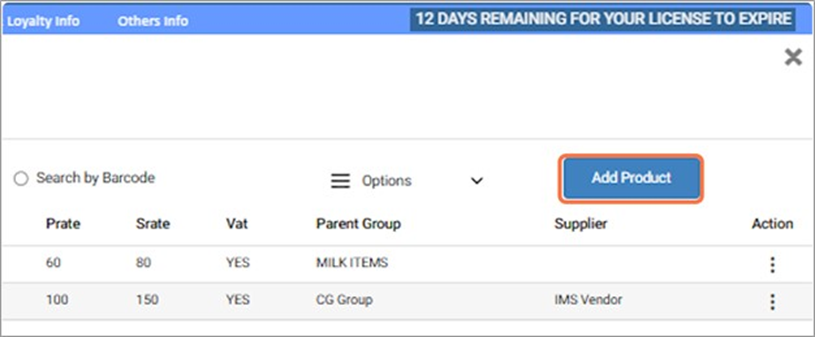
4. Click on “Add Product” and then select “Add Product”
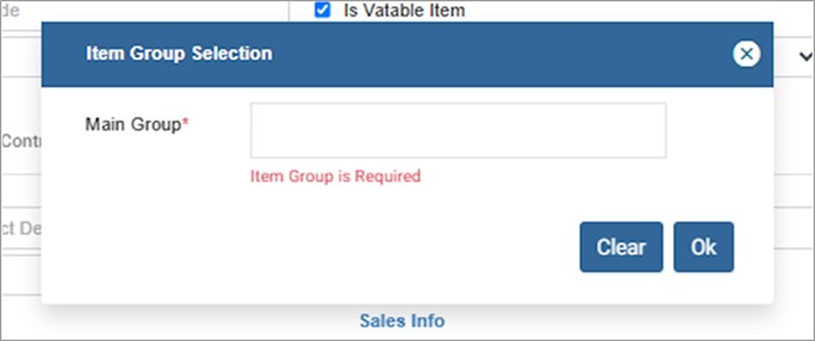
5. Click on the “Item Group” field and press Enter to select the desired item group.
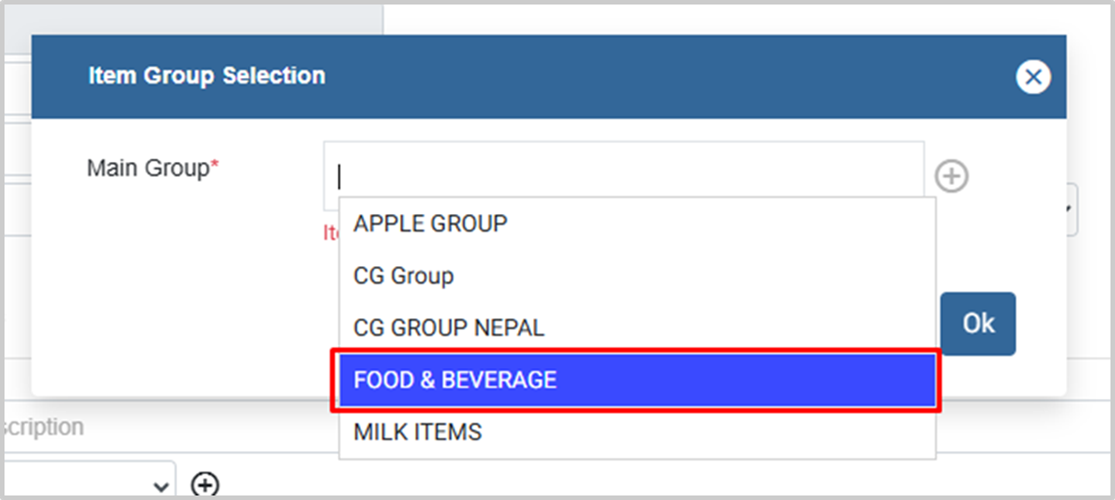
6. From the dropdown, select an item group from the main group list .
If you need to add a new group, click this link for guidance:
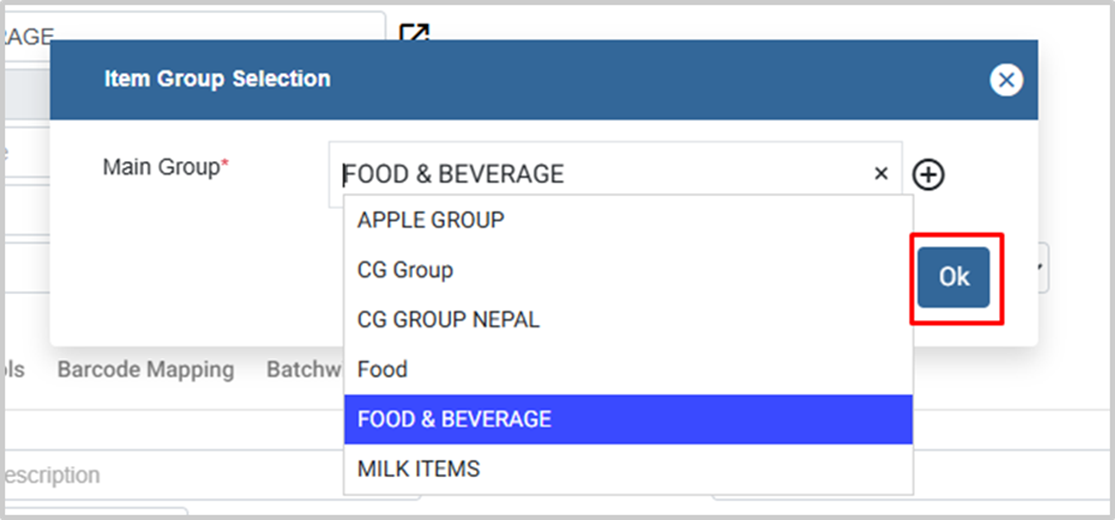
7. Click on “OK” to confirm your selection.
8. The Item Code field is automatically filled based on the selected main group. If the feature is enabled, you can manually enter or edit the item code.

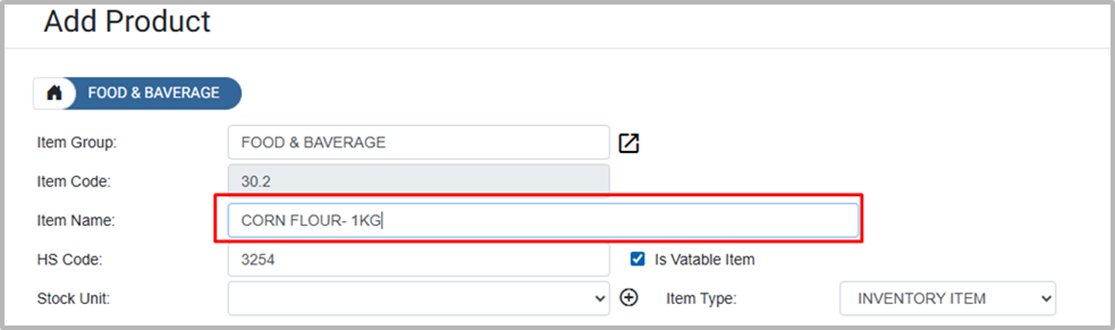
9. Enter the name of the product Eg: CORN FLOUR -1KG
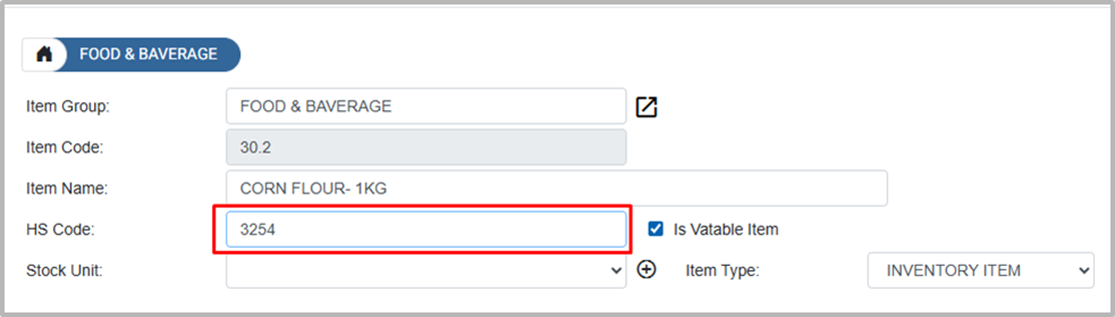
10. Enter the HS Code Eg: 3254
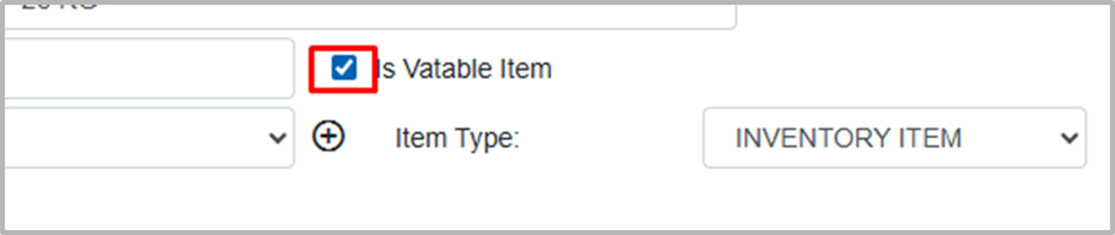
11. “Is Vatable Item” untick this if the product is nonvatable
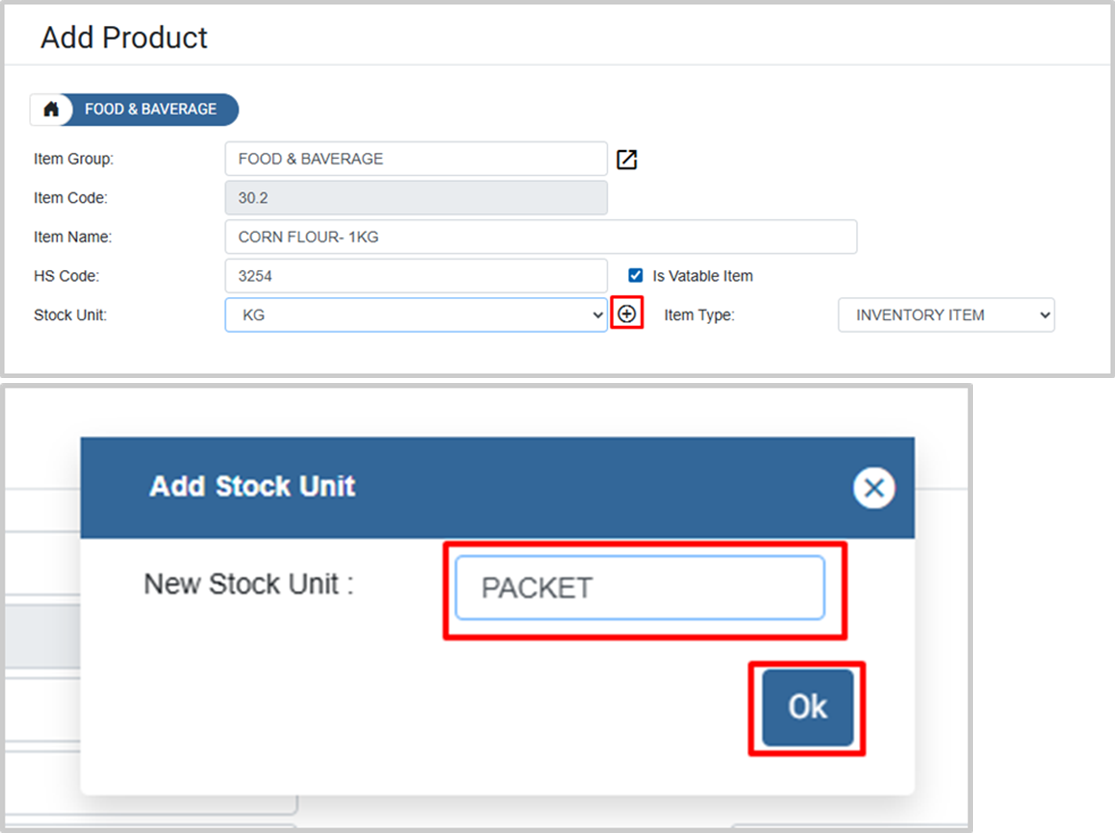
12. Select the Stock Unit from the available options. Eg: KG, PKT
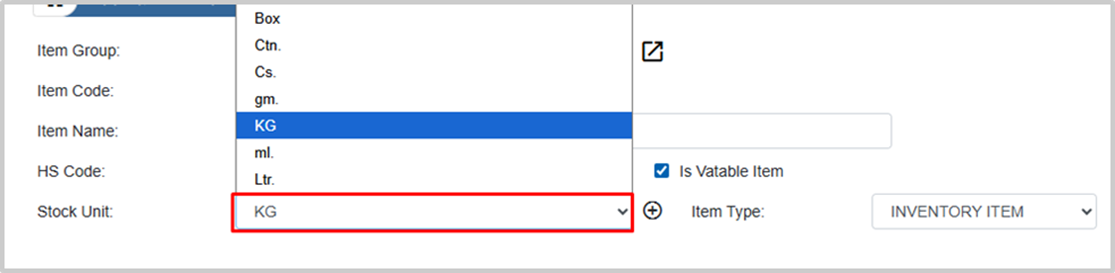
13. OR, To add a new unit, click the Add button, enter the unit name, and click OK.
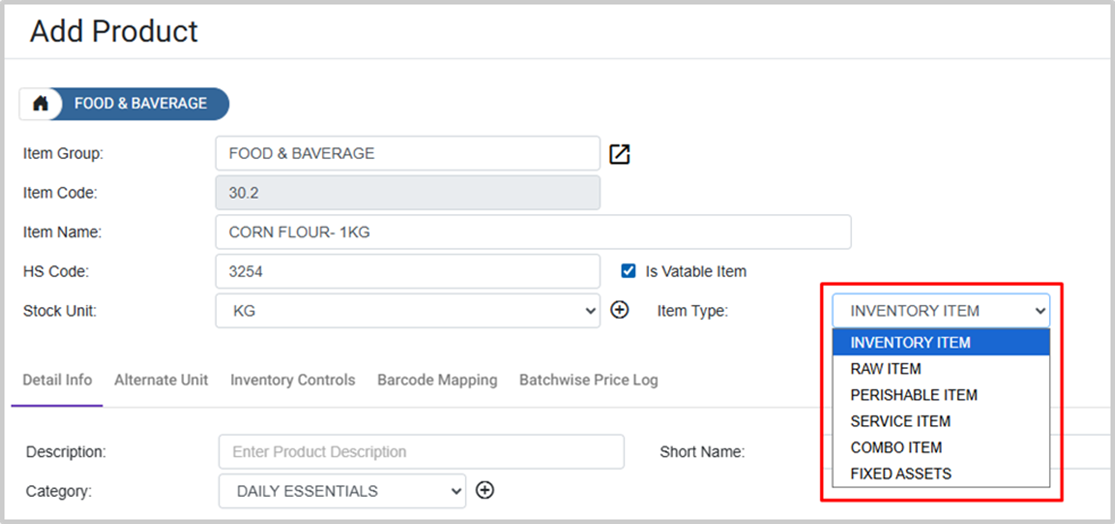
14. Select the Item Type from the dropdown:
- Inventory Item (Trading Item):Goods purchased and sold with a profit margin (e.g., Basmati Rice – 25 kg)
- Raw Item: Materials used to make other products, such as momos (e.g., wheat flour, salt, mince)
- Service Item: Non-stock items representing services (e.g., consultancy or legal fees)
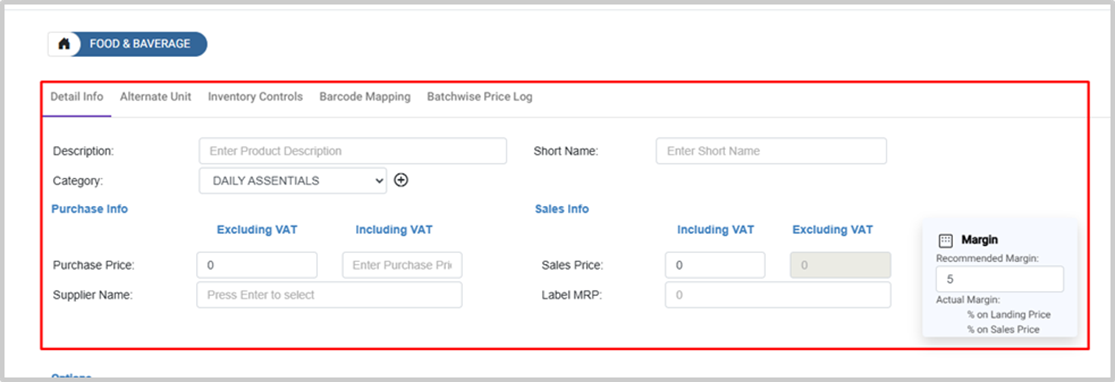
15. Click on "Detail Info"
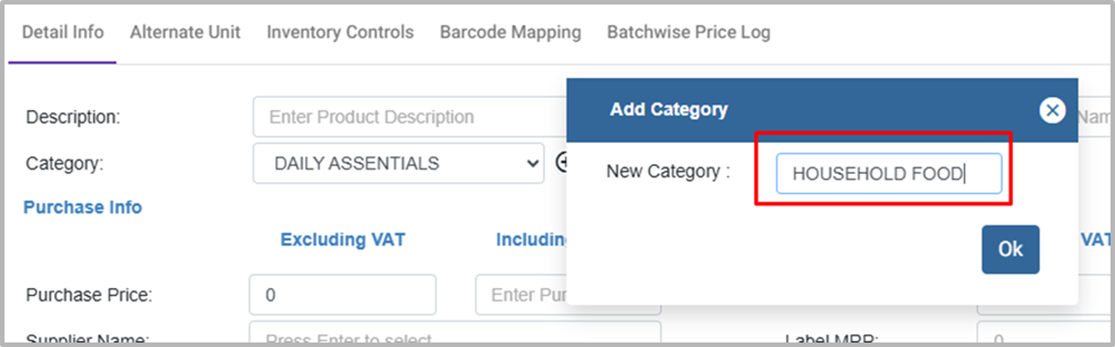
16. Select Or Click on the Add button if you want to create a "New Product Category".
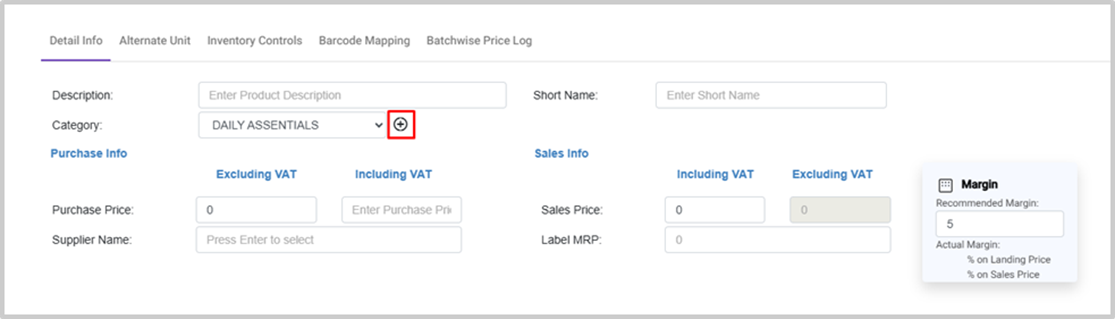
17. Enter the name of the new category and click “OK” to add it.
Eg: HOUSEHOLD FOOD
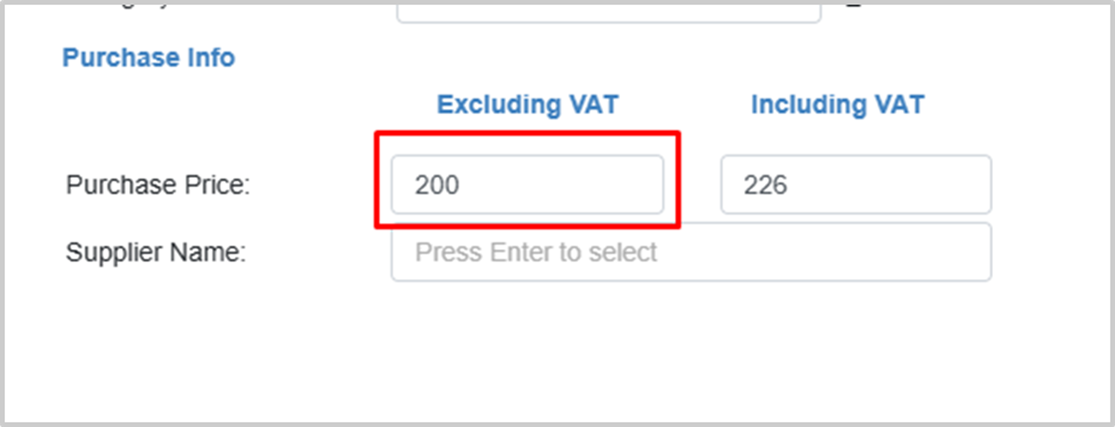
18.Enter the cost price of the product in the Purchase Price field. If you tick the "Is VAT-able Item" option, enter the VAT-exclusive price, and the system will automatically calculate the VAT-inclusive price. For non-VAT-able products, both prices will be the same. Eg: 200
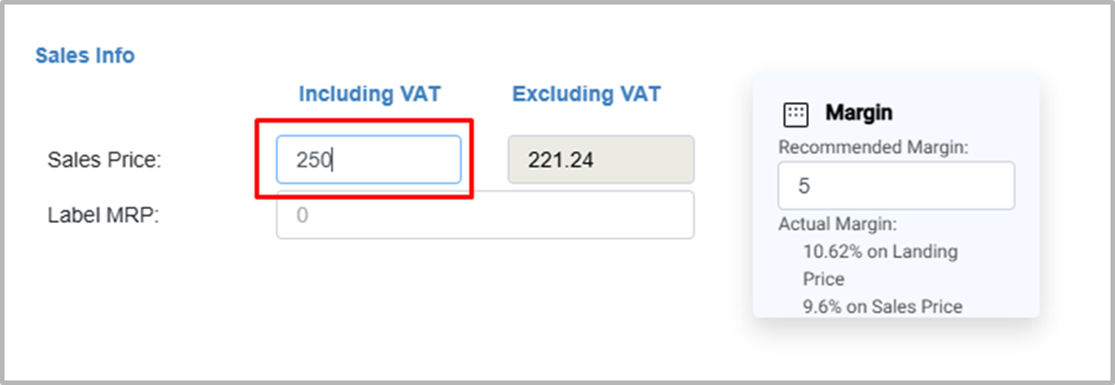
19. Enter the cost price of the product in the Sales Price field. If the "Is VAT-able Item" option is ticked, enter the VAT-exclusive price, and the system will automatically calculate the VAT-inclusive price. For non-VAT-able products, both prices will be the same. The Sales Price should always be higher than the Purchase Price. Eg: 250
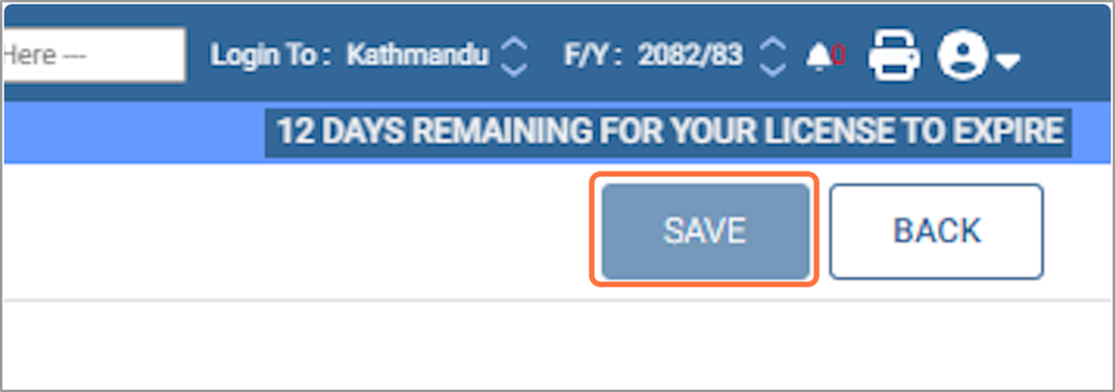
20. After entering all required details, click on the "SAVE" button to add the product to the system.
21. View, Edit, and Delete Products
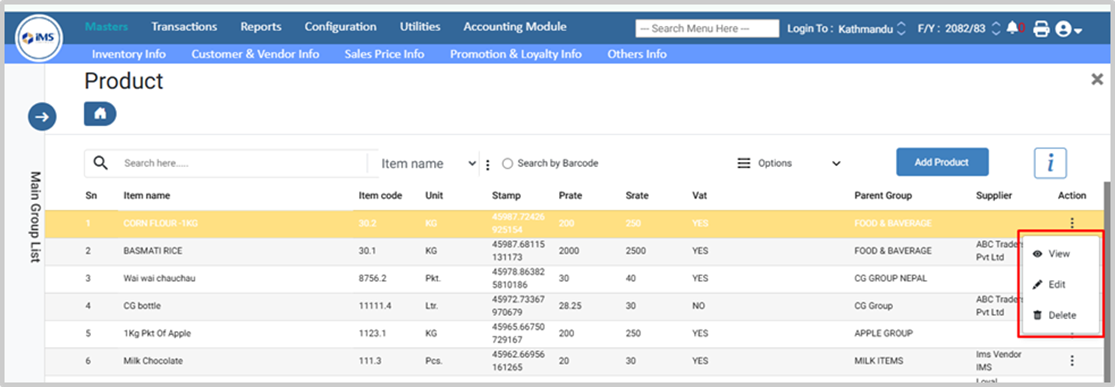
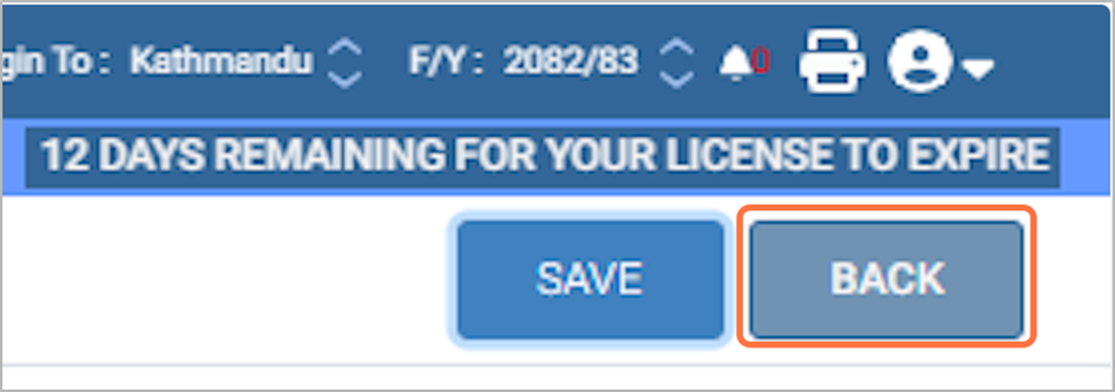
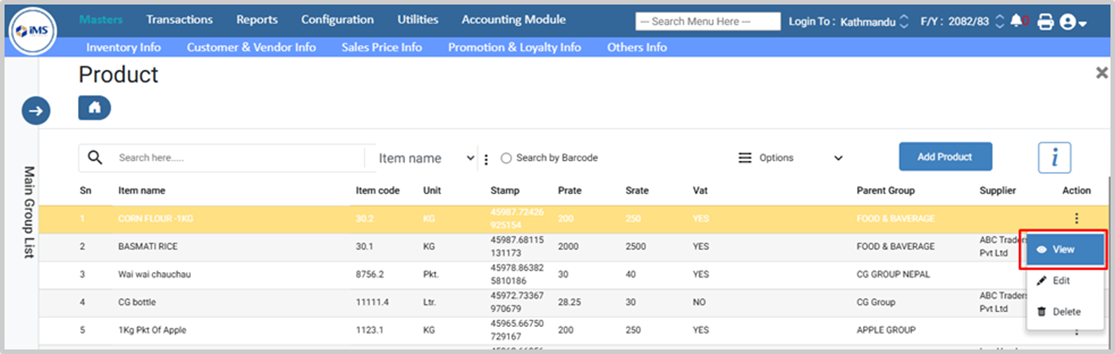
22. View Product: Click View, check the product details, and click Back to return to the dashboard.
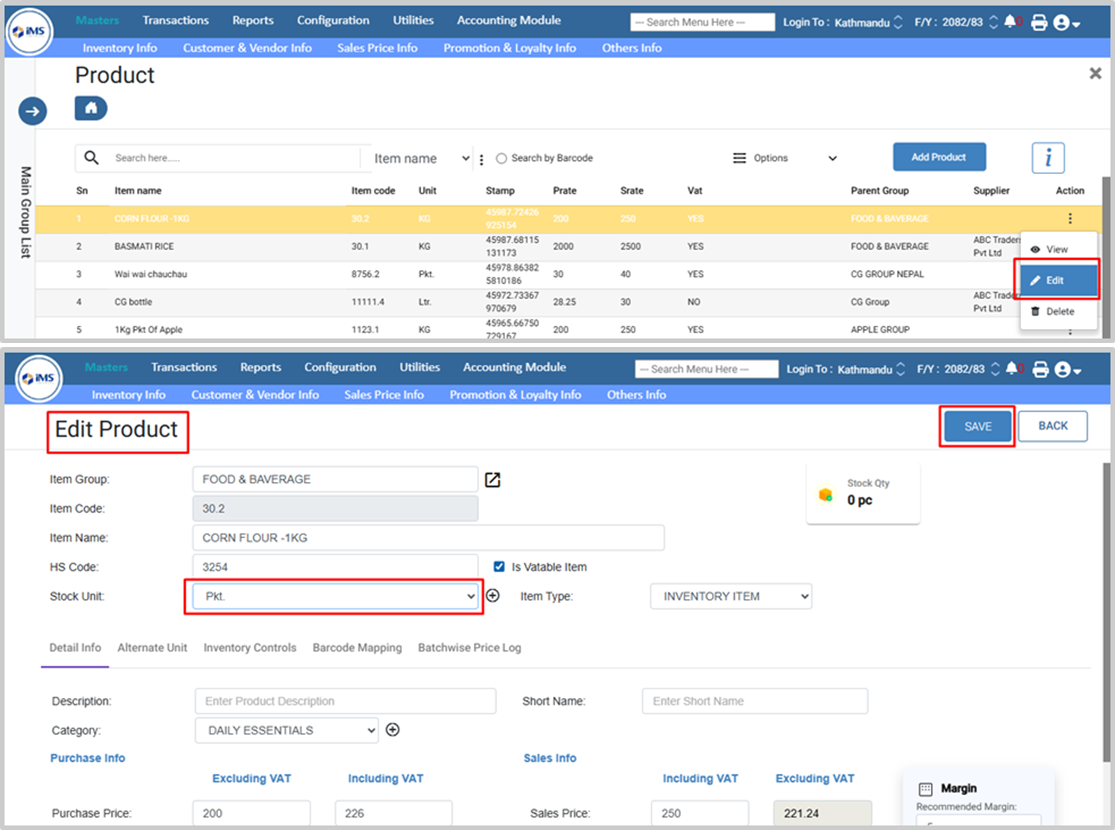
23.Edit Product: Click Edit, modify product details such as group, name, unit, or prices, and click Save.
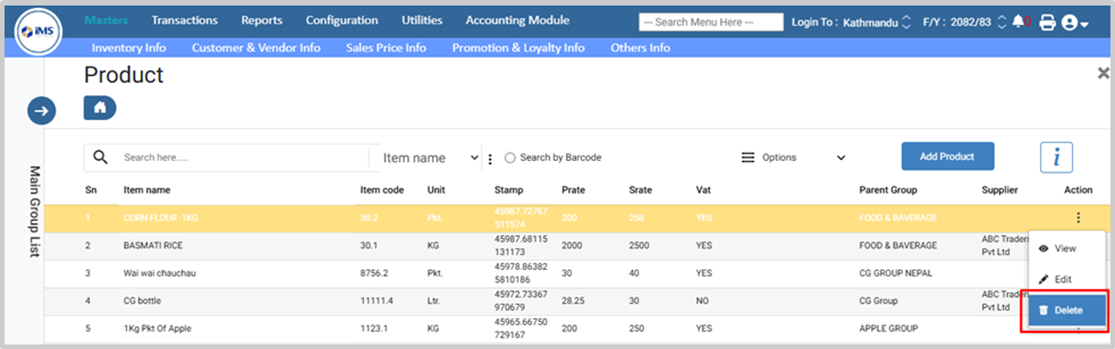
24. Delete Product: Click Delete, confirm by clicking OK to delete, or click Cancel to abort.
25. Click on the "BACK" button to return to the main screen