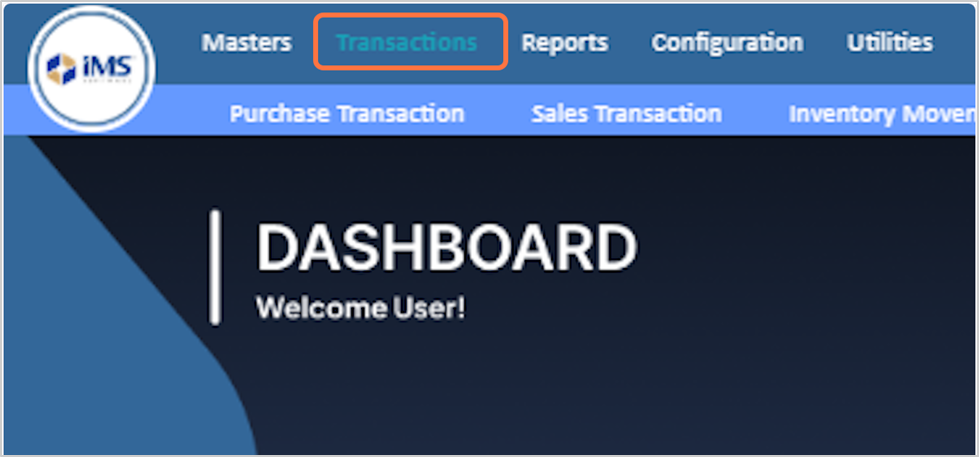
Stock Issue Return is used to return products either to the original warehouse or to another warehouse after they were issued. This process ensures accurate stock adjustments and proper tracking of returned items in each warehouse .
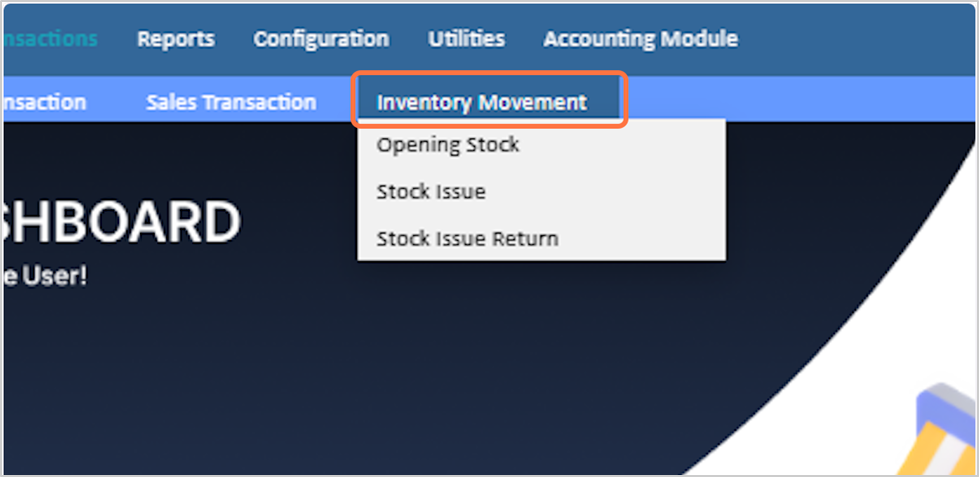
2. Select “Inventory Movement” from the menu options.
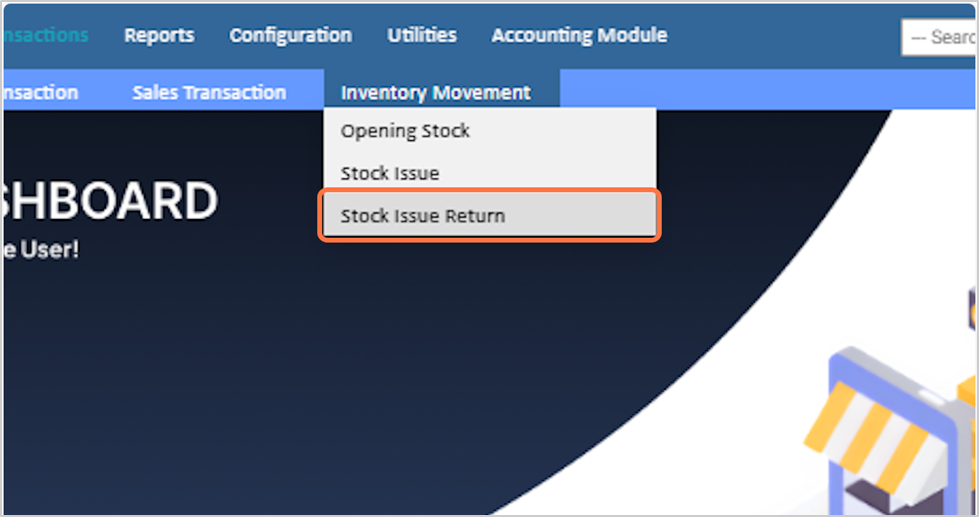
3. Choose “Stock Issue Return” from the dropdown list.
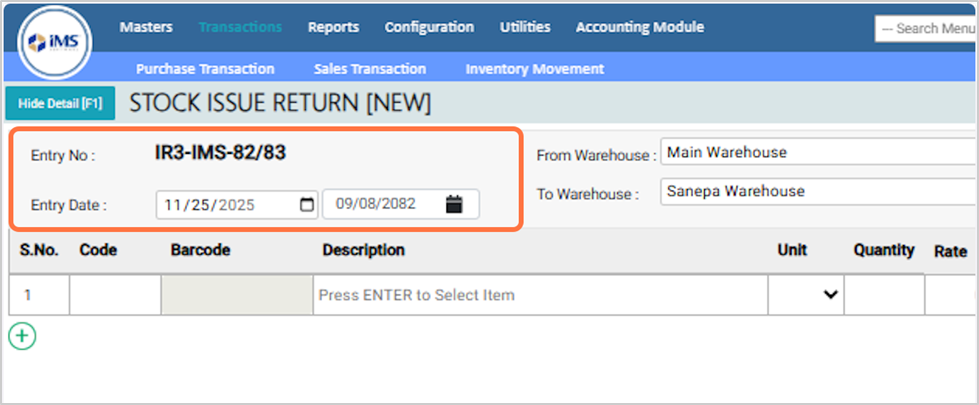
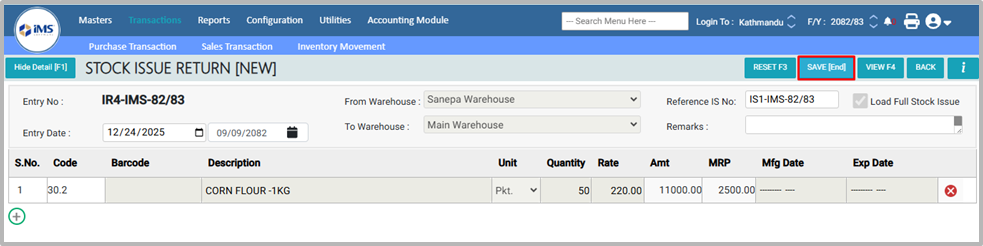
4. Verify the Entry date This is the date when the stock issued is Return. You can change the date if needed. Past dates are allowed, but future dates are not.
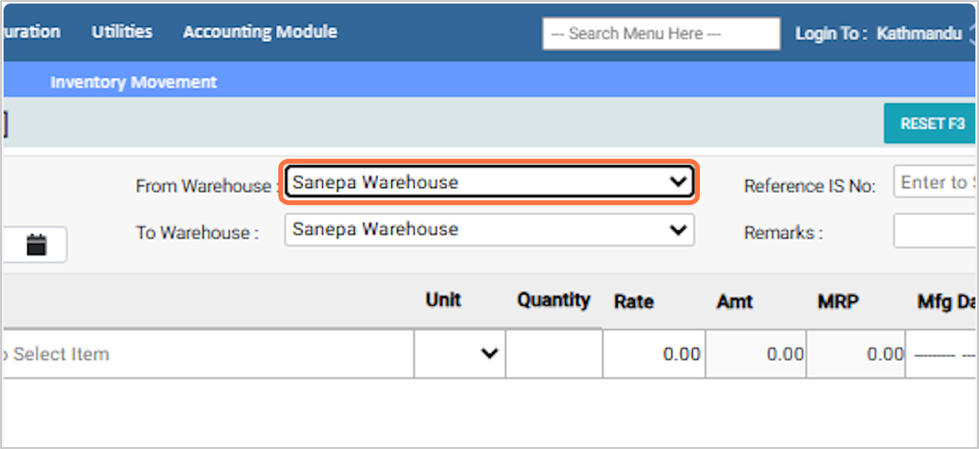
5. Select the “From Warehouse” (the warehouse from where the product was transferred). For Eg: Sanepa Warehouse
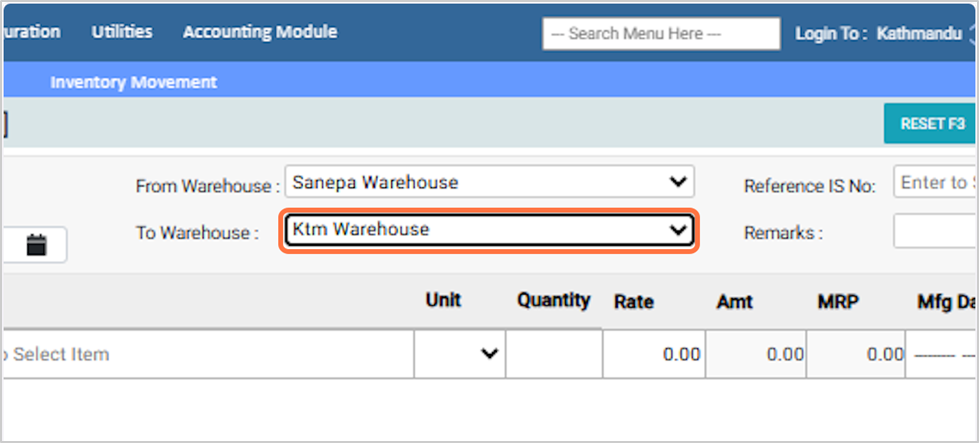
6. Select the “To Warehouse” where the product will be returned. For Eg: Ktm Warehouse
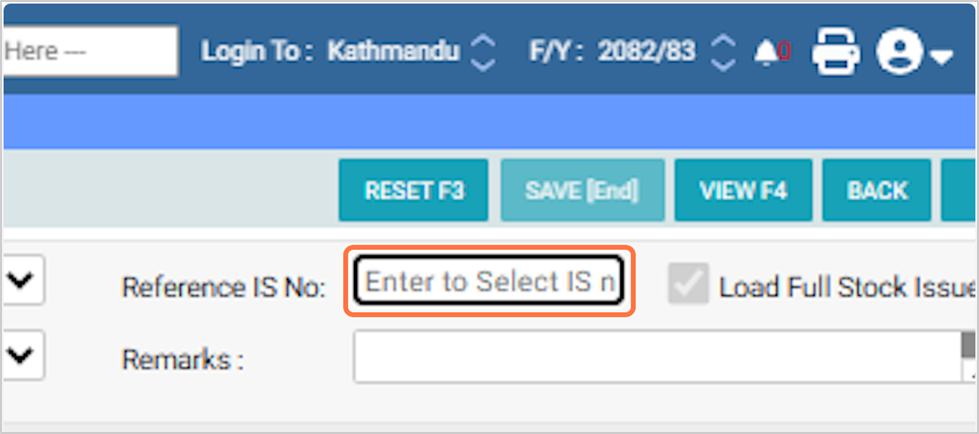
7. Click Enter the Stock Issue Voucher Number / Reference Stock issue (IS No.).
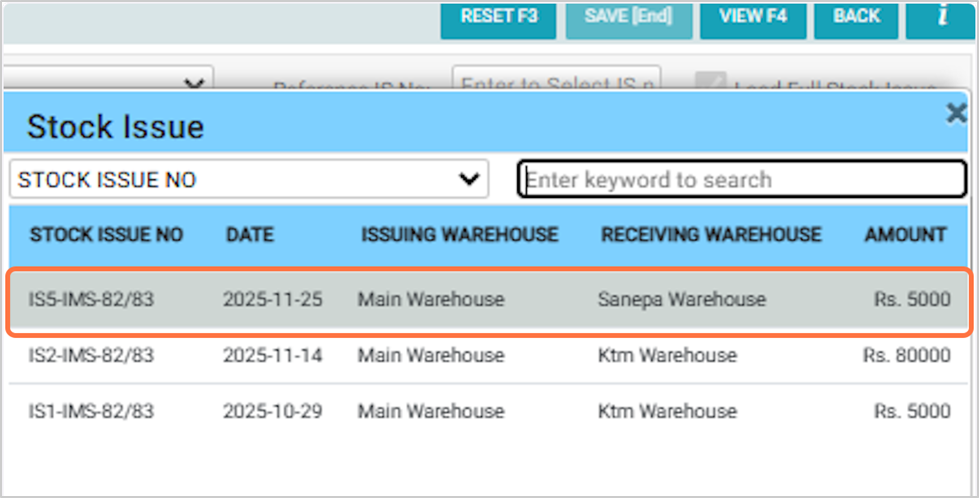
8.Select the Stock Issue Number you want to return.
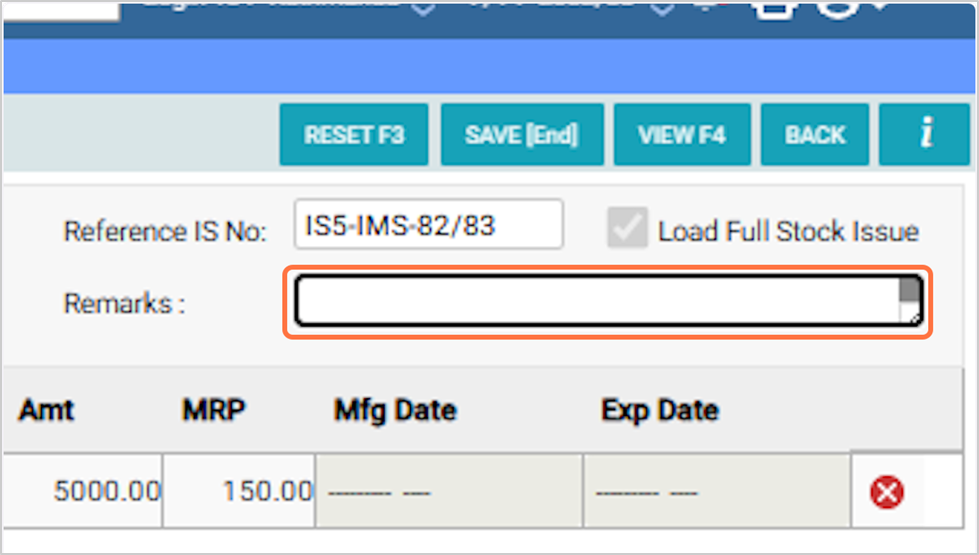
9. Add remarks if required (for example: “Stock issued in the wrong branch”).
10. Click on the “Save” button to record the stock issue return.
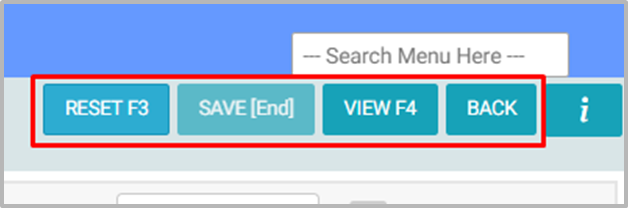
11. Button in the stock issue return Reset – Click the Reset button or press F3 to clear the form. View – Click the View button or press F4 to view stock issue return records. Back – Click the Back button to return to the previous screen.