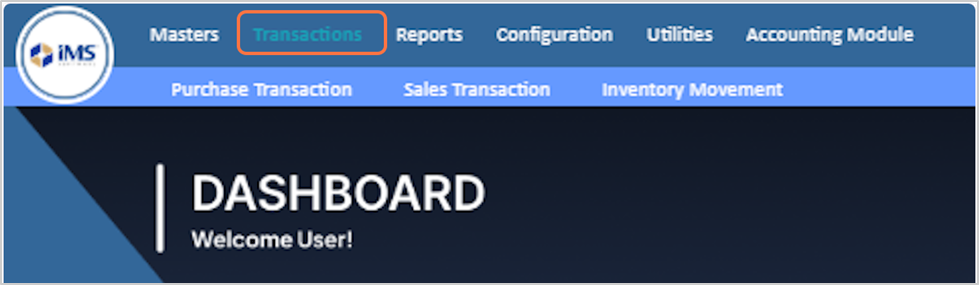
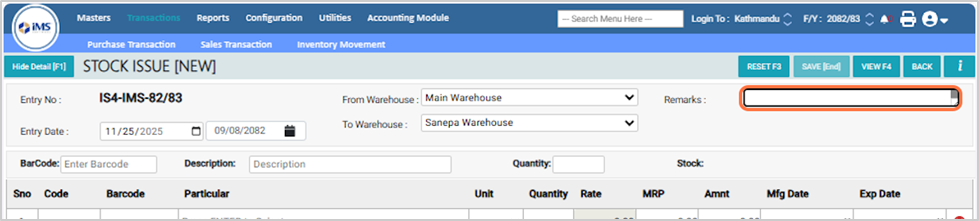
Stock Issue is used to transfer products from one warehouse to another. In IMS ERP, you can choose the source warehouse[From where to transfer], destination warehouse[where to receive], enter product details, quantity, expiry date, and save the transfer for accurate stock tracking.
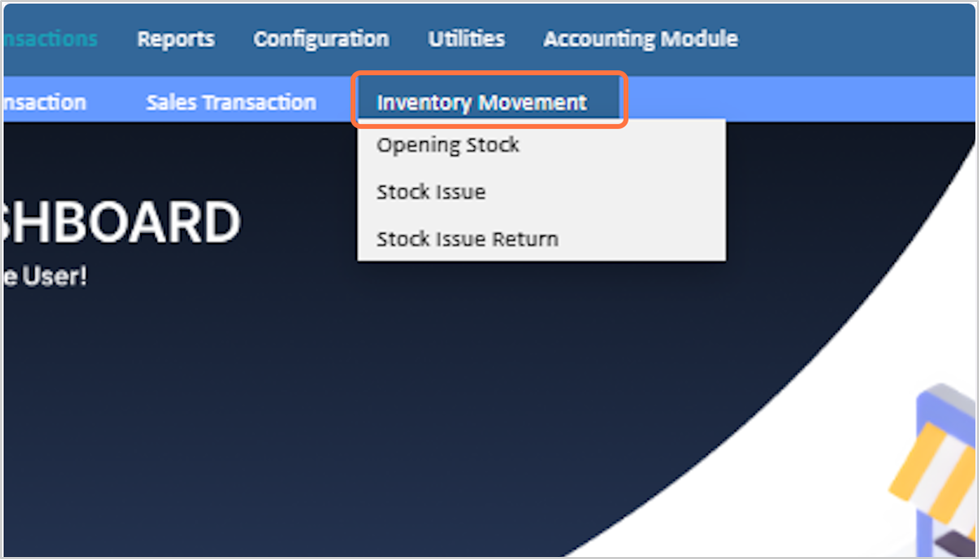
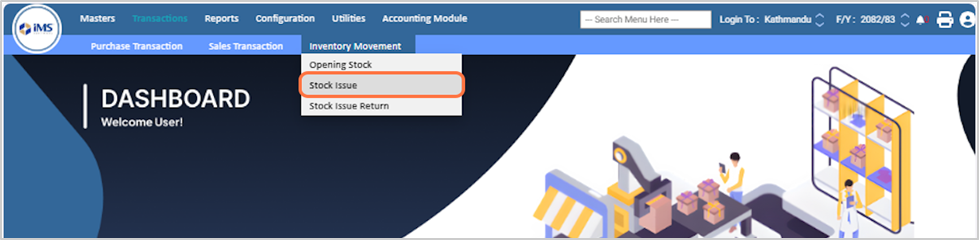
3. From the dropdown menu, choose the "Stock Issue" option
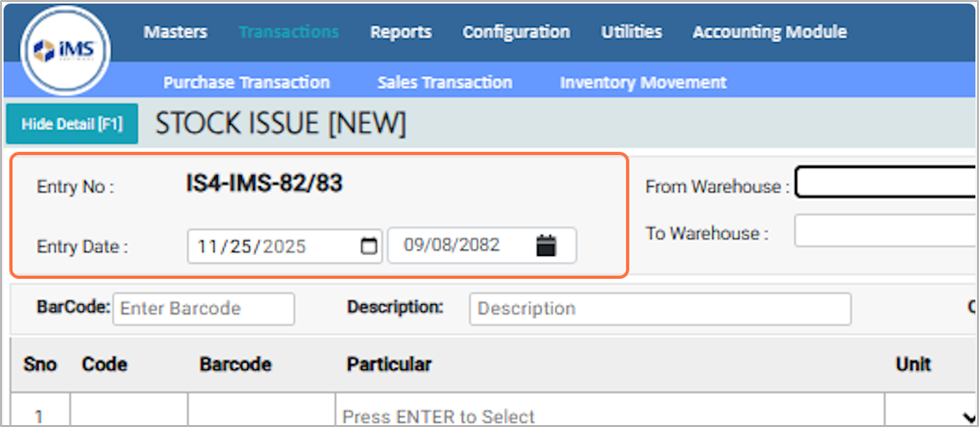
4. Enter the Entry date This is the date when the stock is issued. You can change the date if needed. Past dates are allowed, but future dates are not.
5. Select the source Warehouse from which the stock will betransferred.Eg: Main Warehouse
6. Select the destination Warehouse to which the stock will be transferred Eg: Sanepa Warehouse
7. Enter any remarks or notes as required[if any]
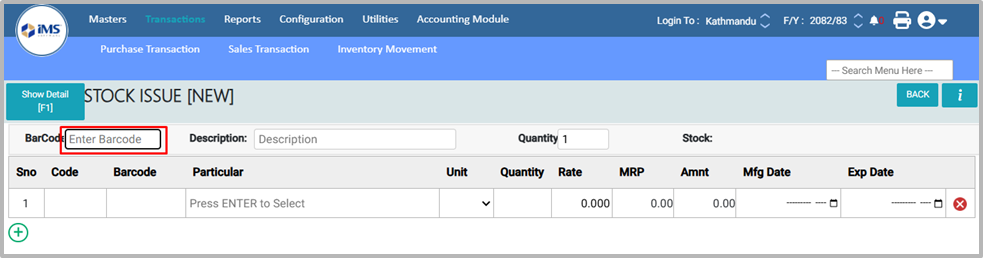
8. If you are issuing stock through barcode scanning, scan the product, input the quantity, and press Save to finish the process. For Example: 8751.1
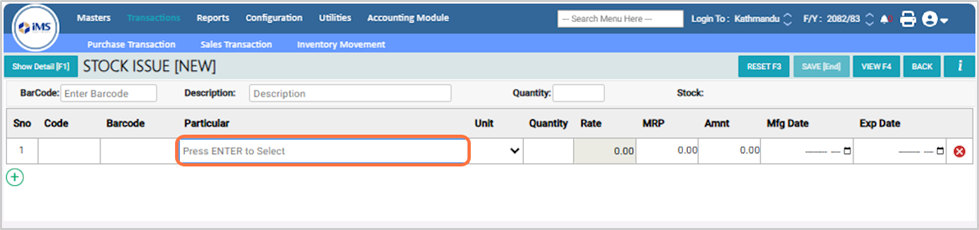
9. To skip barcode scanning, click on the Particular field and select the product from the pop-up list.
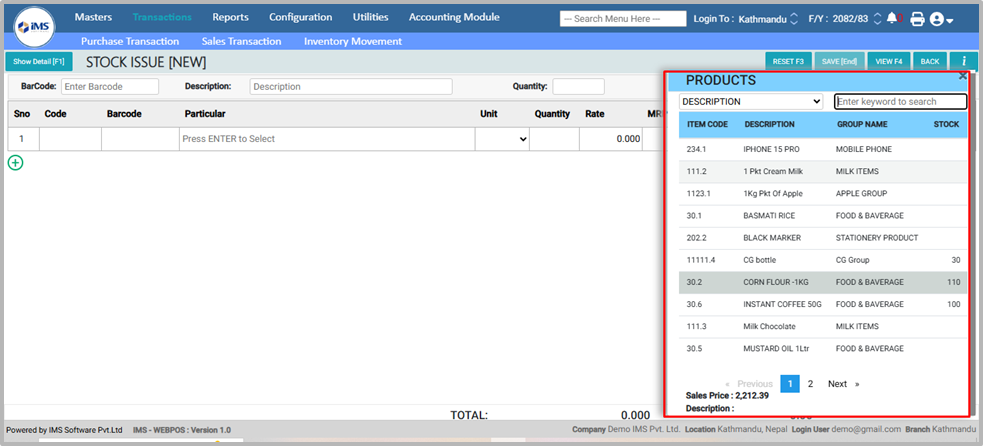
10. From the Pop up list,Select the Product that you want to issue.. Eg: CORN FLOUR -1KG
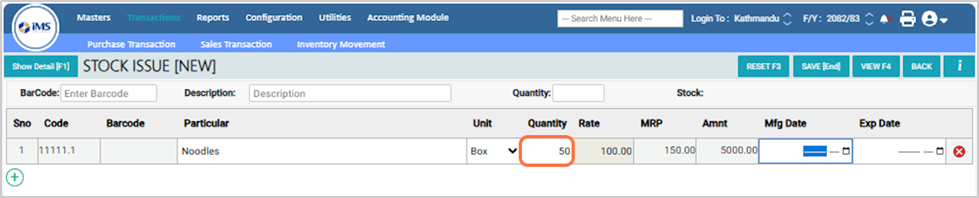
11. Enter the number of quantities you want to transfer.For Eg: 50 Pkt Of CORN FLOUR -1KG
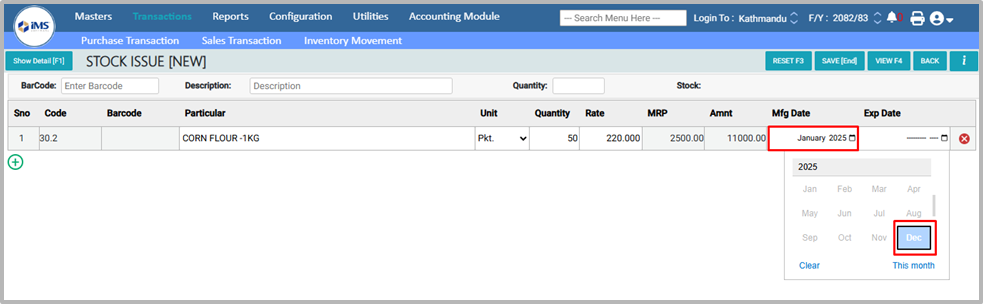
12. If the item is expiry-tracked, enter its Manufacturing (MFG) date and Expiry date.For Eg: the MFG Date is January 2025 and EXPIRY Date is December 2025
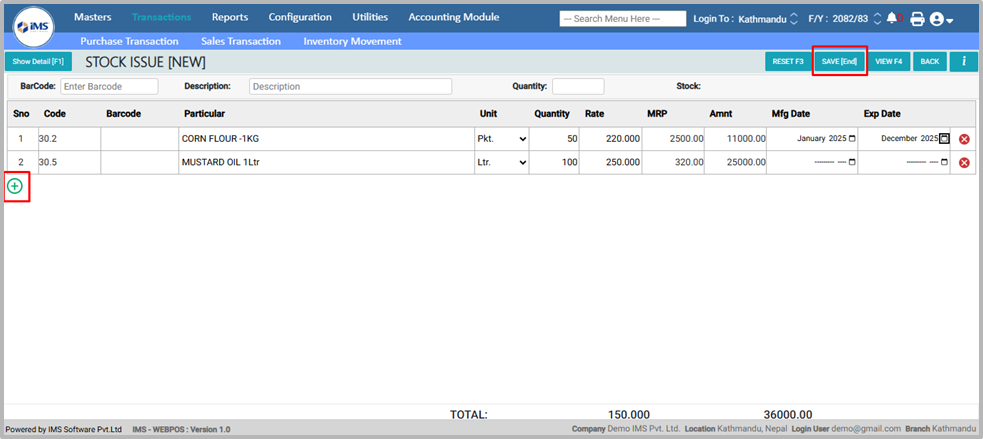
13. You can add multiple stock issue entries using the Enter key or “+” icon. Select the product, enter the quantity, and, if the item is expiry-tracked, enter the MFG and Expiry dates. Click Save to record the stock issue.
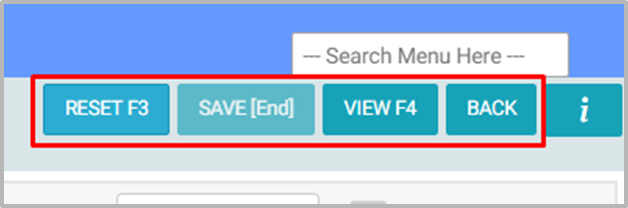
14. Button in the stock issue Reset – Click the Reset button or press F3 to clear the form. View – Click the View button or press F4 to view stock issue records. Back – Click the Back button to return to the previous screen.