|
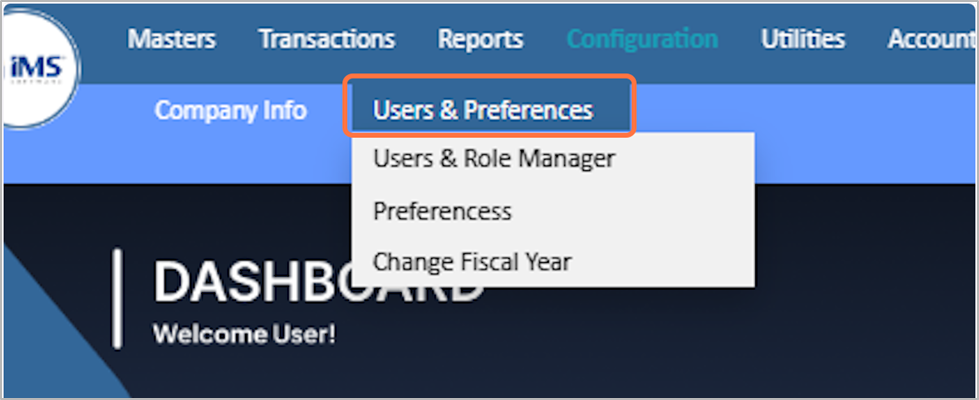
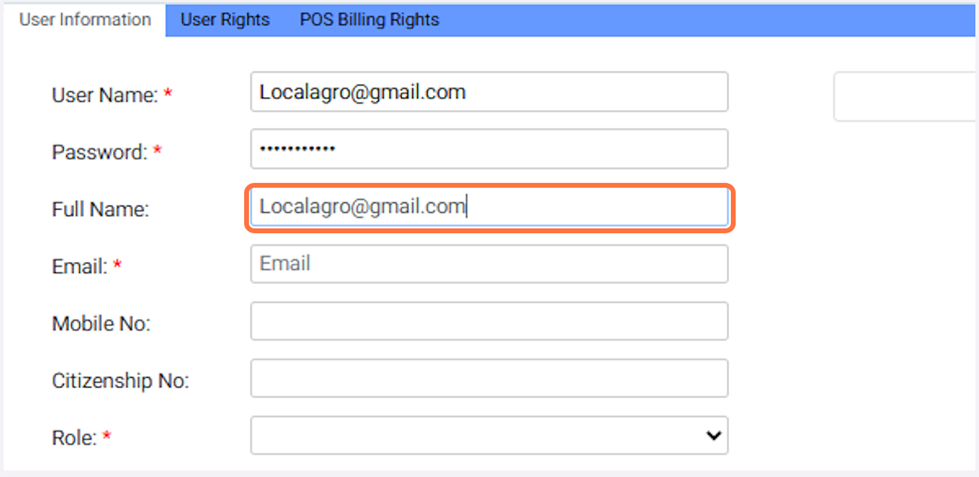
clipboard-202601121714-2ajsk.png (170 KB)
clipboard-202601121714-2ajsk.png |
|
Sujata Khatri, 01/12/2026 11:29 AM
|
|
|
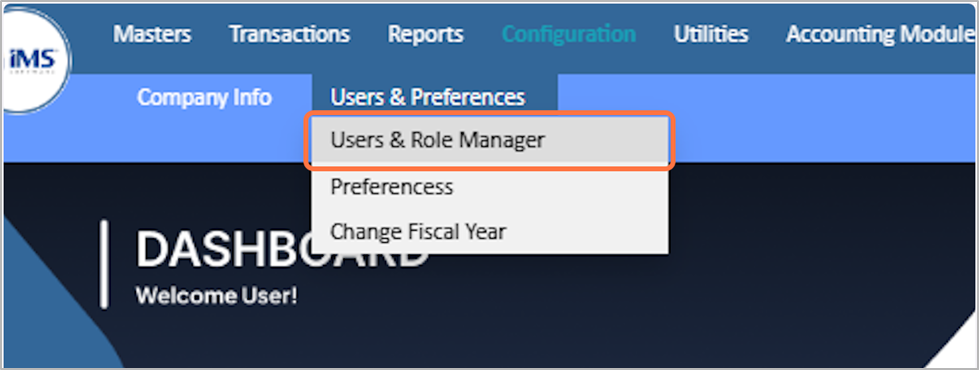
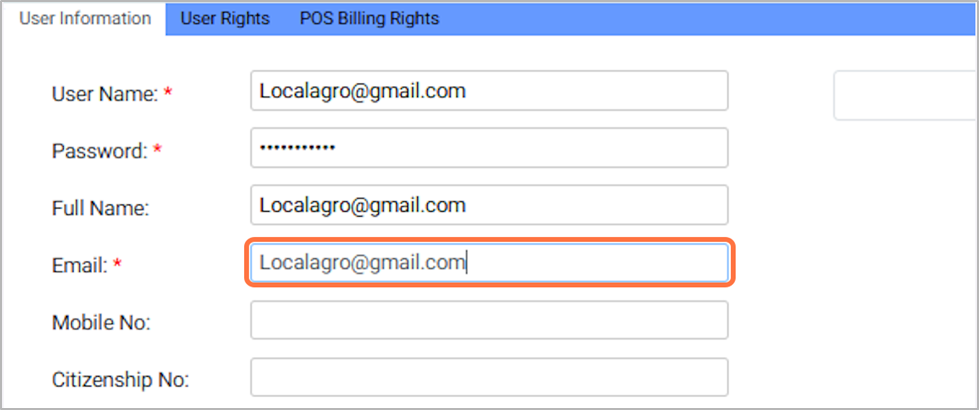
clipboard-202601121714-hwhbd.png (209 KB)
clipboard-202601121714-hwhbd.png |
|
Sujata Khatri, 01/12/2026 11:29 AM
|
|
|
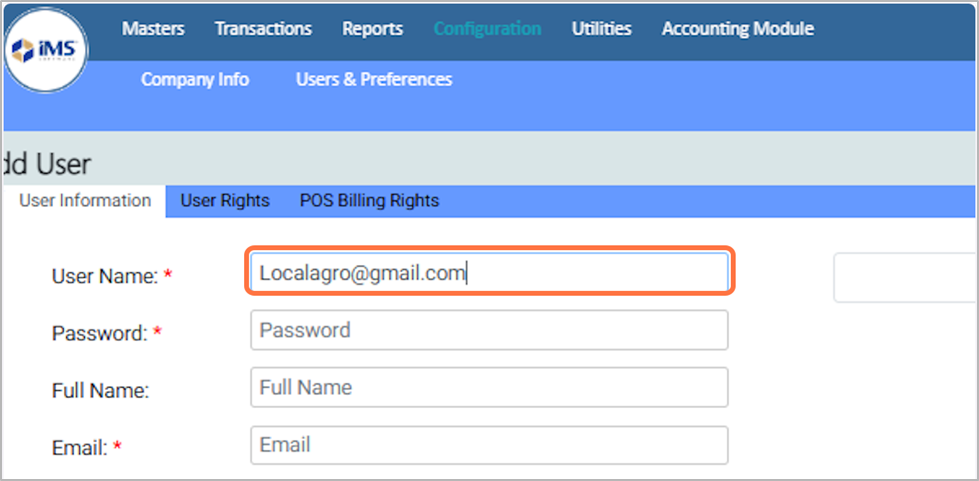
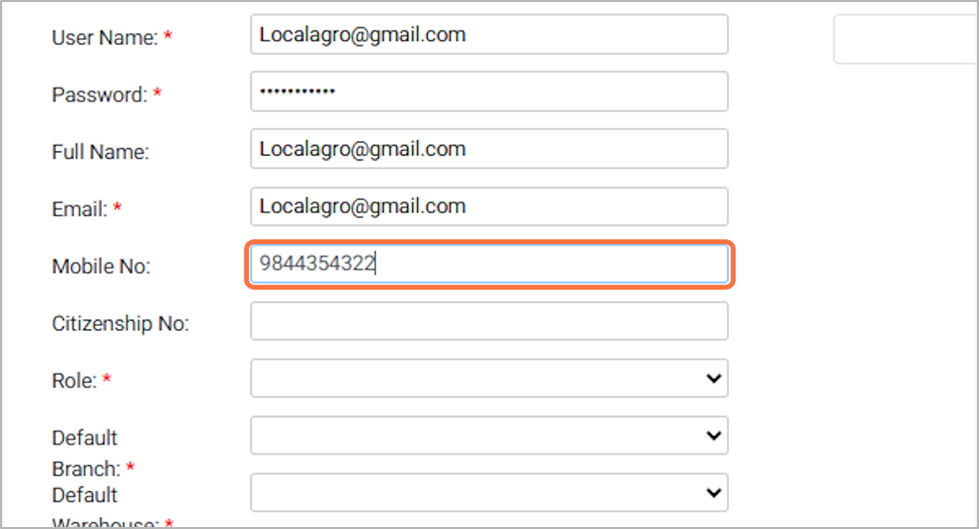
clipboard-202601121714-pa2rv.png (187 KB)
clipboard-202601121714-pa2rv.png |
|
Sujata Khatri, 01/12/2026 11:29 AM
|
|
|
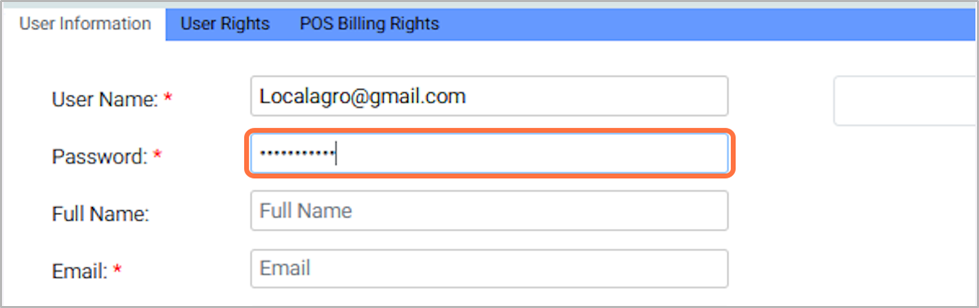
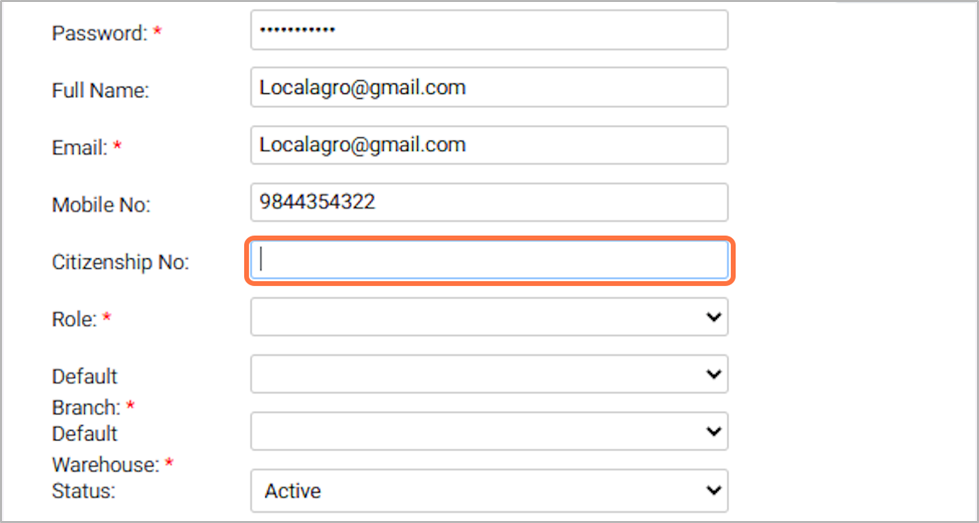
clipboard-202601121714-686pv.png (98.4 KB)
clipboard-202601121714-686pv.png |
|
Sujata Khatri, 01/12/2026 11:29 AM
|
|
|
clipboard-202601121714-hahbd.png (119 KB)
clipboard-202601121714-hahbd.png |
|
Sujata Khatri, 01/12/2026 11:29 AM
|
|
|
clipboard-202601121715-6zfch.png (59.2 KB)
clipboard-202601121715-6zfch.png |
|
Sujata Khatri, 01/12/2026 11:30 AM
|
|
|
clipboard-202601121715-pzzft.png (82.3 KB)
clipboard-202601121715-pzzft.png |
|
Sujata Khatri, 01/12/2026 11:30 AM
|
|
|
clipboard-202601121715-wfqsp.png (84.4 KB)
clipboard-202601121715-wfqsp.png |
|
Sujata Khatri, 01/12/2026 11:30 AM
|
|
|
clipboard-202601121715-zqukm.png (92.8 KB)
clipboard-202601121715-zqukm.png |
|
Sujata Khatri, 01/12/2026 11:30 AM
|
|
|
clipboard-202601121716-uhitd.png (87.3 KB)
clipboard-202601121716-uhitd.png |
|
Sujata Khatri, 01/12/2026 11:31 AM
|
|
|
clipboard-202601121716-yll7a.png (85 KB)
clipboard-202601121716-yll7a.png |
|
Sujata Khatri, 01/12/2026 11:31 AM
|
|
|
clipboard-202601121716-dakto.png (88.6 KB)
clipboard-202601121716-dakto.png |
|
Sujata Khatri, 01/12/2026 11:31 AM
|
|
|
clipboard-202601121717-uy494.png (85.2 KB)
clipboard-202601121717-uy494.png |
|
Sujata Khatri, 01/12/2026 11:32 AM
|
|
|
clipboard-202601121717-f4lyr.png (85 KB)
clipboard-202601121717-f4lyr.png |
|
Sujata Khatri, 01/12/2026 11:32 AM
|
|
|
clipboard-202601121717-lcg5t.png (112 KB)
clipboard-202601121717-lcg5t.png |
|
Sujata Khatri, 01/12/2026 11:32 AM
|
|
|
clipboard-202601121717-wy7rx.png (71.9 KB)
clipboard-202601121717-wy7rx.png |
|
Sujata Khatri, 01/12/2026 11:32 AM
|
|
|
clipboard-202601121718-moksl.png (187 KB)
clipboard-202601121718-moksl.png |
|
Sujata Khatri, 01/12/2026 11:33 AM
|
|
|
clipboard-202601121718-hjo4k.png (195 KB)
clipboard-202601121718-hjo4k.png |
|
Sujata Khatri, 01/12/2026 11:33 AM
|
|
|
clipboard-202601121718-xy5x3.png (102 KB)
clipboard-202601121718-xy5x3.png |
|
Sujata Khatri, 01/12/2026 11:33 AM
|
|