|
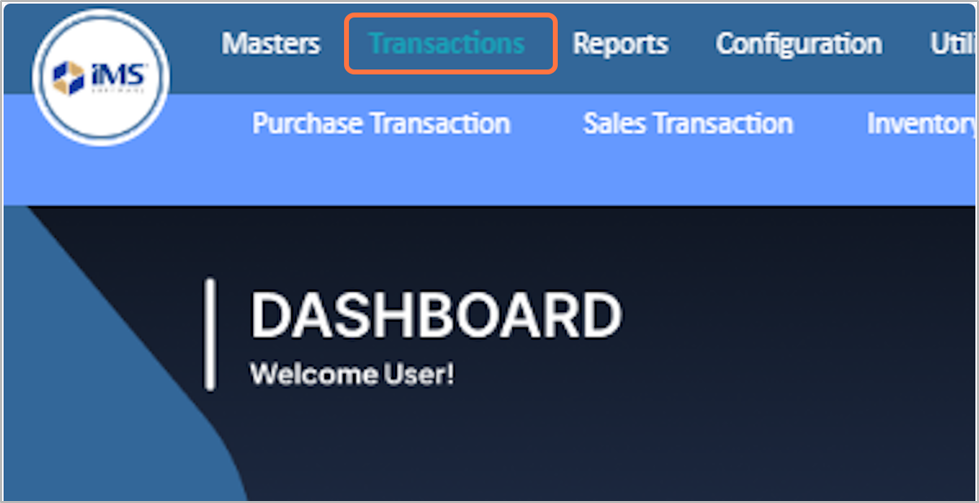
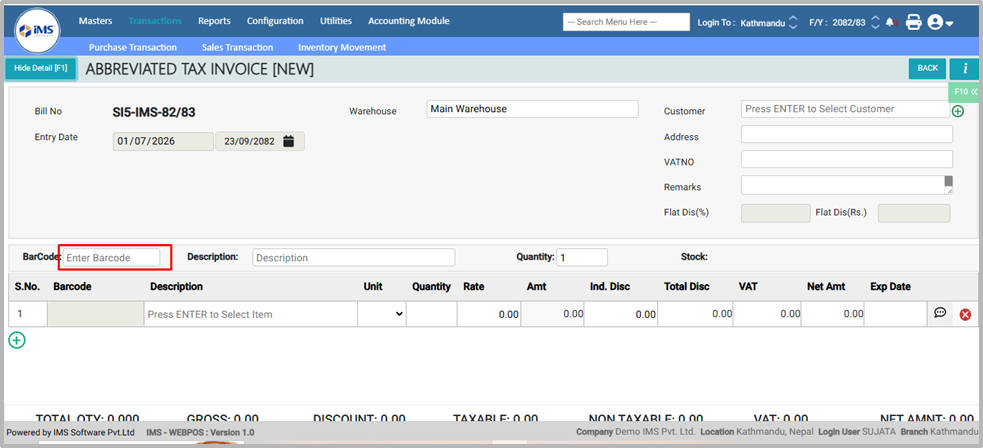
clipboard-202601071726-xxqos.png (234 KB)
clipboard-202601071726-xxqos.png |
|
Sujata Khatri, 01/07/2026 11:41 AM
|
|
|
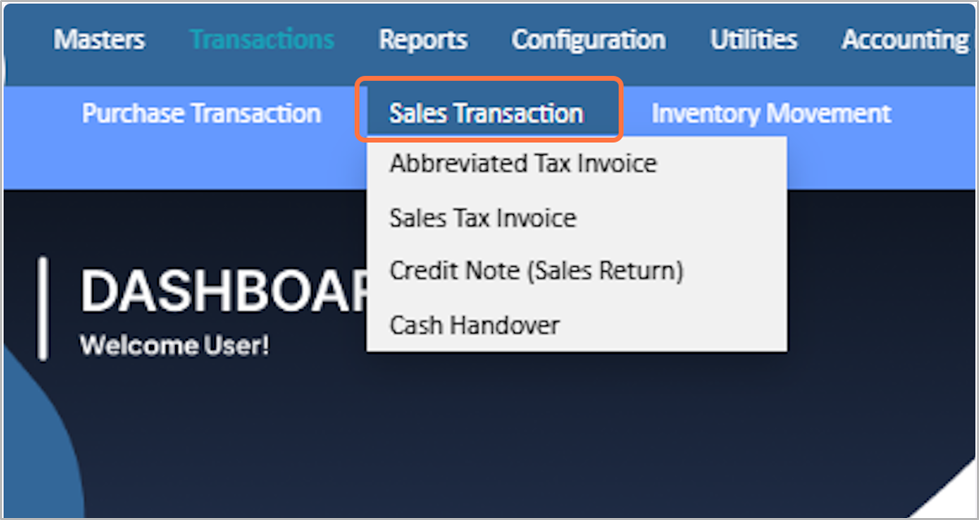
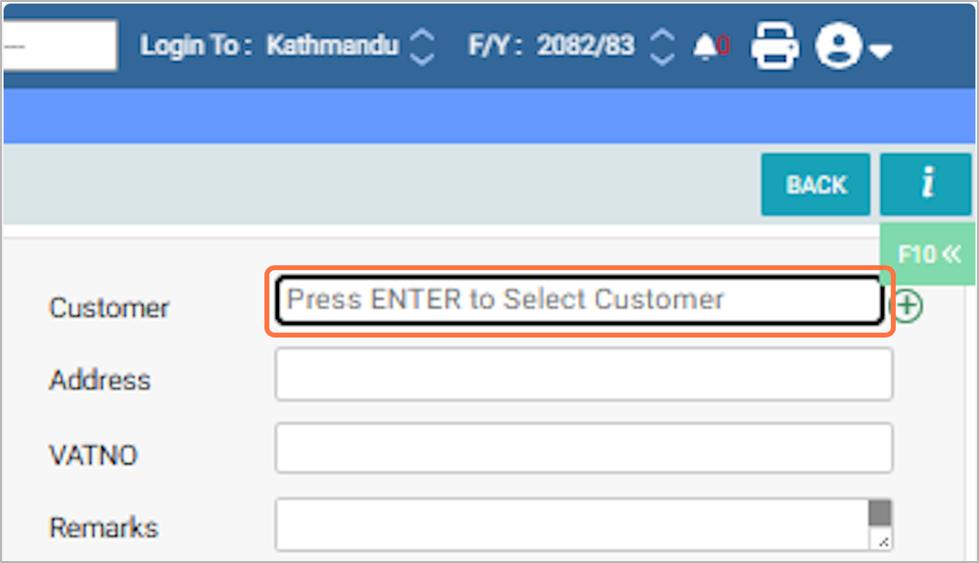
clipboard-202601071726-bzv7v.png (263 KB)
clipboard-202601071726-bzv7v.png |
|
Sujata Khatri, 01/07/2026 11:41 AM
|
|
|
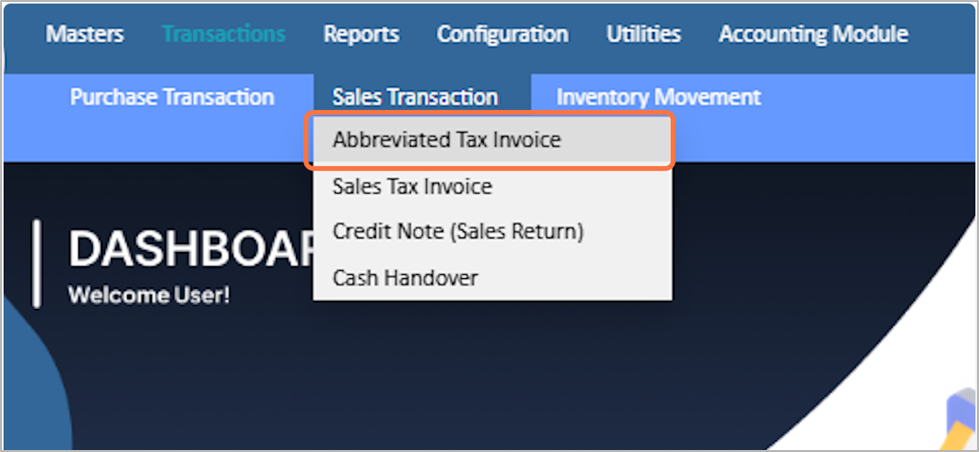
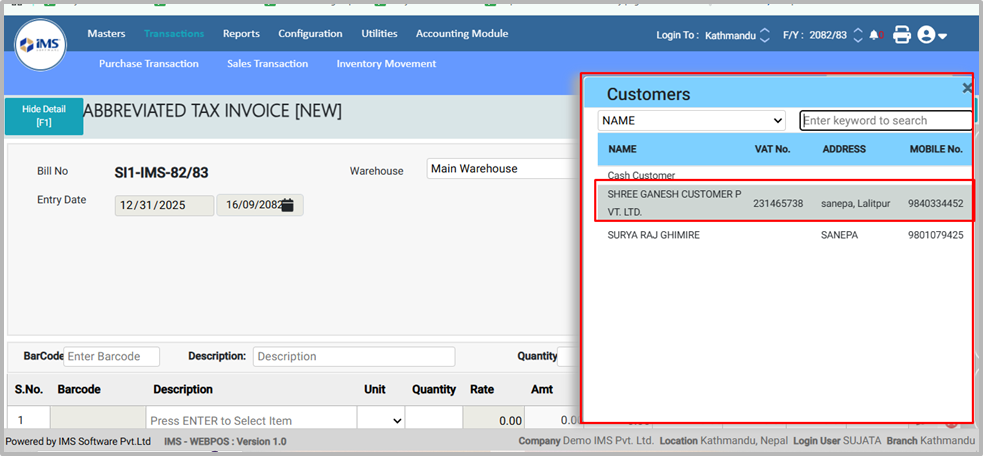
clipboard-202601071726-8fiu2.png (225 KB)
clipboard-202601071726-8fiu2.png |
|
Sujata Khatri, 01/07/2026 11:41 AM
|
|
|
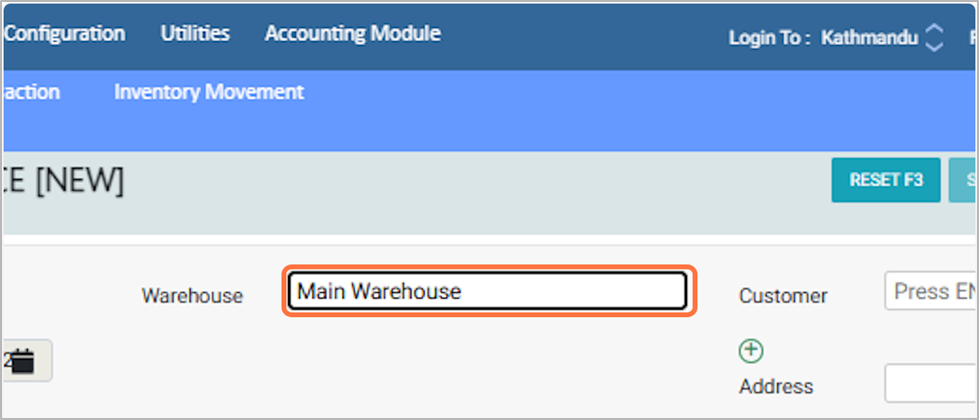
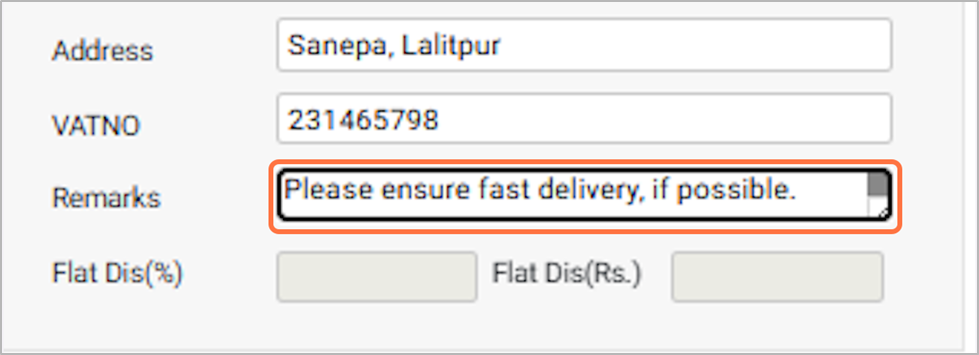
clipboard-202601071727-dgcop.png (103 KB)
clipboard-202601071727-dgcop.png |
|
Sujata Khatri, 01/07/2026 11:42 AM
|
|
|
clipboard-202601071727-hqnxk.png (144 KB)
clipboard-202601071727-hqnxk.png |
|
Sujata Khatri, 01/07/2026 11:42 AM
|
|
|
clipboard-202601071727-d1juc.png (155 KB)
clipboard-202601071727-d1juc.png |
|
Sujata Khatri, 01/07/2026 11:42 AM
|
|
|
clipboard-202601071727-umjiv.png (149 KB)
clipboard-202601071727-umjiv.png |
|
Sujata Khatri, 01/07/2026 11:42 AM
|
|
|
clipboard-202601071728-zgt3e.png (121 KB)
clipboard-202601071728-zgt3e.png |
|
Sujata Khatri, 01/07/2026 11:43 AM
|
|
|
clipboard-202601071728-ntv1d.png (136 KB)
clipboard-202601071728-ntv1d.png |
|
Sujata Khatri, 01/07/2026 11:43 AM
|
|
|
clipboard-202601071728-ryfd5.png (146 KB)
clipboard-202601071728-ryfd5.png |
|
Sujata Khatri, 01/07/2026 11:43 AM
|
|
|
clipboard-202601071728-gwacu.png (165 KB)
clipboard-202601071728-gwacu.png |
|
Sujata Khatri, 01/07/2026 11:43 AM
|
|
|
clipboard-202601071729-2hit3.png (117 KB)
clipboard-202601071729-2hit3.png |
|
Sujata Khatri, 01/07/2026 11:44 AM
|
|
|
clipboard-202601071729-8vltc.png (38.6 KB)
clipboard-202601071729-8vltc.png |
|
Sujata Khatri, 01/07/2026 11:44 AM
|
|
|
clipboard-202601071729-9mxlv.png (76.8 KB)
clipboard-202601071729-9mxlv.png |
|
Sujata Khatri, 01/07/2026 11:44 AM
|
|
|
clipboard-202601071729-pqdoy.png (123 KB)
clipboard-202601071729-pqdoy.png |
|
Sujata Khatri, 01/07/2026 11:44 AM
|
|
|
clipboard-202601071729-rm0os.png (122 KB)
clipboard-202601071729-rm0os.png |
|
Sujata Khatri, 01/07/2026 11:44 AM
|
|
|
clipboard-202601071729-a1pjw.png (184 KB)
clipboard-202601071729-a1pjw.png |
|
Sujata Khatri, 01/07/2026 11:44 AM
|
|
|
clipboard-202601071730-gd5x1.png (184 KB)
clipboard-202601071730-gd5x1.png |
|
Sujata Khatri, 01/07/2026 11:45 AM
|
|
|
clipboard-202601071730-br4dz.png (185 KB)
clipboard-202601071730-br4dz.png |
|
Sujata Khatri, 01/07/2026 11:45 AM
|
|
|
clipboard-202601071730-ipbyb.png (185 KB)
clipboard-202601071730-ipbyb.png |
|
Sujata Khatri, 01/07/2026 11:45 AM
|
|
|
clipboard-202601071731-oimqa.png (185 KB)
clipboard-202601071731-oimqa.png |
|
Sujata Khatri, 01/07/2026 11:46 AM
|
|
|
clipboard-202601071732-7tqi4.png (122 KB)
clipboard-202601071732-7tqi4.png |
|
Sujata Khatri, 01/07/2026 11:47 AM
|
|
|
clipboard-202601071732-mftmo.png (191 KB)
clipboard-202601071732-mftmo.png |
|
Sujata Khatri, 01/07/2026 11:47 AM
|
|
|
clipboard-202601071732-f4p7r.png (170 KB)
clipboard-202601071732-f4p7r.png |
|
Sujata Khatri, 01/07/2026 11:47 AM
|
|
|
clipboard-202601071732-xdyzk.png (64.3 KB)
clipboard-202601071732-xdyzk.png |
|
Sujata Khatri, 01/07/2026 11:47 AM
|
|