Step to Create And Manage Non-Trading Purchase Invoice
A Non-Trading Purchase refers to purchases made not for resale but for internal use or operational purposes of a business. These are items that the business buys to run its operations rather than to sell to customers.
Steps to generate Non Trading Purchase Transaction:
1. Go to the "Transaction" menu.
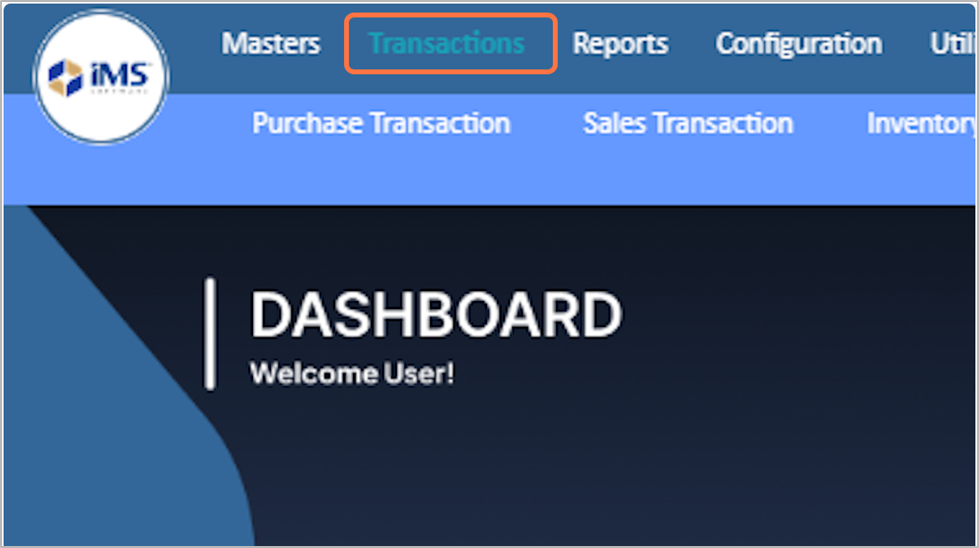
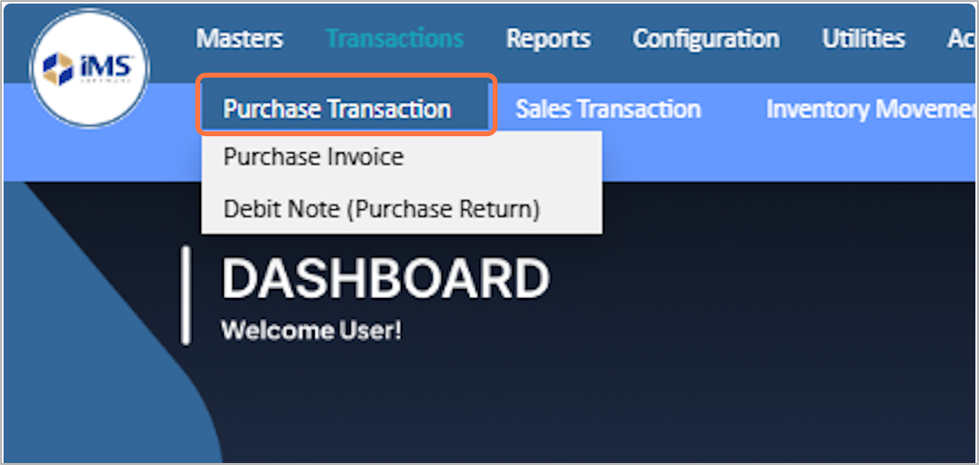
2. Click on Purchase Transaction.
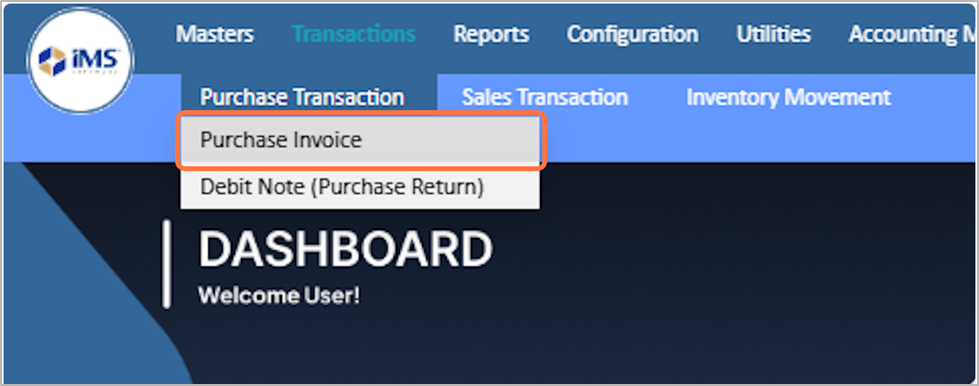
3. Select The Purchase Invoice
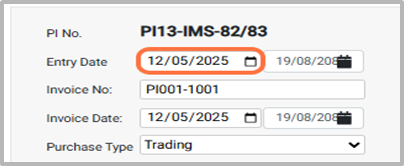
4. Enter the Entry date
● The Purchase Entry Date is the date of the purchase invoice entry, which can be edited as needed; backdating is allowed but future dates are not. Eg: 12-05-2025
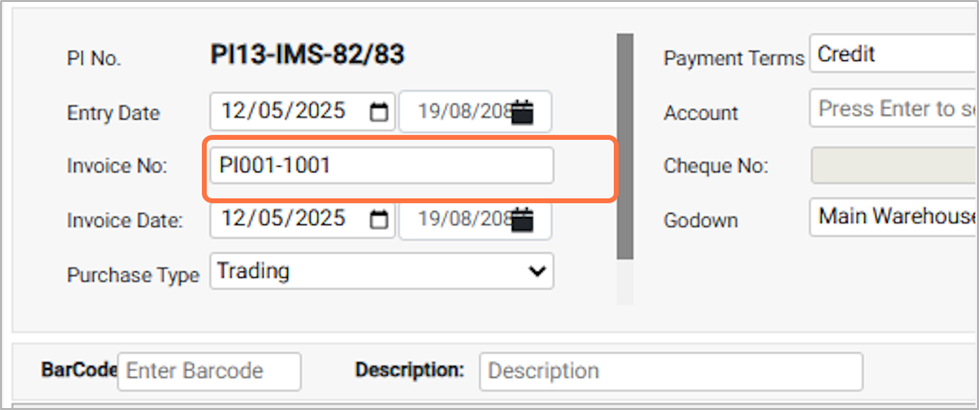
5. Enter the invoice number For Eg: PI001-1001
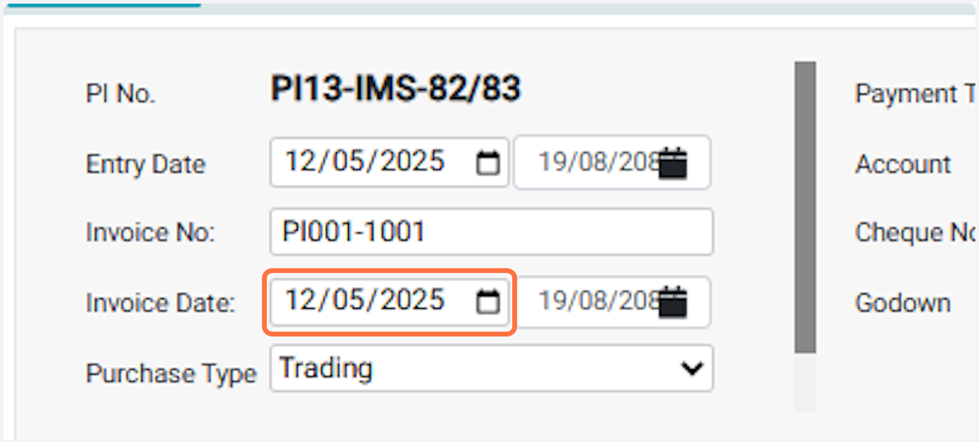
6.Choose the invoice date, This is the official billing date of the purchase invoice as mentioned on the supplier’s invoice. Example: 2025-12-01
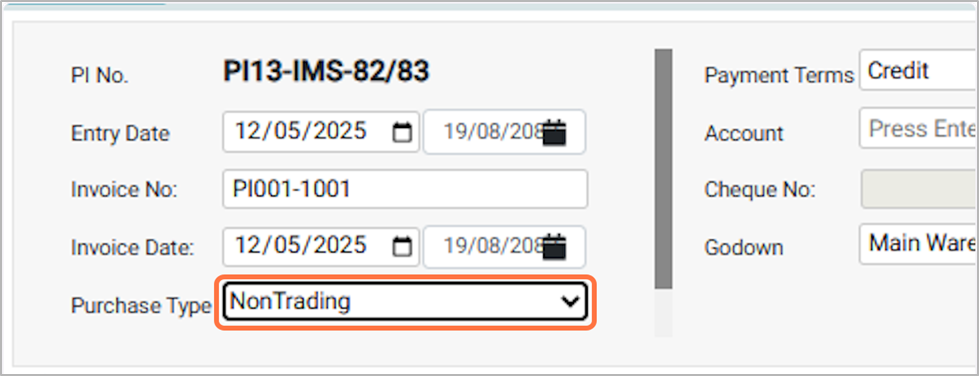
7. Choose the Purchase Type From the available option
● Trading: Select this option if you are purchasing goods intended for resale to customers. These are inventory items bought to sell for profit.
● Non-Trading: Select this option if you are purchasing goods or services not intended for resale, such as office supplies, assets, or services used for business operations.
● Mixed: Select this voucher type when a single purchase invoice contains both trading (resale) and non-trading (expenses or assets) items. This allows you to record all items together in the same voucher.
● For now, we will select the Purchase type as Non Trading.
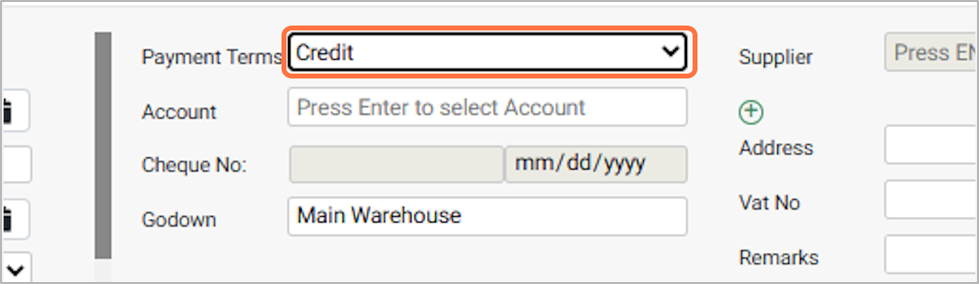
8. Select Payment Terms from the available options:
● Credit: Choose this if the purchase is made on credit.
● Cash: Select this if the purchase is paid in cash.
● Cheque: Choose this if the payment is made through cheque.
● Other: Select this for any other type of payment Method
● For now, we will select the ‘Credit’ as payment Terms.
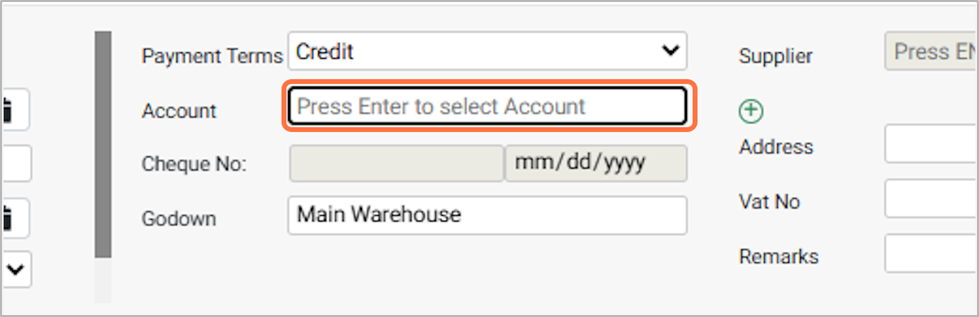
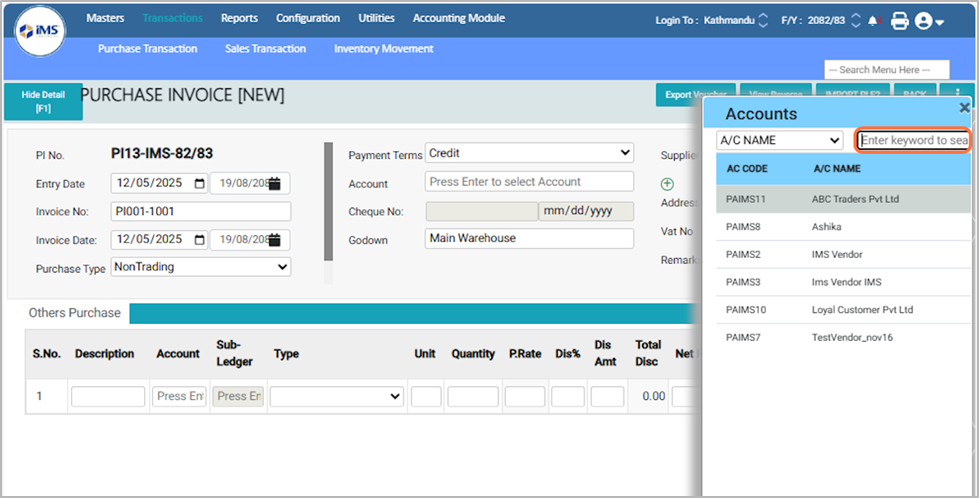
9. Click and Choose the Account:
10. Select or search the customer account as mentioned in the purchase invoice, e.g., SHREE GANESH CUSTOMER PVT. LTD.
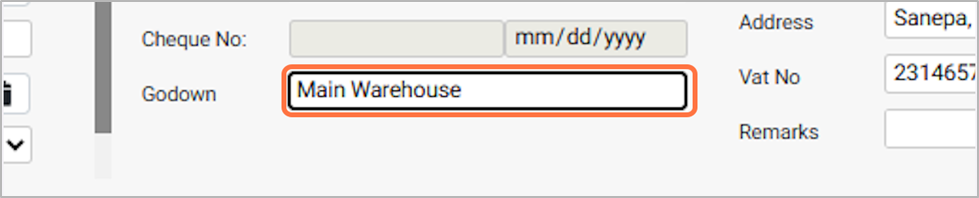
11. Select the godown
- Choose the warehouse or storage location where the purchased items will be stored. Eg: Main warehouse
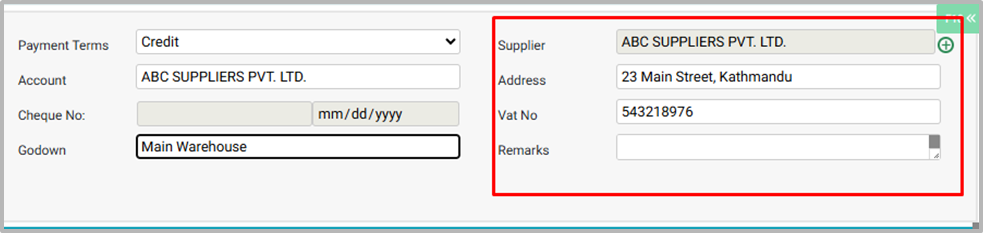
12. Supplier Details Field:
● Case 1:
If you select Credit, Cheque, or Other as the “payment terms”, enter the “Account” as supplier, and the “Supplier details” will be auto-filled.
● Case 2:
If you select Cash as the “payment terms”, the Account will be auto-filled as “Cash in Hand”, but you need to manually select the “supplier”.
● Add Remarks: Enter any additional notes or comments about the purchase as needed (e.g., Item 1 received 1 pcs less).
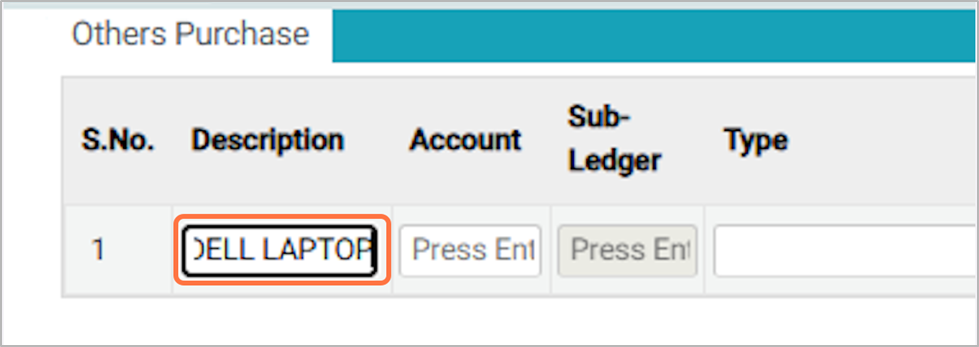
13. In the Description field, enter the product name and its purpose of use (e.g., Dell laptop for office use).
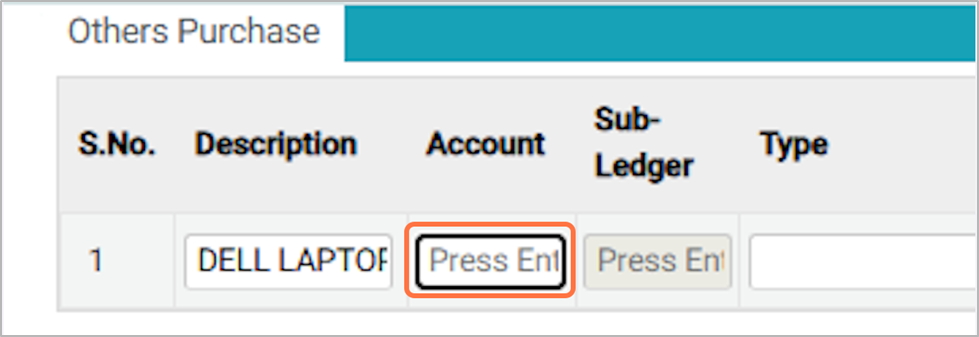
14. Select Account:
Choose the account that is mapped with a ledger in the Account section. This determines where the purchase will be recorded in your financial records.
Example:
● For the Dell laptop, select the Machinery Account, which already exists in the Accounts section.
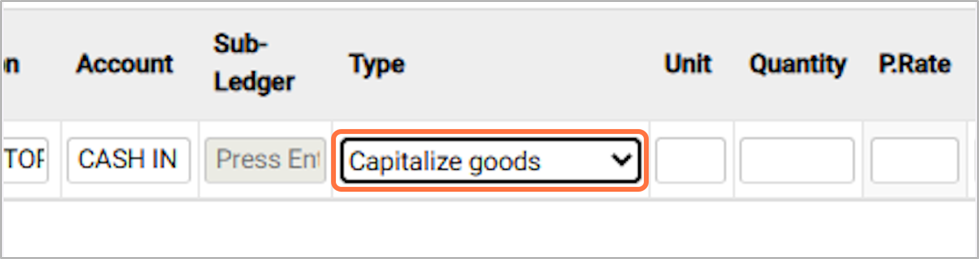
15. Select Non-Trading Purchase Type:
Choose the appropriate non-trading purchase type. Select Capitalize Goods for assets such as laptops or other items that are recorded as fixed assets and reused in the future. Select Non-Capitalize for one-time usable items like office stationery (pens, papers, etc.). For now, we will choose Capitalize Goods.
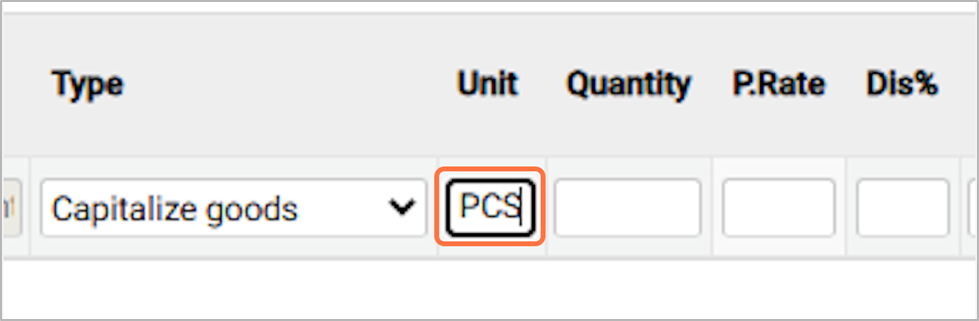
16. Choose or enter the unit of the item.for Eg: PCS
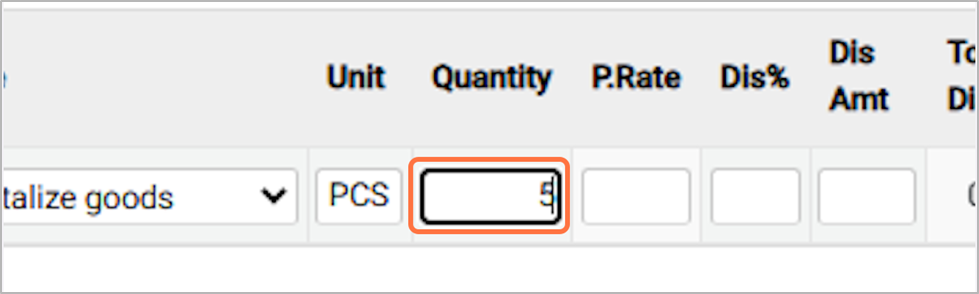
17. Enter the number of units you are purchasing. For Eg: 5
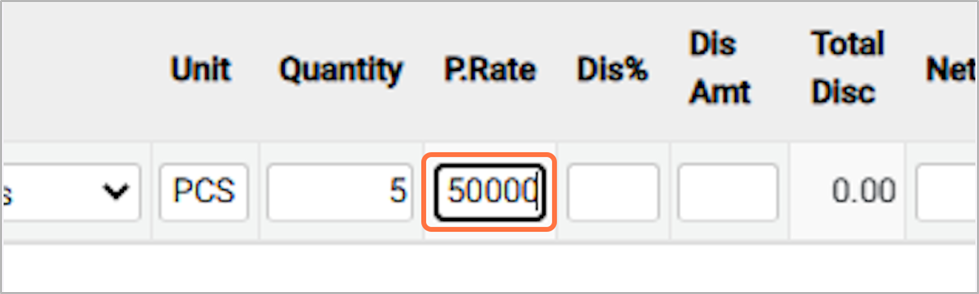
18. Enter the price per unit of the item you are purchasing.Eg: 50000
19. In the Discount field, enter the discount amount or percentage if you want to apply a discount on this product (e.g., 10).
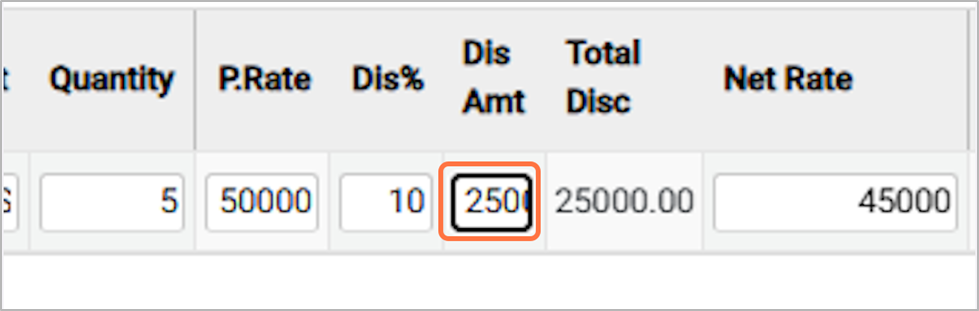
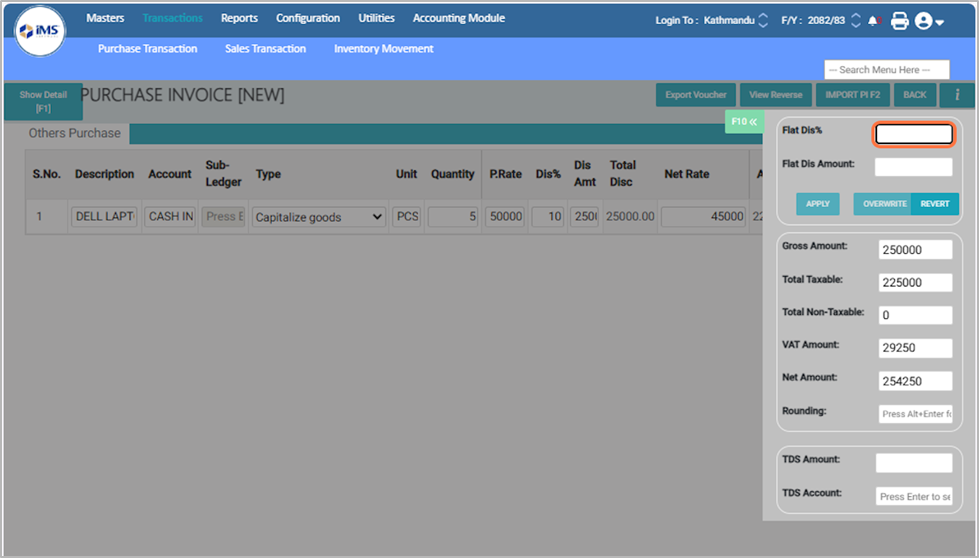
20. After entering the purchase rate and any discount, the system displays the Net Rate, which is the final price per unit after applying the discount. For Eg: 45000

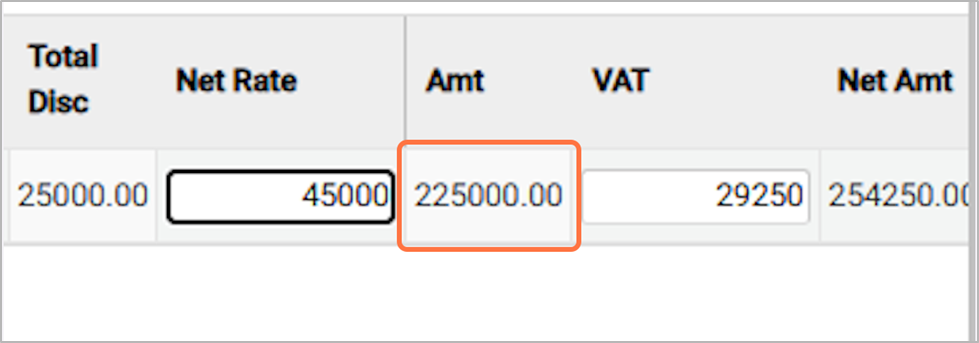
21. The system calculates and displays the total amount of the purchase based on the quantity and net rate of the item. for Eg: 225000.00
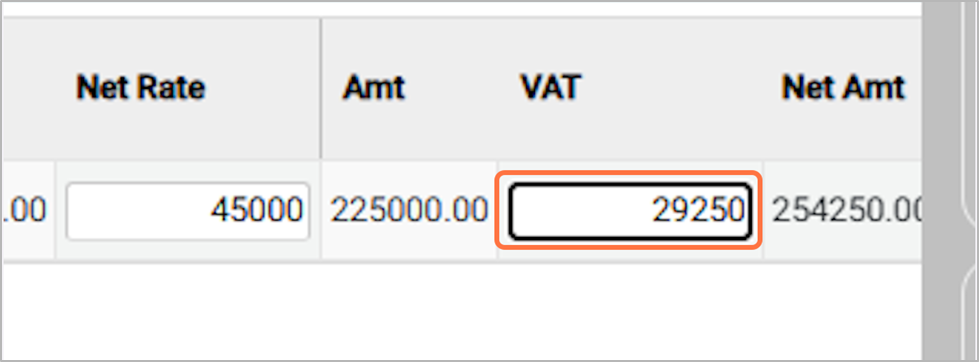
22. In the VAT section, the applicable VAT amount is calculated and displayed based on the total amount of the purchase. For Eg: 29250
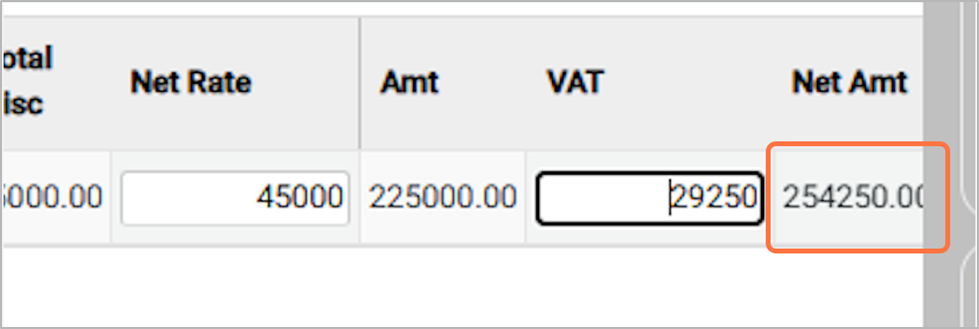
23. Shows the final payable/Net amount for the purchase, including VAT and after applying any discounts.For Eg: 254250.00
24. Press F10 to access additional features for the non-trading purchase entry
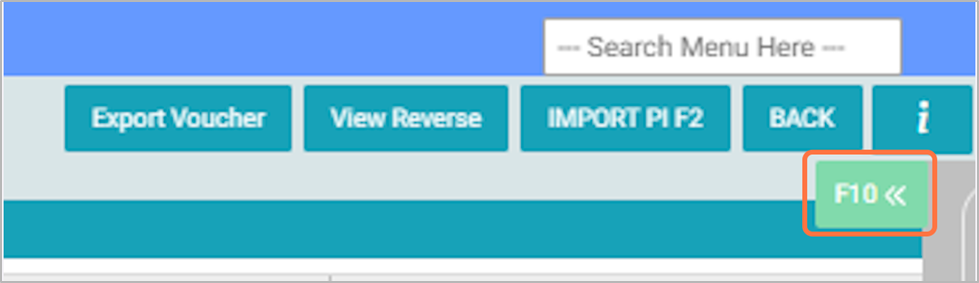
25. From this screen, you can enter a flat discount for the purchase voucher and select or change the TDS amount for that transaction.
26. Press the Save button to record the non-trading purchase in the system.
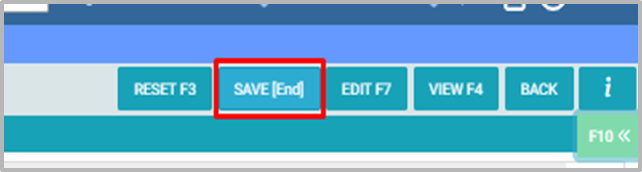
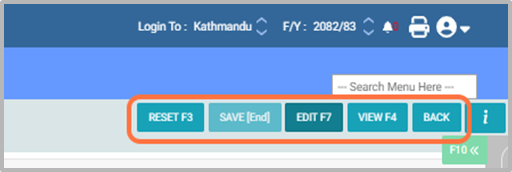
27. Buttons in Non Trading Purchase Entry:
● Reset: Clears all fields so you can start a new non-trading purchase entry.
● Save: Saves the non-trading purchase entry in the system.
● Edit: Allows you to modify an existing non-trading purchase entry.
● View: Displays the details of a saved non-trading purchase without allowing edits.
● Back: Returns to the main menu or the previous screen.