Step To Generate Debit Note(Purchase Invoice)Without Using Referance PI
A Debit Note Purchase Return without Reference Purchase Invoice is used to record the return of purchased goods when the original purchase invoice number is not available or not required. In this process, returned items are accepted back into stock by manually entering a reference bill number and manually selecting the return items. The return amount is debited from the supplier/vendor account instead of being directly linked to a specific purchase invoice.
To use this feature, the system setting needs to be enabled.
Steps to Generate Debit Note( Purchase Return) Without Ref PI:
1. Click on Transactions Menu from the main Screen
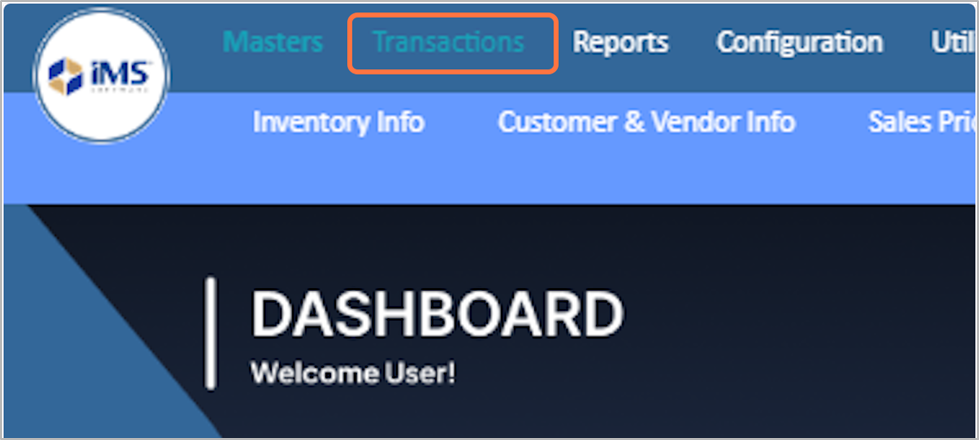
2. Choose the Purchase Transaction
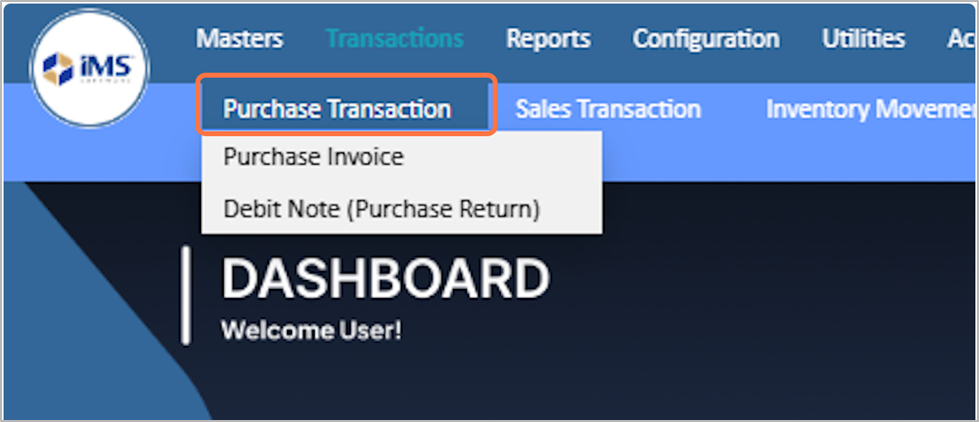
3. Select the Debit Note (Purchase Return) from the dropdown option
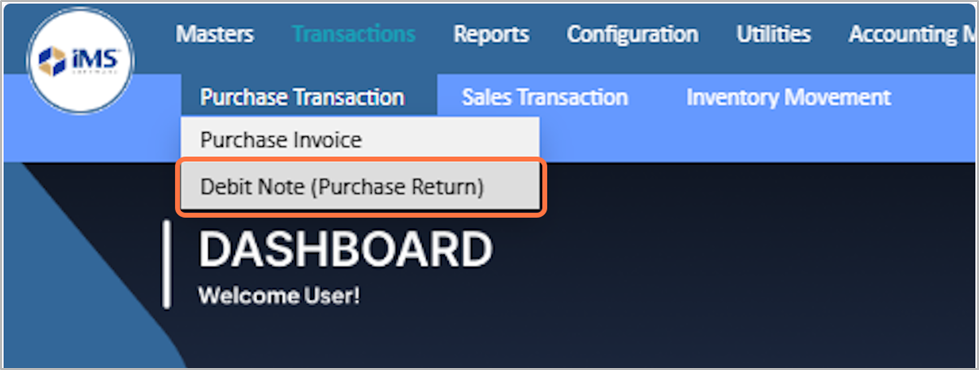
4. Enter the Reference Purchase Invoice Bill Number. This number is entered manually to process multiple purchase item returns under a single bill (for example, PI-00367).
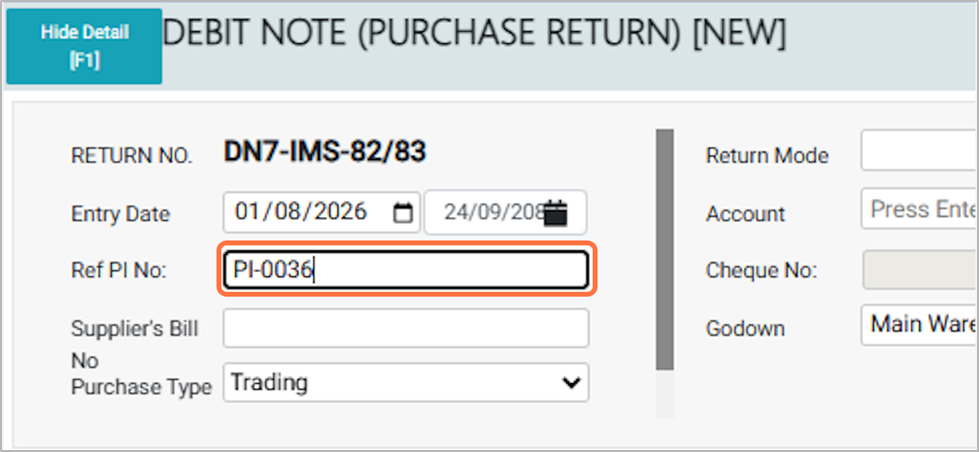
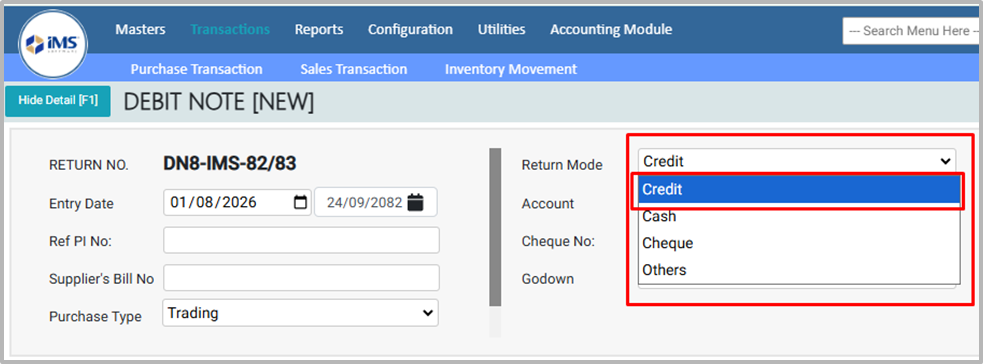
5. In the Return Payment Mode, choose the option according to your requirement:
- Cash: Select this if the purchase return amount is paid in cash.
- Cheque: Choose this if the return is settled through a cheque.
- Other: Select this for any other payment method.
- Credit: Choose this if the return amount is adjusted as credit.
- For now, select Credit as the payment return mode.
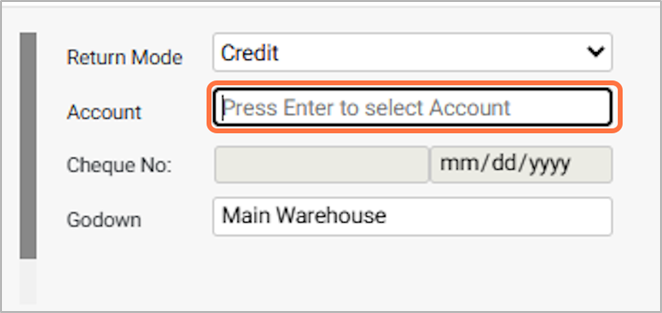
6. Click and Choose the Account:
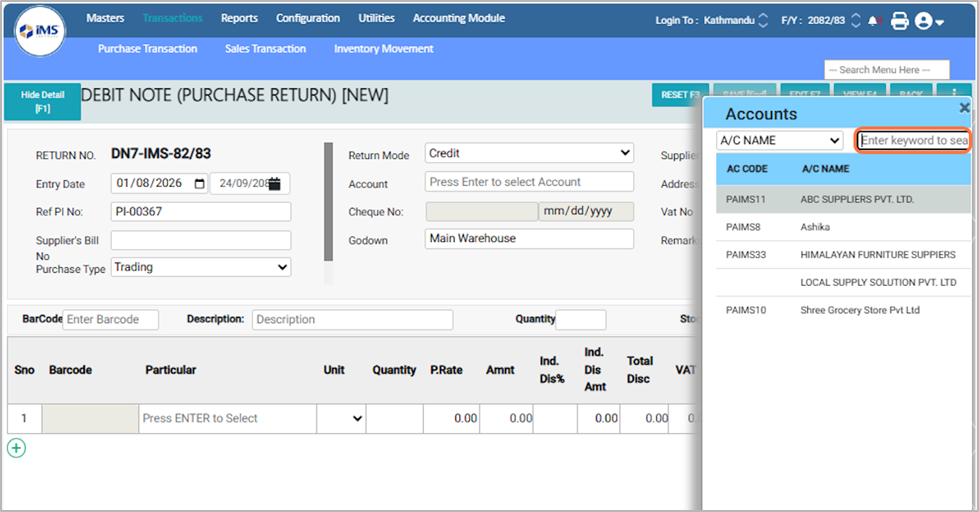
7. Select or search for the supplier/vendor account as specified in the purchase return (for example: ABC Traders Pvt Ltd).
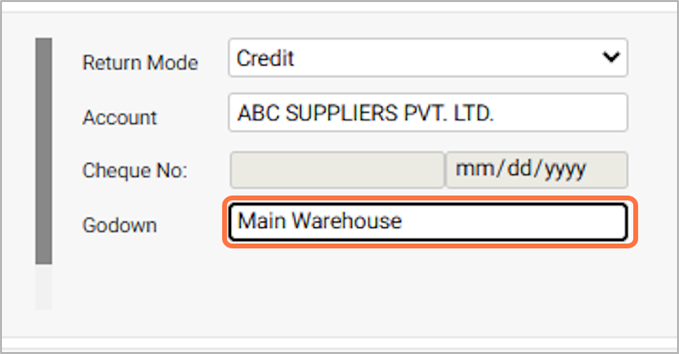
8. Select the godown
Choose the warehouse or storage location where the returned purchased items will be stored (for example, Main Warehouse).
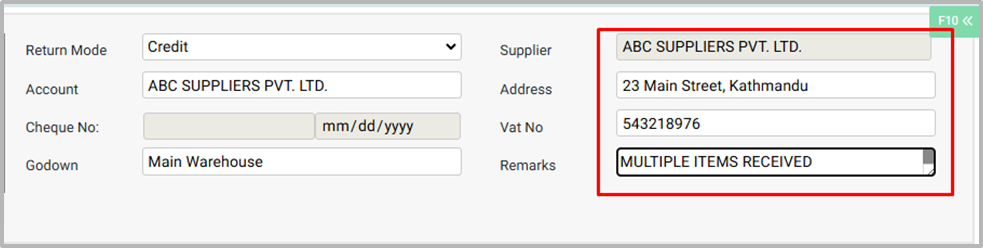
9. Supplier Details Field:
- Case 1:
If you select Credit, Cheque, or Other as the “payment terms”, enter the “Account” as supplier, and the “Supplier details” will be auto-filled.
- Case 2:
If you select Cash as the “payment terms”, the Account will be auto-filled as “Cash in Hand”, but you need to manually select the “supplier”.
- Add Remarks: Enter any additional notes or comments about the purchase return as needed (e.g.,Multiple items received).
If you select Credit, Cheque, or Other as the “payment terms”, enter the “Account” as supplier, and the “Supplier details” will be auto-filled.
If you select Cash as the “payment terms”, the Account will be auto-filled as “Cash in Hand”, but you need to manually select the “supplier”.
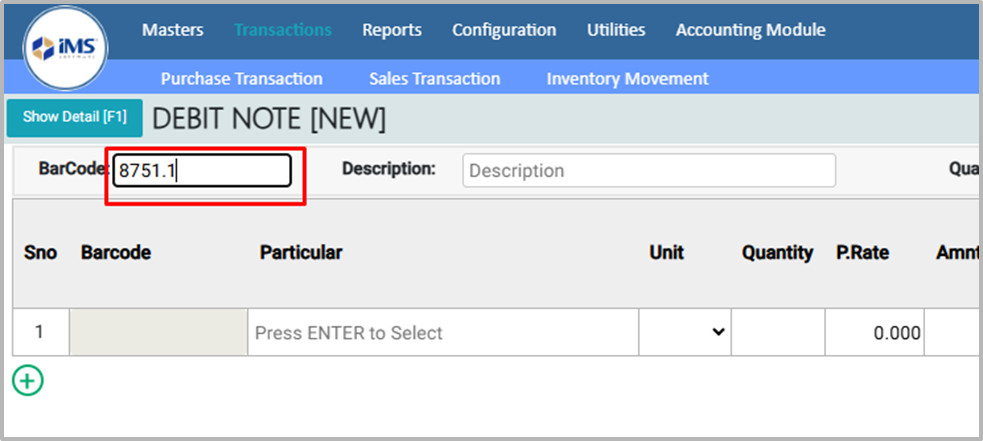
10. Scan the product barcode number if you want to return the product through the barcode, then enter the quantity and save it. For E.g., "8751.1"
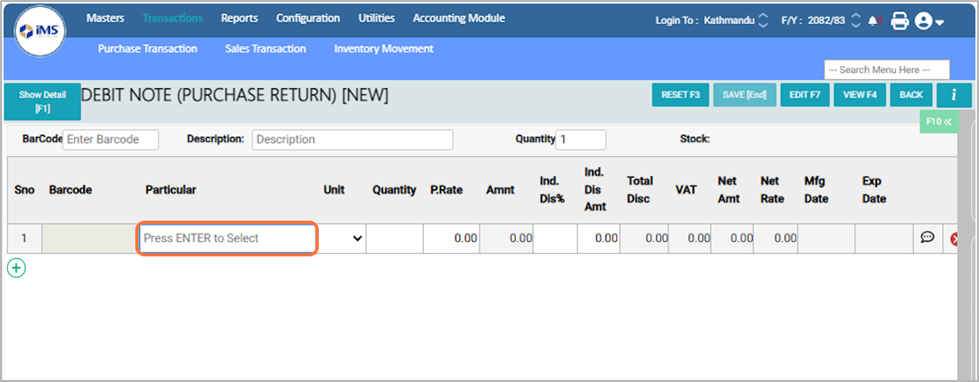
11. To skip the barcode process for a debit note, you can select items directly in the Purchase Return Entry screen. In the Description field, press Enter and choose the product you want to return.
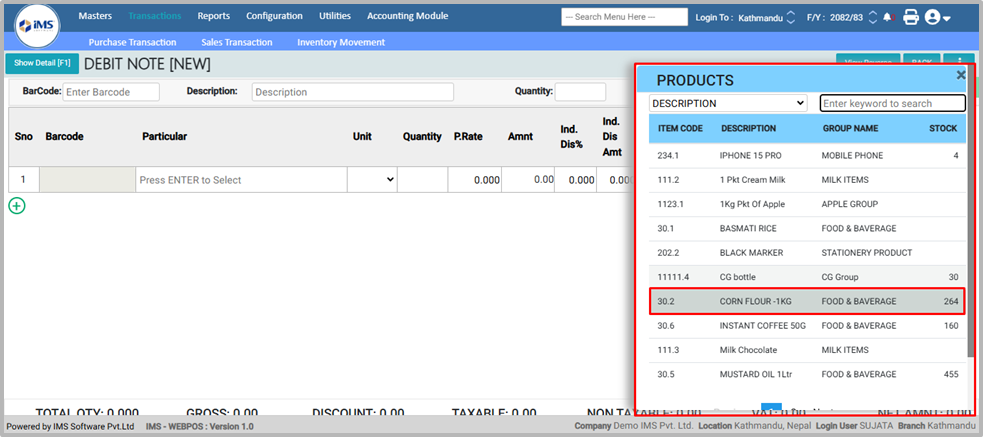
12. Select the item to return from the pop-up list (for example: CORN FLOUR - 1KG).
13. Enter the quantity of the product you want to return (for example: 15).
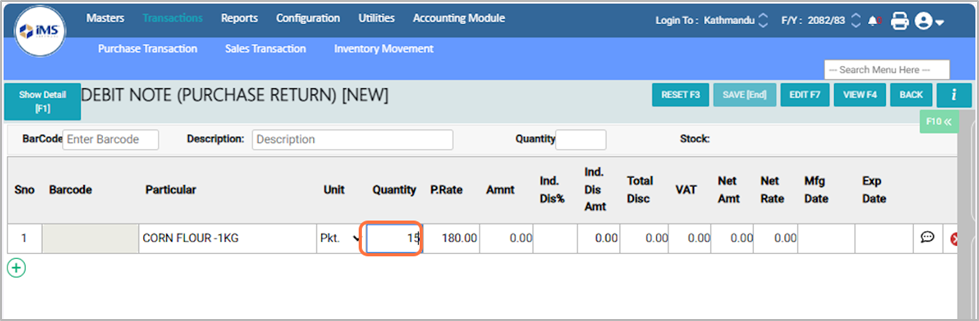
14. In the P. Rate field, you can change the rate of the purchase return item or simply press Enter to keep the original rate.
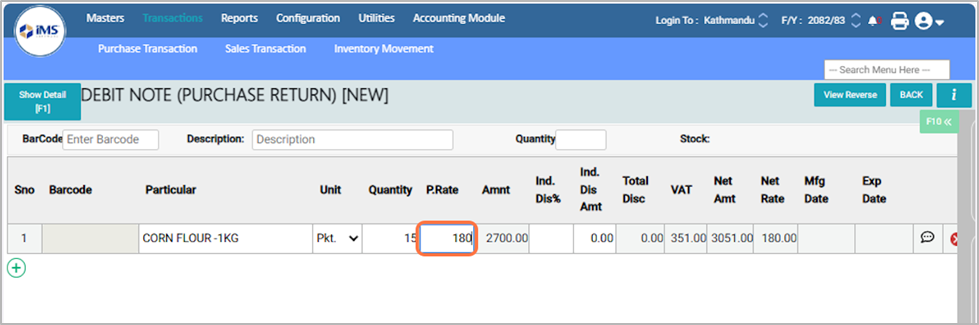
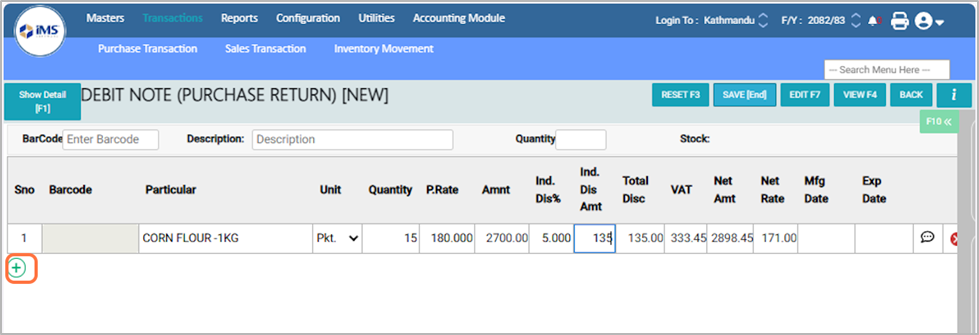
15. In the Ind. Dis% field, enter the discount percentage if you want to apply a discount to the returning item.For eg: 5%

16. You can add more products either by clicking the "+" button or by pressing Enter Key.
17. Click on the Save option to save the debit note purchase return.
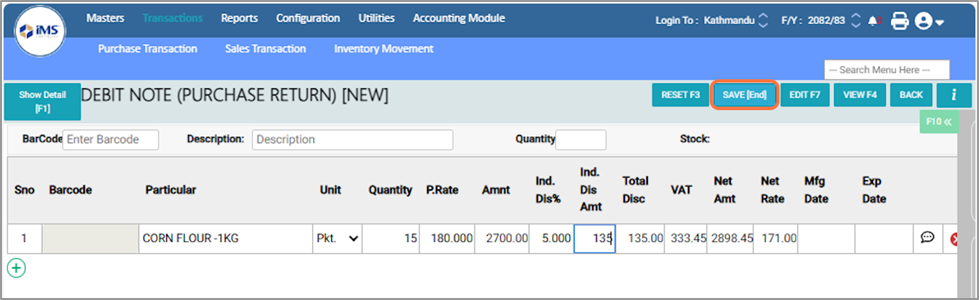
18. Buttons in Purchase Return Entry.
- Reset: Clears all fields to start a new entry.
- Save: Saves the purchase return entry in the system.
- Edit: Allows you to modify an existing entry.
- View: Displays the details of a purchase return without editing.
- Back: Returns to the main menu or previous screen.
