Step To Create And Manage The Vendor Master
Vendor Master is used to create and manage all vendor/supplier information in the system. It stores essential details such as vendor name, address, contact info, VAT/PAN, category, credit terms, and type. Proper setup ensures accurate purchase management, reporting, and vendor tracking.Examples: ABC Traders Pvt Ltd, Raw Material Suppliers, Service Providers.
Follow the link provided below to view the step-by-step guidance for the Vendor Master Excel Upload process.
http://redmine.himshang.com.np:4000/projects/dashboard-overview/wiki/Vendor_Master_Bulk_Upload_Process
Step-by-Step Guide for the Vendor Master Manual Entry Process
1. Go to "Masters"
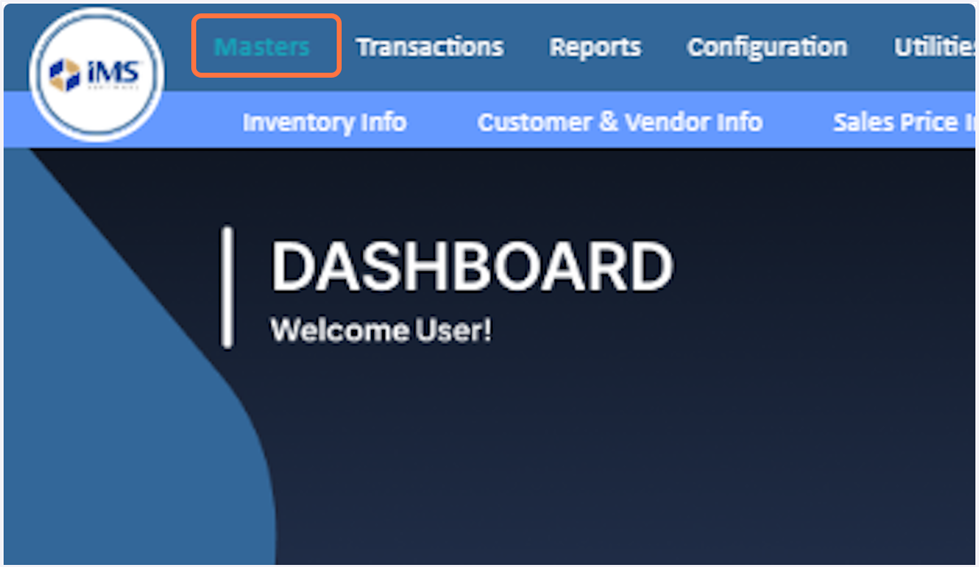
2. Select "Customer & Vendor Info" from the "Master" menu.
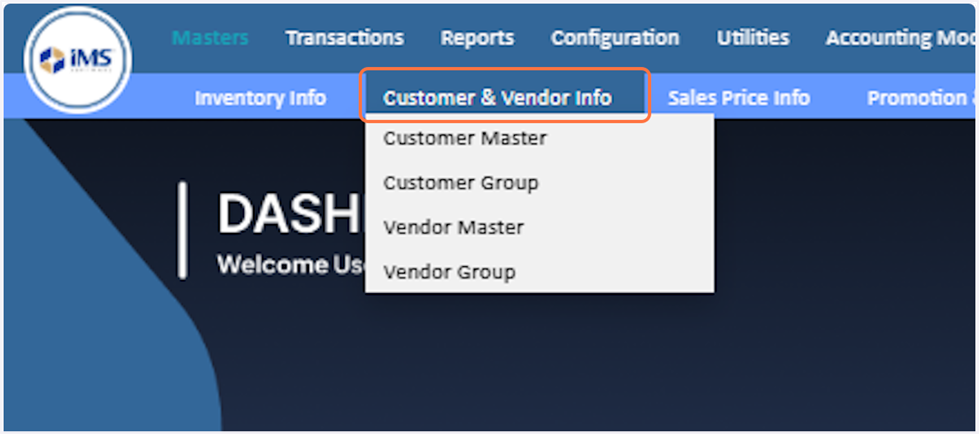
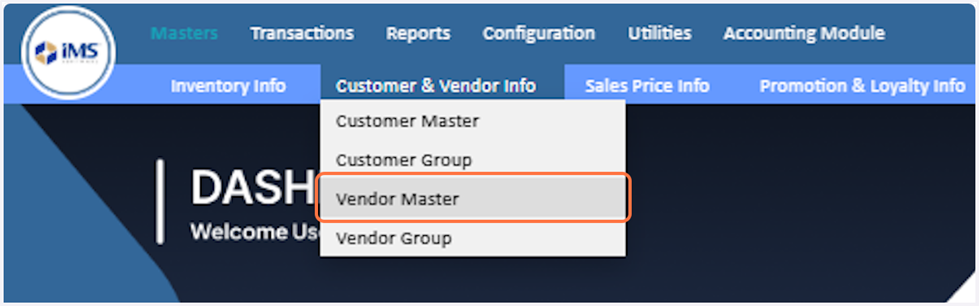
3. Select "Vendor Master" from the dropdown
4. Click on the "Create Vendor" button to create a new vendor.
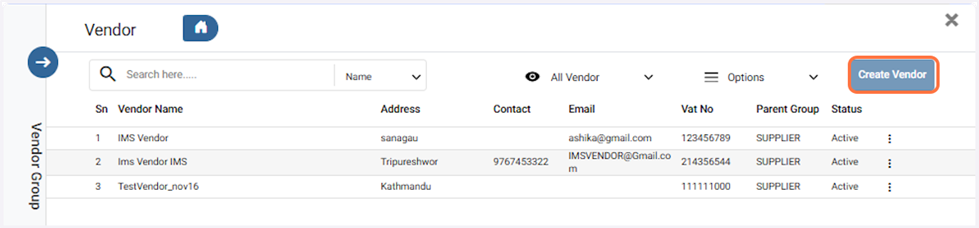
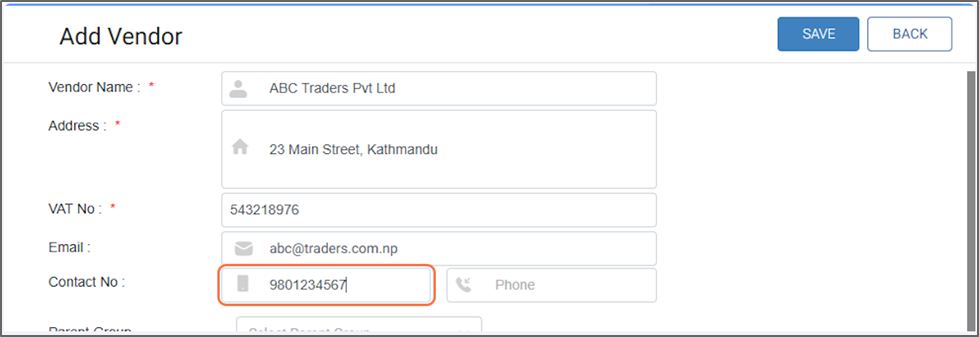
5. Enter the "Name of the Vendor".For Eg: "ABC Traders Pvt Ltd"
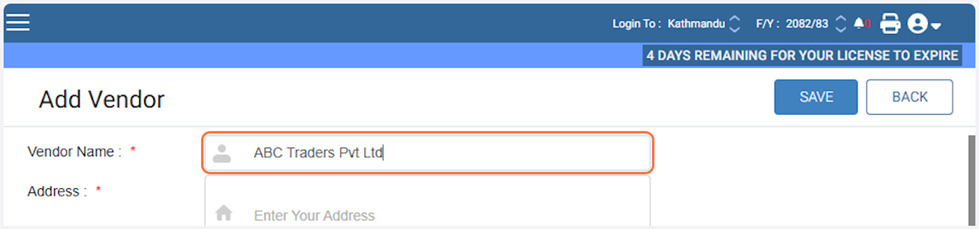
6. Enter the "Address" of the Vendor.For Eg: "23 Main Street, Kathmandu"
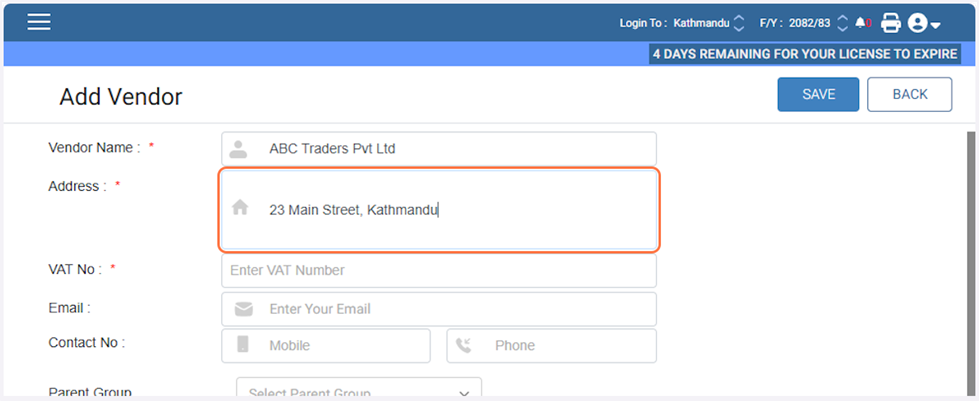
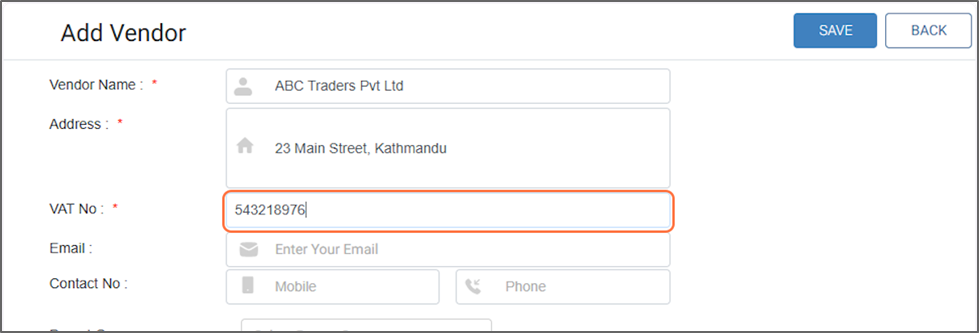
7. Enter the "VAT NO". For Eg: "543218976"
8. Enter the "Email Address" Of the vendor. For Eg: "abc@traders.com.np"

9. Enter the Vendor’s official number.For Eg: "9801234567"
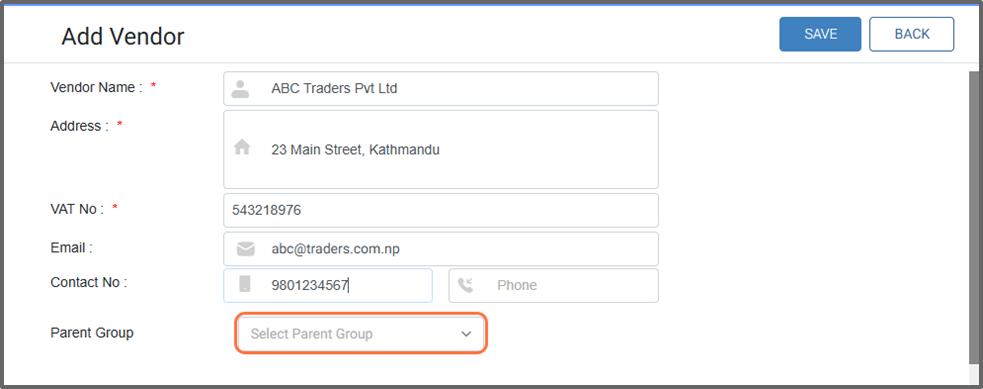
10.Click on the Select Parent Group field and choose the parent group that was created previously. If the required parent group does not exist, create a new Vendor group by following the Vendor Group Creation guide using the link below:
http://redmine.himshang.com.np:4000/projects/dashboard-overview/wiki/Step_to_create_and_manage_the_Vendor_group
11. Click on Additional Info
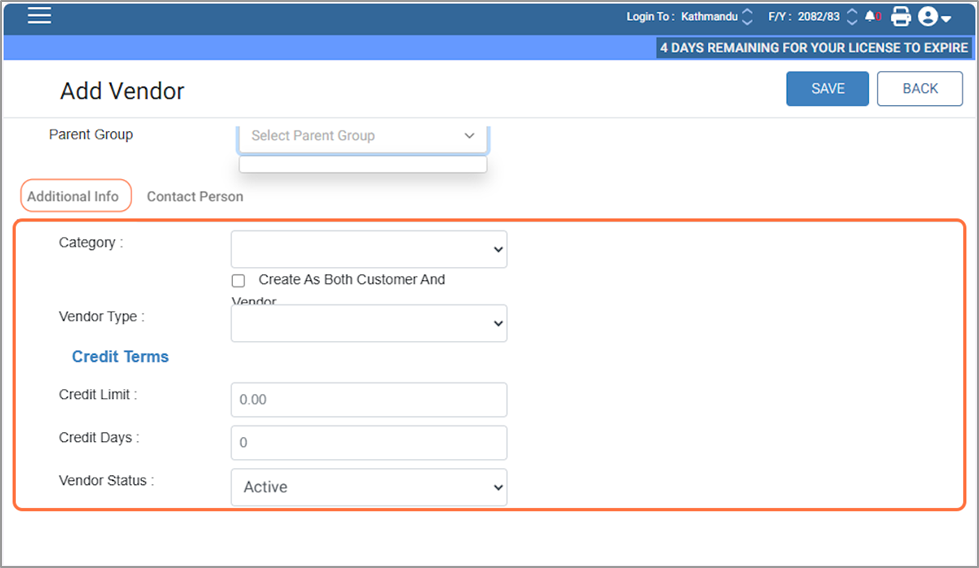
12.Choose the vendor category based on the vendor type: select Direct Party for direct vendors, Distributor for vendors supplying items in bulk, Retailer for vendors selling to end customers, and Importer for vendors bringing goods from abroad. Selecting the correct category ensures better vendor management and accurate reporting. For now, we will select Direct Party as the vendor category.
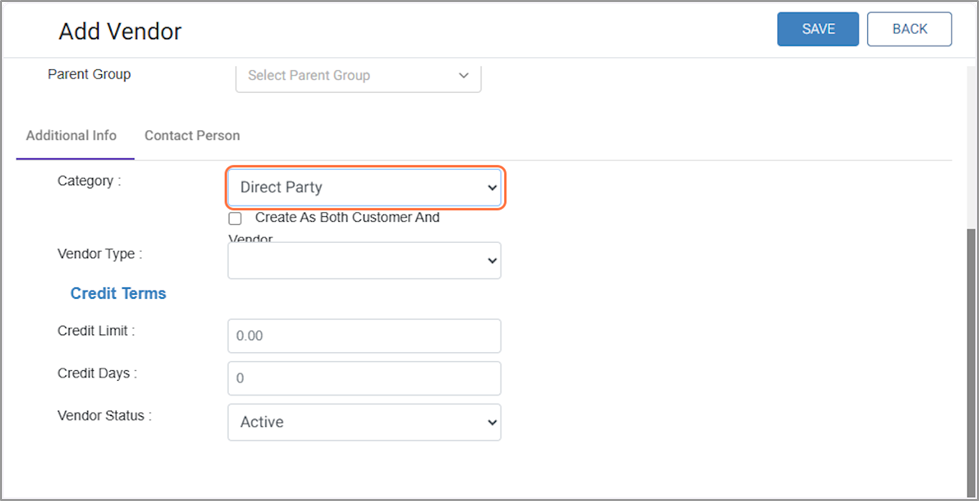
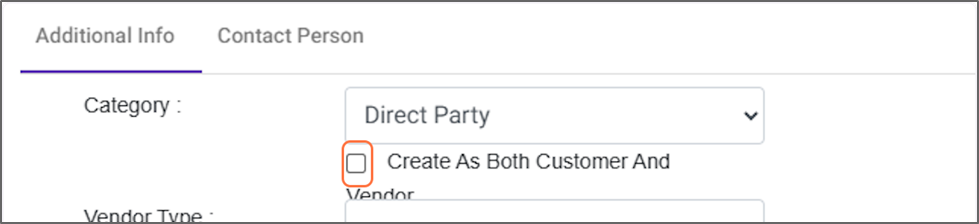
13. "Create as Both Customer and Vendor" Tick this option if you want the same vendor to be added as a customer as well.
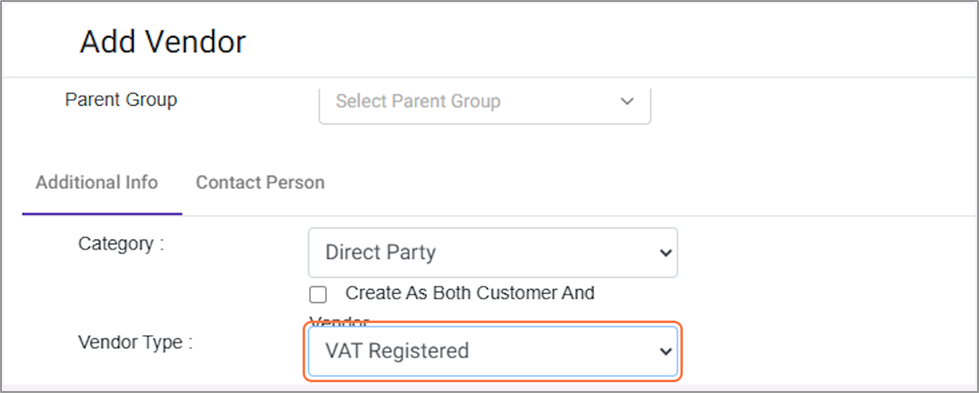
14. Select the vendor type: choose VAT Registered if the vendor is VAT-based, or PAN Registered if the vendor is PAN-based. For now, we will select VAT Registered.
15. In the "Vendor Credit Terms," enter the credit limit. When the vendor's credit reaches this limit, the system will not allow further credit.We have set a credit limit of Rs. 10,000 for this vendor.

16. In the "Vendor Credit Terms," enter the "Credit Days," which defines the credit period for the vendor. For this vendor, it is set to 15 days.

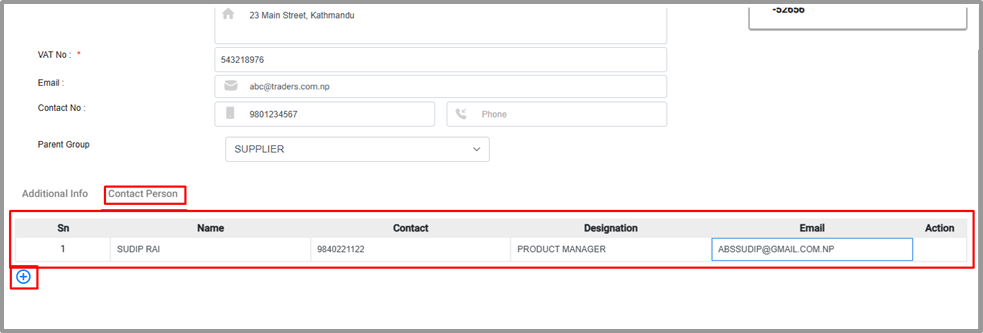
17. From the “Contact Person” details, you can identify the correct vendor representative and contact them directly without intermediaries. Add the contact person’s name, contact number, designation, and official email address. Press the Enter key or click the ‘+’ button to add multiple contact persons. The Status button indicates whether a contact person is active or inactive.
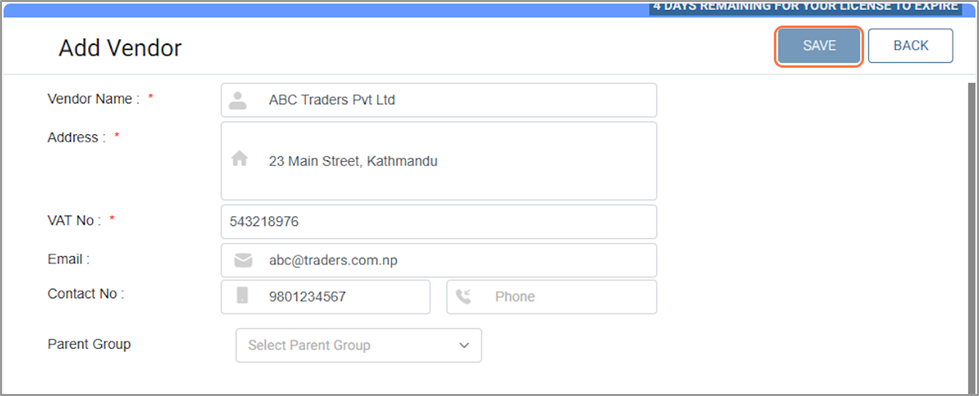
18. Click on SAVE button for add a new vendor in the system.
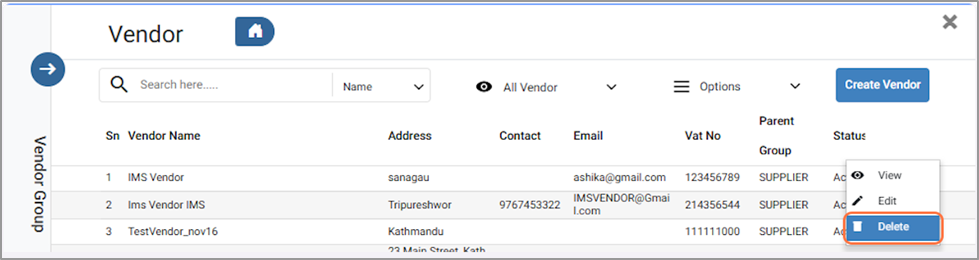
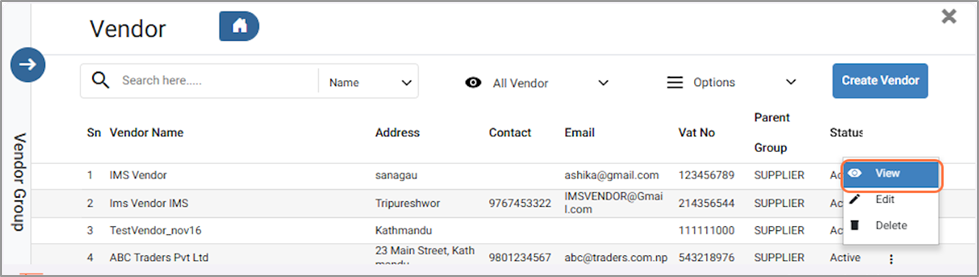
19. From the Vendor List, you can view, edit, or delete vendor details. Click "View" to see the details.
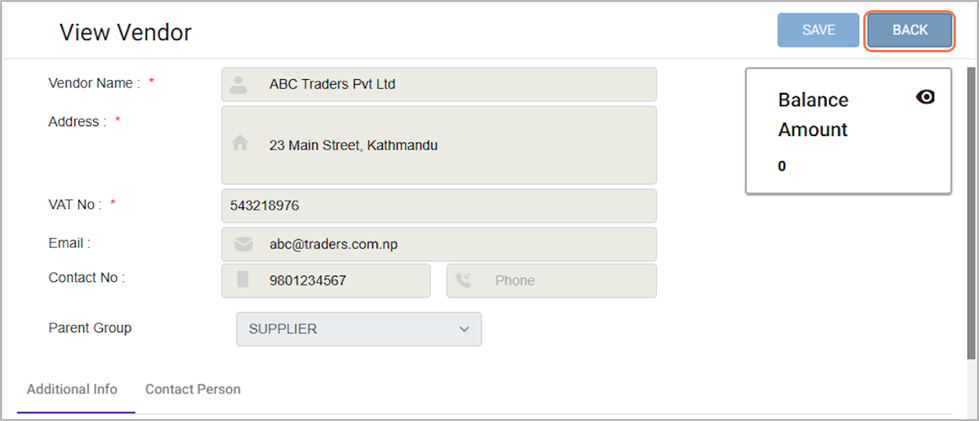
20. After viewing, click on BACK" to return to the Vendor List.
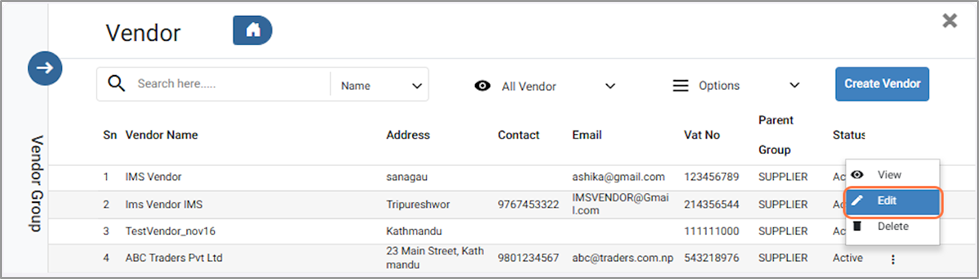
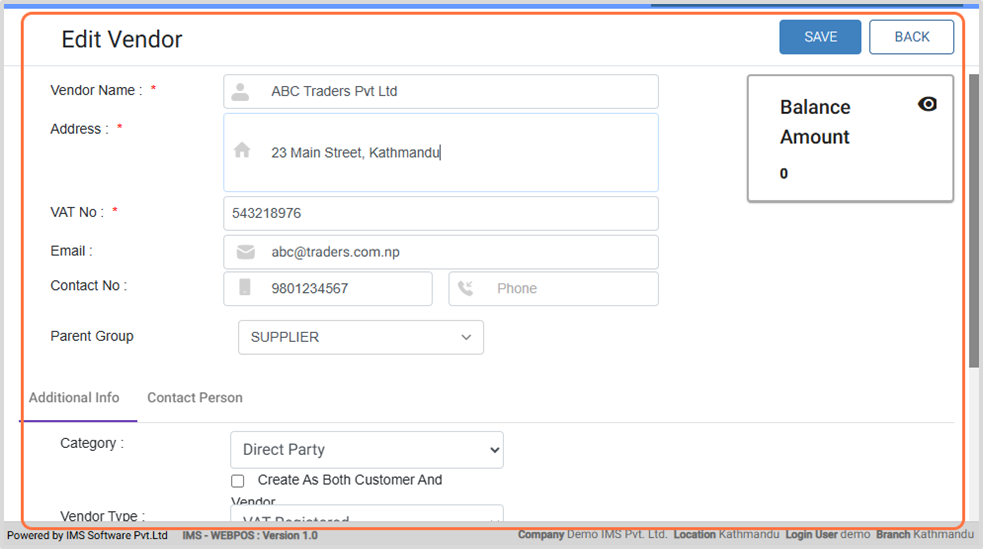
21. Click on "Edit" to modify the vendor’s details. After making the necessary changes, you can "Save"the updates.
22. Click "Delete" to remove the vendor. In the confirmation popup, click "OK" to confirm or "Cancel" to abort.