Ledger Account Master
A ledger is a detailed statement of all transactions related to a particular account (customer, vendor, cash, bank, expense, income, etc.).
When selecting the Assets category, choose the required account type:
Cash A/C – Follow the Cash A/C document link:
http://redmine.himshang.com.np:4000/projects/dashboard-overview/wiki/Add_Ledger_Using_Cash_AC_As_Ledger_Category
Bank Account – Follow the Bank Account document link:
http://redmine.himshang.com.np:4000/projects/dashboard-overview/wiki/Add_Ledger_With_Bank_A%5Cc_As_Ledger_Category
TDS Receivable A/C – Follow the TDS Receivable A/C document link:
http://redmine.himshang.com.np:4000/projects/dashboard-overview/wiki/Add_Ledger_Using_TDS_Receivable_A%5CC_As_Ledger_Category
Other – Select Other for any asset account that does not belong to the above categories.
Here, we will see the process of using Other as the ledger account category. Follow the same account creation process provided in the above document links.
Steps to Create, Edit & Manage Ledger:
1. Go to Master from the main menu.
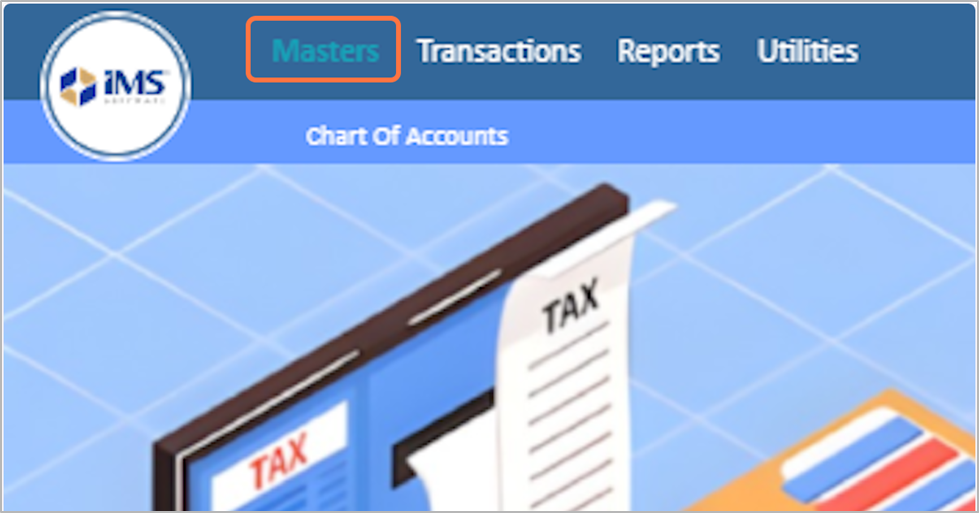
2. Click on The Chart Of Accounts
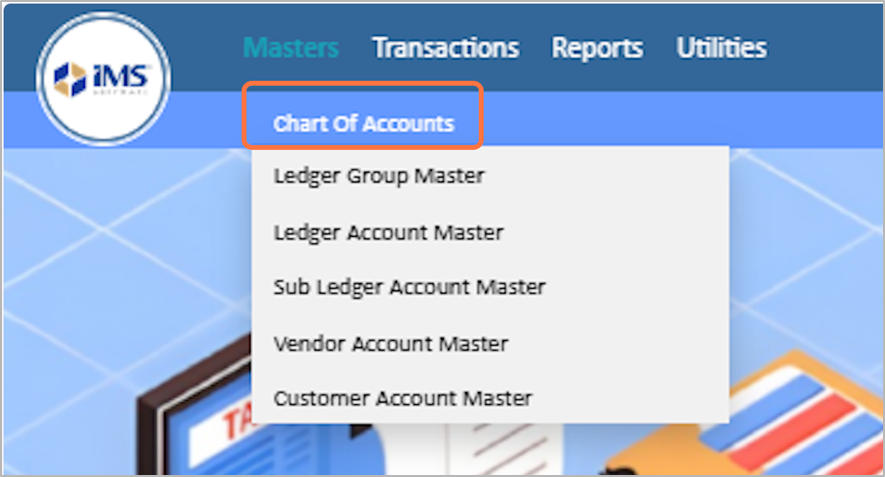
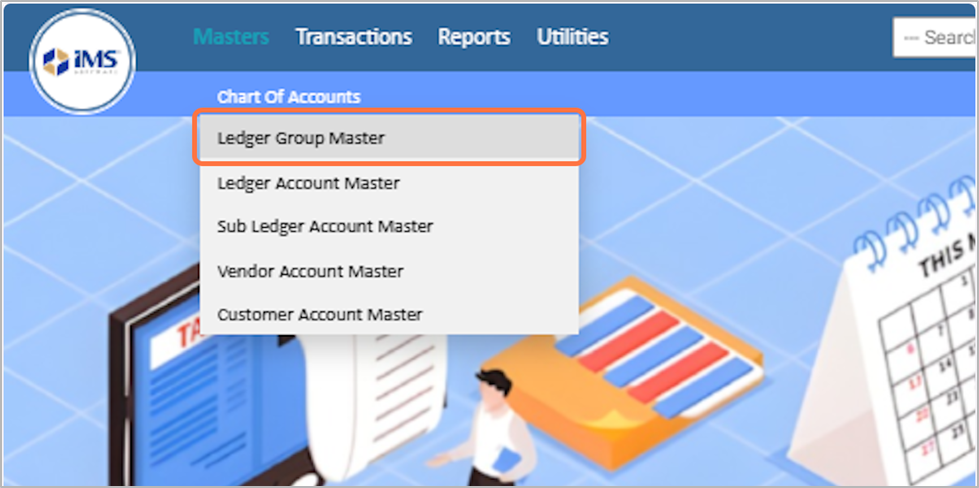
3. Select the Ledger Group Master from the dropdown menu.
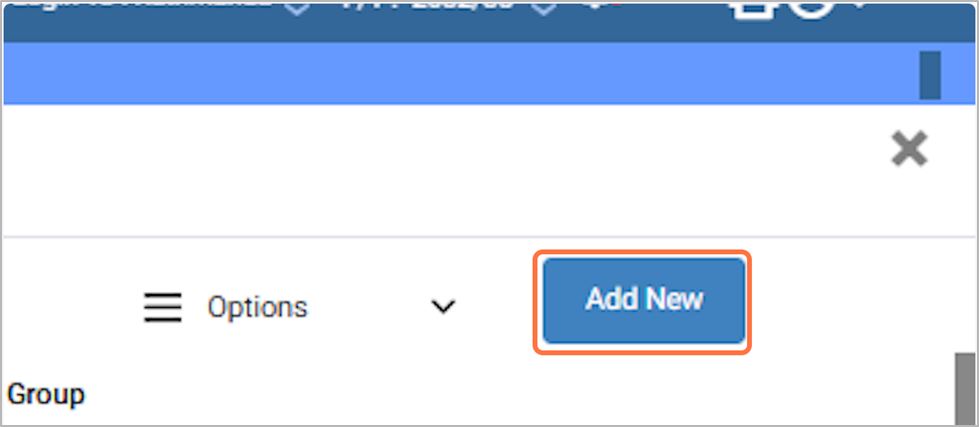
4. Click on Add New Button
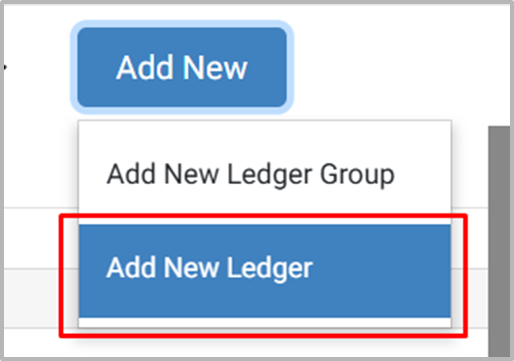
5. Click on “Add New Ledger" Option.
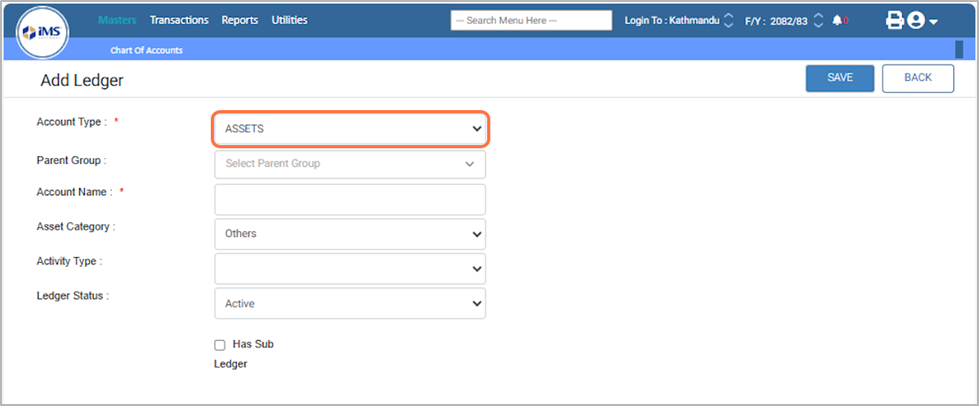
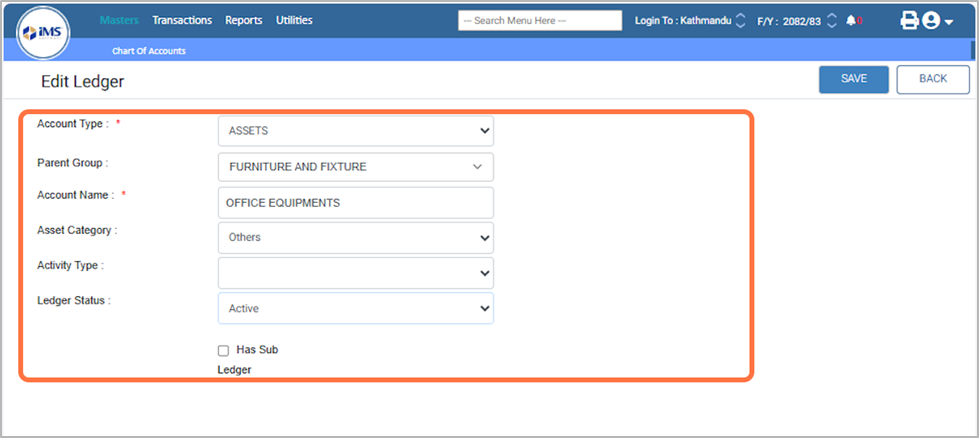
6. Choose the Account Type from the predefined options, For Eg: ASSETS
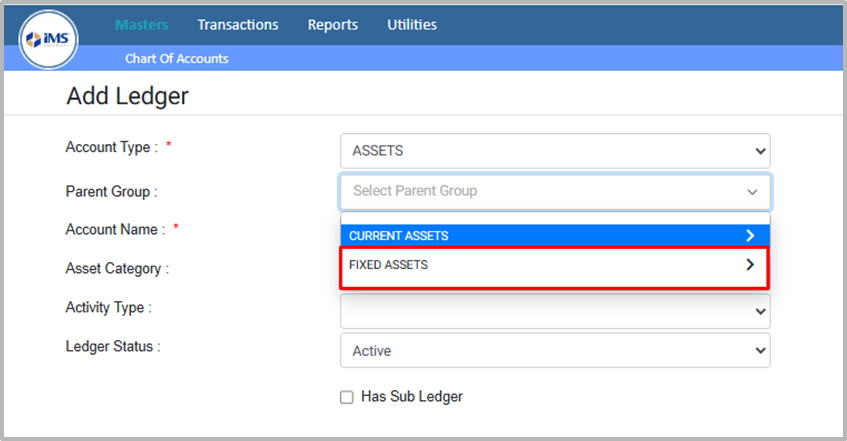
7. In the Parent field, select the appropriate parent according to the account type you have entered.
● Example: If the account type is Assets, you can choose Fixed Assets as the parent.
8.Under the selected parent (e.g., Fixed Assets), you can add a ledger group to categorize accounts further.
● Example: Under Fixed Assets, you can add the ledger group Furniture and Fixture.
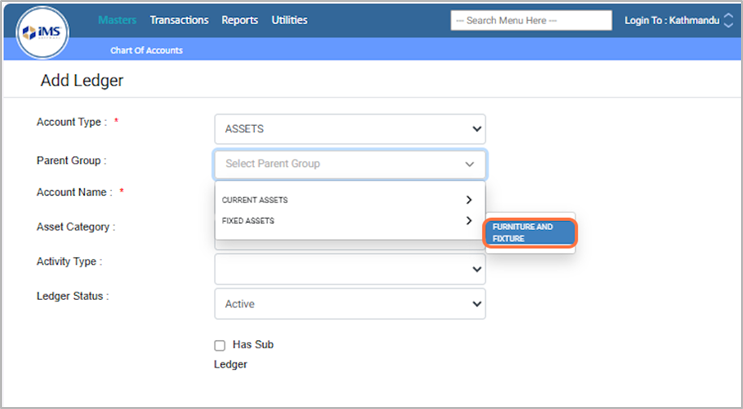
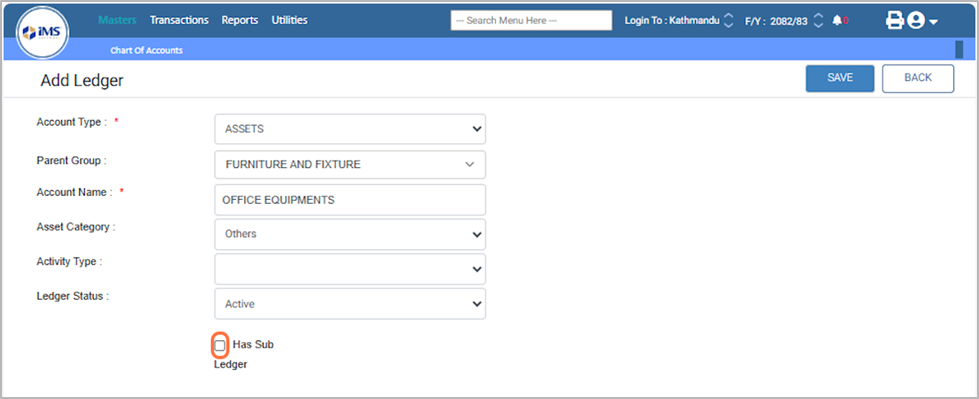
9. Enter the name of the account, For EG: OFFICE EQUIPMENTS
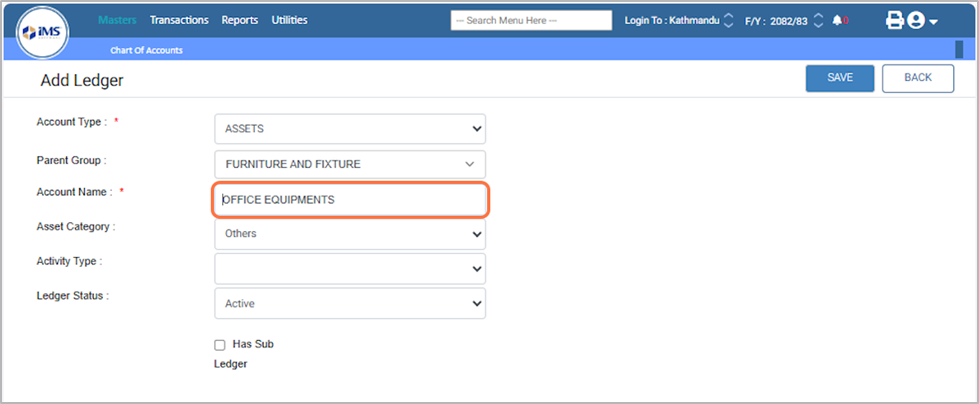
10. Selecting the Assets Category
● Cash A/C: For petty cash accounts (e.g., Office Cash, Cash in Hand).
● Bank Account: For bank accounts with name and account number (e.g., SIDDARTHA BANK 1234567890).
● TDS Receivable A/C: For TDS entries (e.g., TDS on Service 1.5% SST).loan account
● Others: For other assets like office equipment, furniture, vehicles, etc.choose Others.
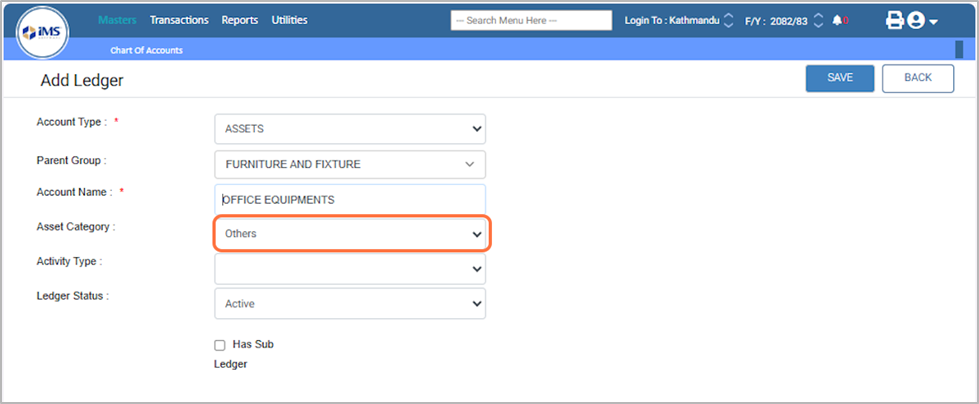
11. In the Ledger Status field, select Active to make the ledger available for use in transactions.
Eg: Active
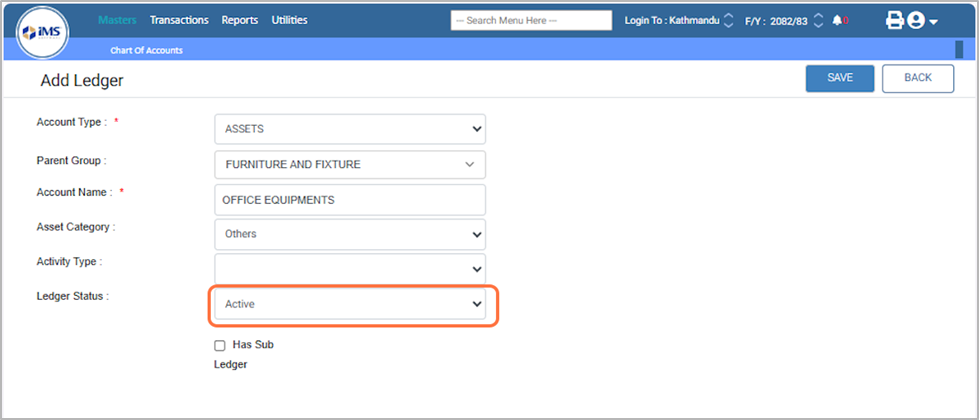
12. Has Sub Ledger: Tick this to create sub-ledgers for detailed tracking, such as individual customers or suppliers. For general assets like Office Equipment, it’s usually left unticked.
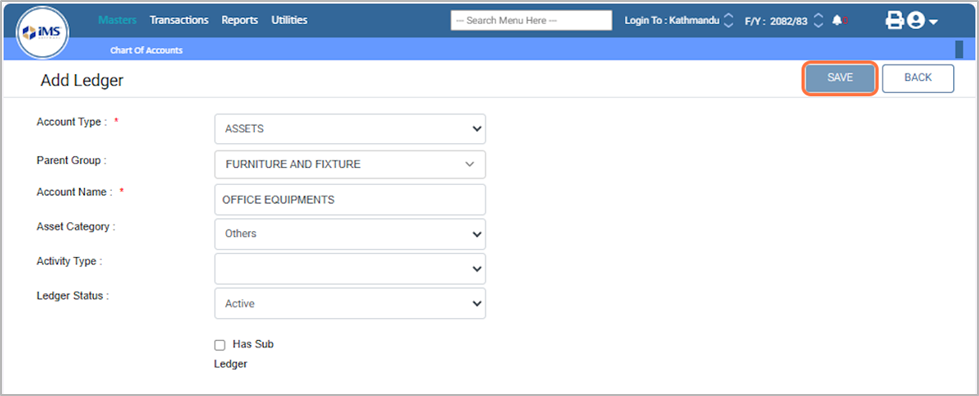
13. Click the Save button to add the new ledger
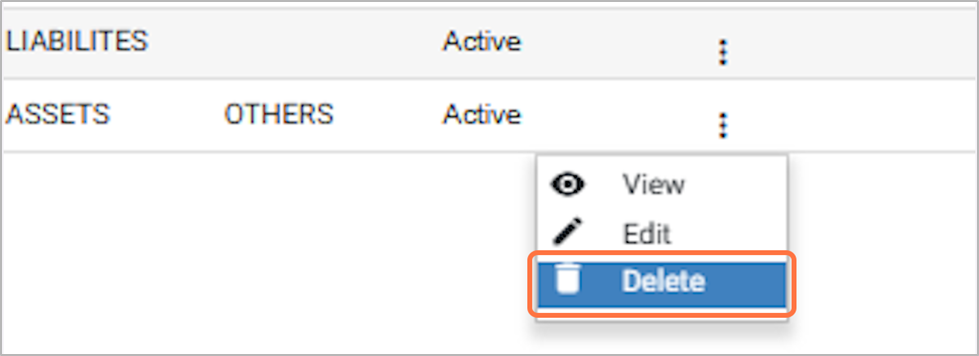
14. You can view, edit, and delete ledger accounts as required.
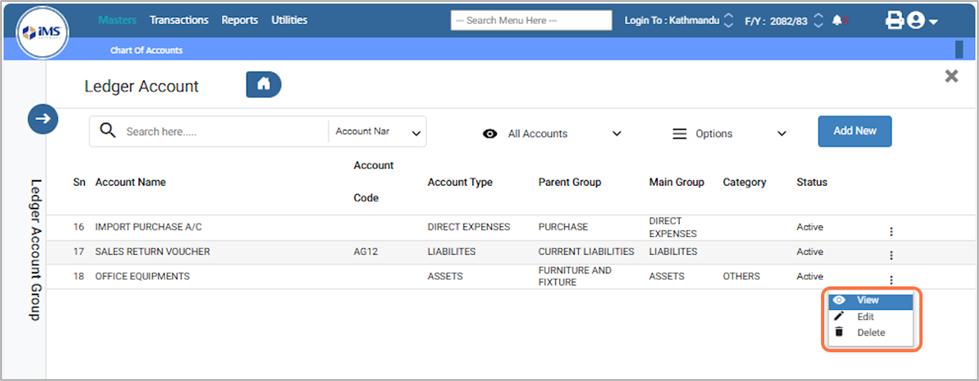
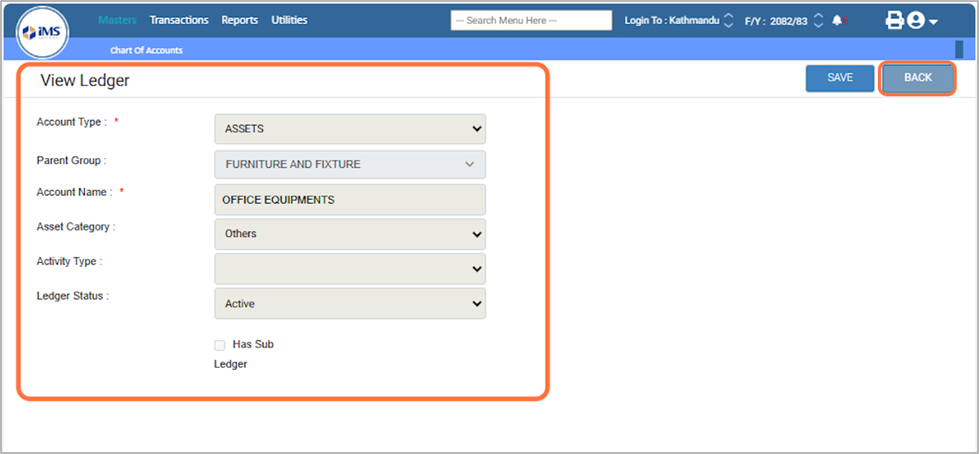
15. To view a ledger, click “View,” check the ledger details, and then click “Back” to return to the dashboard.
16. To edit ledger details, click “Edit,” modify fields such as Account Type, Parent Group, Group Name, Account Category, Activity Type, and Ledger Status, then click “Save.” Editing is only allowed before any transactions are created using this ledger.
17. To delete a ledger, click the Delete button; a pop-up message “Are you sure you want to delete this item?” will appear—click OK to confirm deletion or Cancel to cancel the action.