WEB-POS ACCOUNT GETTING STARTED » Account Master Menu »
Group Ledger Master
A Group Ledger is a grouping mechanism that groups similar accounts together, like Assets, Liabilities, or Expenses, to organize and manage accounts easily.
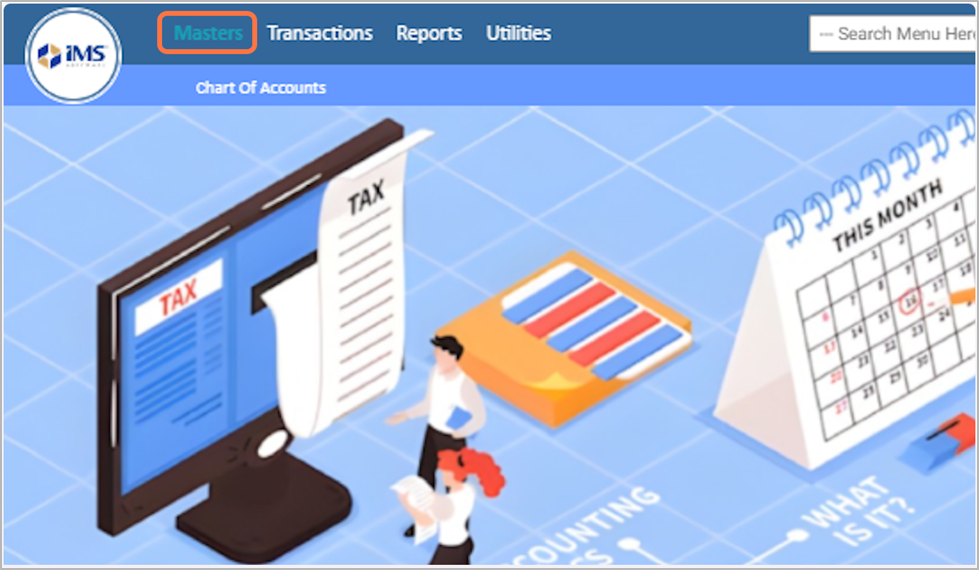
1. Go to "Master" from the main menu.
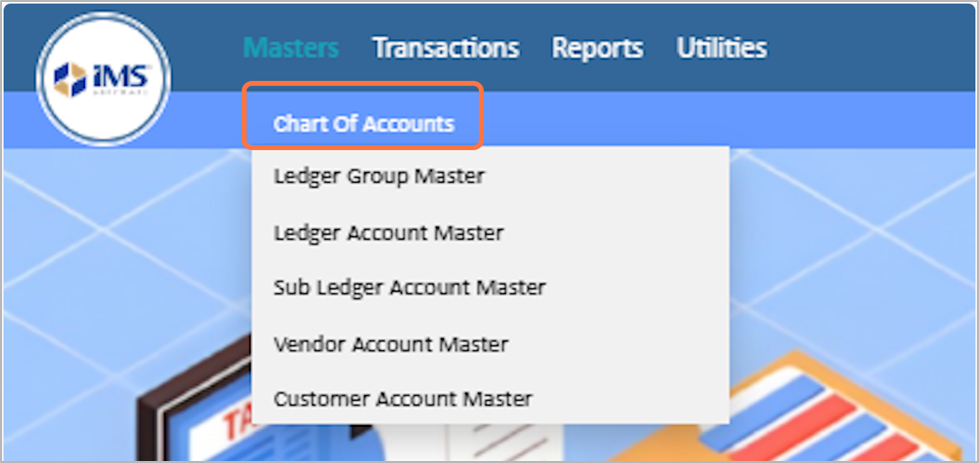
2. Click on the Chart Of Accounts
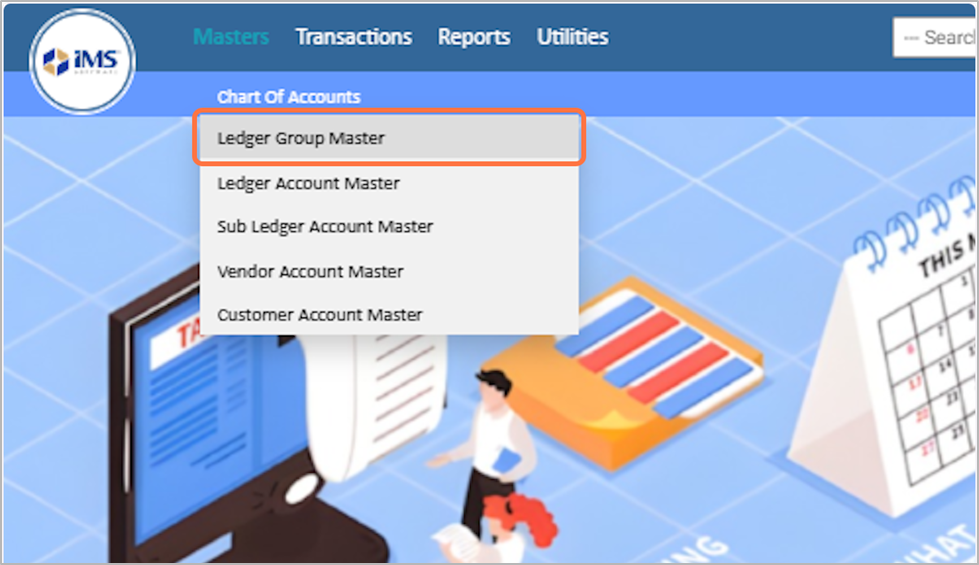
3. Select “Ledger Group Master”Option from the dropdown menu.
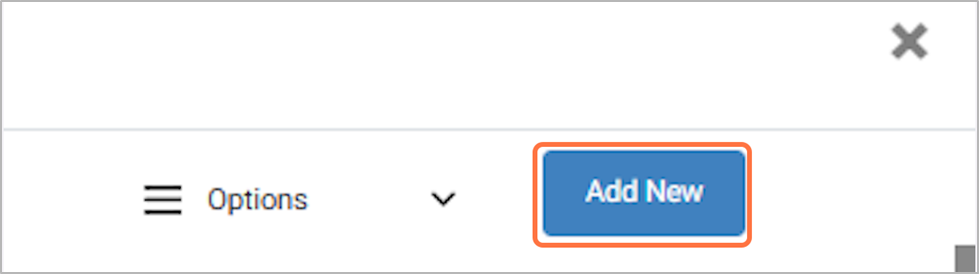
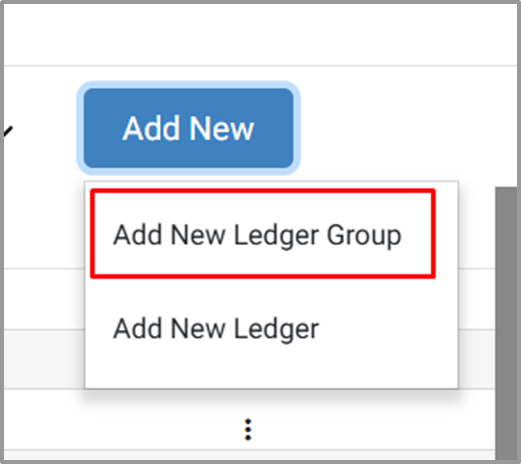
4. Click on Add New button
5. Click on “Add New Ledger Group" button.
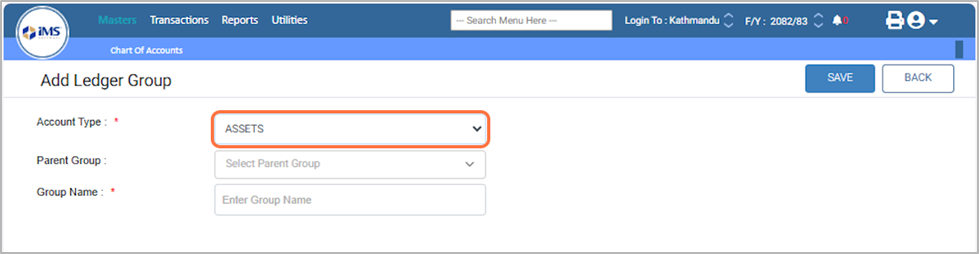
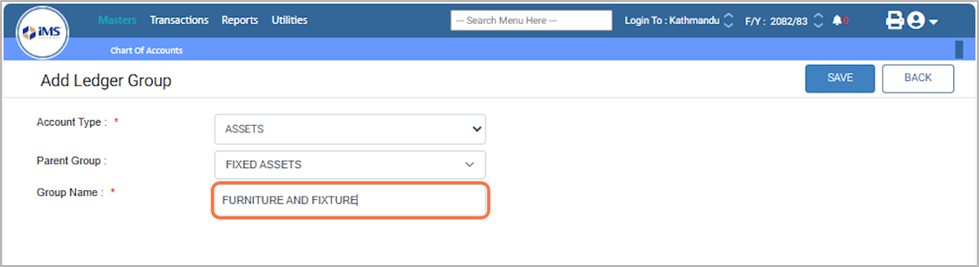
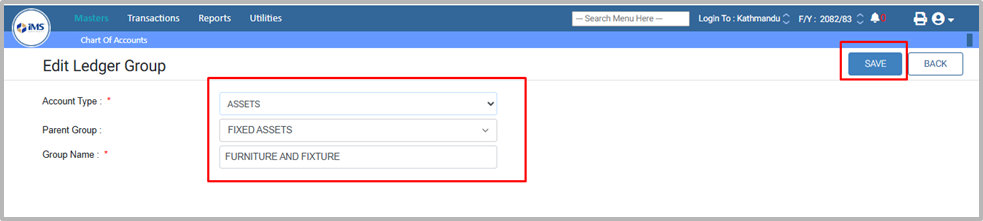
6. Choose the Account Type from the predefined options, for E.g: Assets.
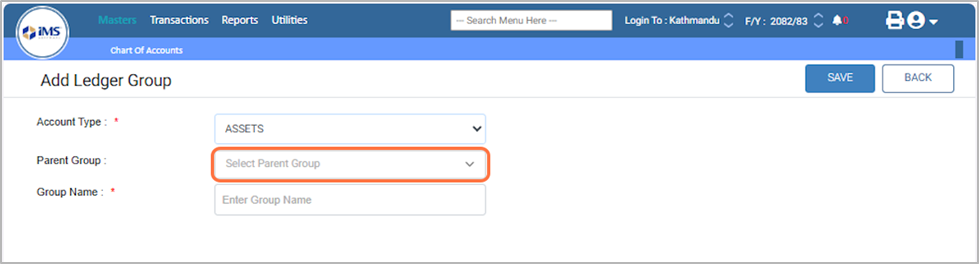
7. Click on The Select Parent Group
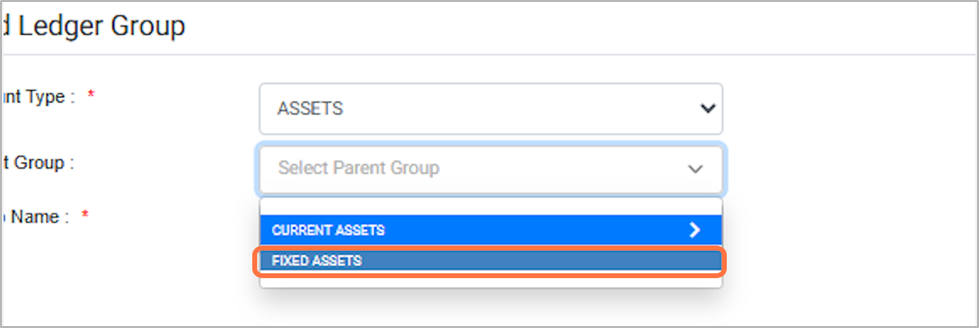
8. In the Parent Group, select the appropriate account type, such as Fixed Assets or Current Assets. Here, select Fixed Assets.
9. In the Group Name field, enter the name of the group, For Eg: FURNITURE AND FIXTURE
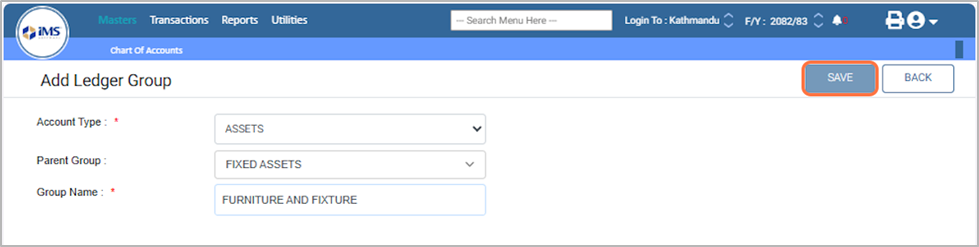
10. Click the “Save” button.
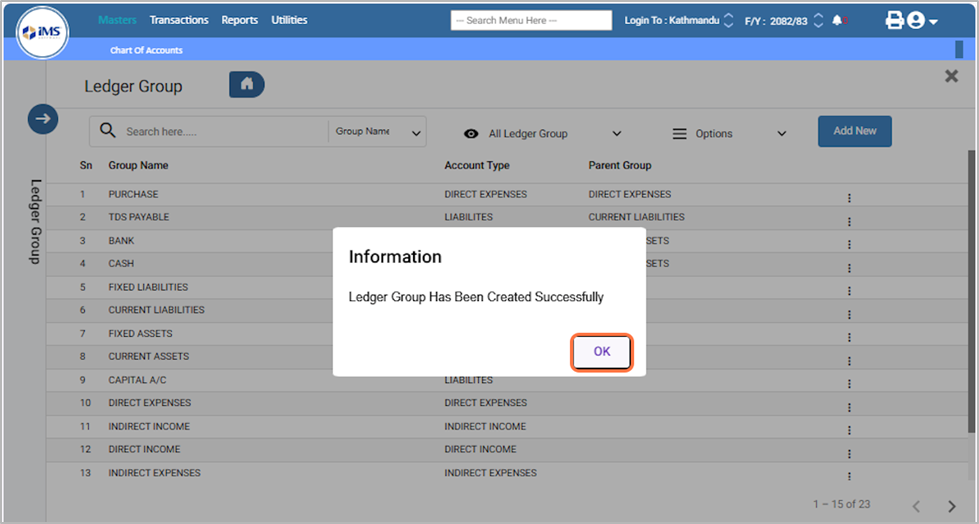
11. A message “Ledger Group has been created successfully” will appear. Click OK.
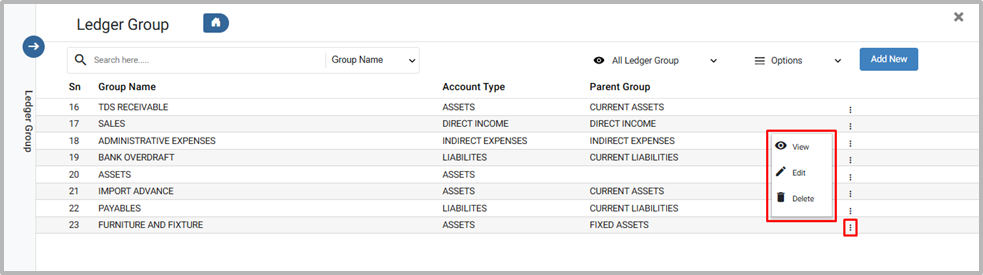
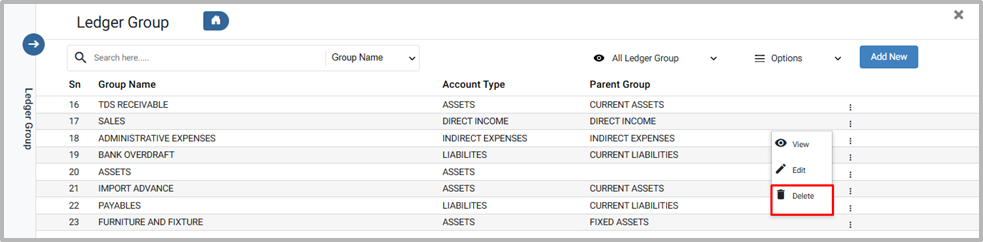
12.View, Edit, and Delete Ledger Group
13. To view a ledger group, click “View,” check the ledger group details, and then click “Back” to return to the dashboard.
14. To edit a ledger group, click “Edit,” and modify the group details such as Account Type, Parent Group, or Group Name, and then click Save. Editing is only possible before any transactions are made using this group.
15. To delete a ledger group, click the Delete button; a pop-up message “Are you sure you want to delete this item?” will appear—click OK to confirm deletion or Cancel to cancel the action.
Files (15)
clipboard-202605311455-biolz.png (880 KB)
clipboard-202605311455-biolz.png
Sujata Khatri, 05/31/2026 09:10 AM
clipboard-202605311455-fhz6j.png (404 KB)
clipboard-202605311455-fhz6j.png
Sujata Khatri, 05/31/2026 09:10 AM
clipboard-202605311455-sxdyz.png (723 KB)
clipboard-202605311455-sxdyz.png
Sujata Khatri, 05/31/2026 09:10 AM
clipboard-202605311455-k8ezq.png (31.3 KB)
clipboard-202605311455-k8ezq.png
Sujata Khatri, 05/31/2026 09:10 AM
clipboard-202605311455-0sgt8.png (45 KB)
clipboard-202605311455-0sgt8.png
Sujata Khatri, 05/31/2026 09:10 AM
clipboard-202605311456-y26n6.png (53.4 KB)
clipboard-202605311456-y26n6.png
Sujata Khatri, 05/31/2026 09:11 AM
clipboard-202605311456-rszfv.png (53.5 KB)
clipboard-202605311456-rszfv.png
Sujata Khatri, 05/31/2026 09:11 AM
clipboard-202605311456-ijkvq.png (56.3 KB)
clipboard-202605311456-ijkvq.png
Sujata Khatri, 05/31/2026 09:11 AM
clipboard-202605311456-ov1jt.png (54.9 KB)
clipboard-202605311456-ov1jt.png
Sujata Khatri, 05/31/2026 09:11 AM
clipboard-202605311457-cljot.png (52.5 KB)
clipboard-202605311457-cljot.png
Sujata Khatri, 05/31/2026 09:12 AM
clipboard-202605311457-1bolr.png (143 KB)
clipboard-202605311457-1bolr.png
Sujata Khatri, 05/31/2026 09:12 AM
clipboard-202605311457-reokk.png (73.2 KB)
clipboard-202605311457-reokk.png
Sujata Khatri, 05/31/2026 09:12 AM
clipboard-202605311457-updbo.png (24.4 KB)
clipboard-202605311457-updbo.png
Sujata Khatri, 05/31/2026 09:12 AM
clipboard-202605311457-mu2vl.png (40.3 KB)
clipboard-202605311457-mu2vl.png
Sujata Khatri, 05/31/2026 09:12 AM
clipboard-202605311458-sktus.png (71.1 KB)
clipboard-202605311458-sktus.png
Sujata Khatri, 05/31/2026 09:13 AM