BOM (Bill of Materials) is a structured list of all raw materials and their required quantities that are needed to produce a finished product.
The following flow diagram illustrates the process of BOM (Bill of Materials) and Production Entry :
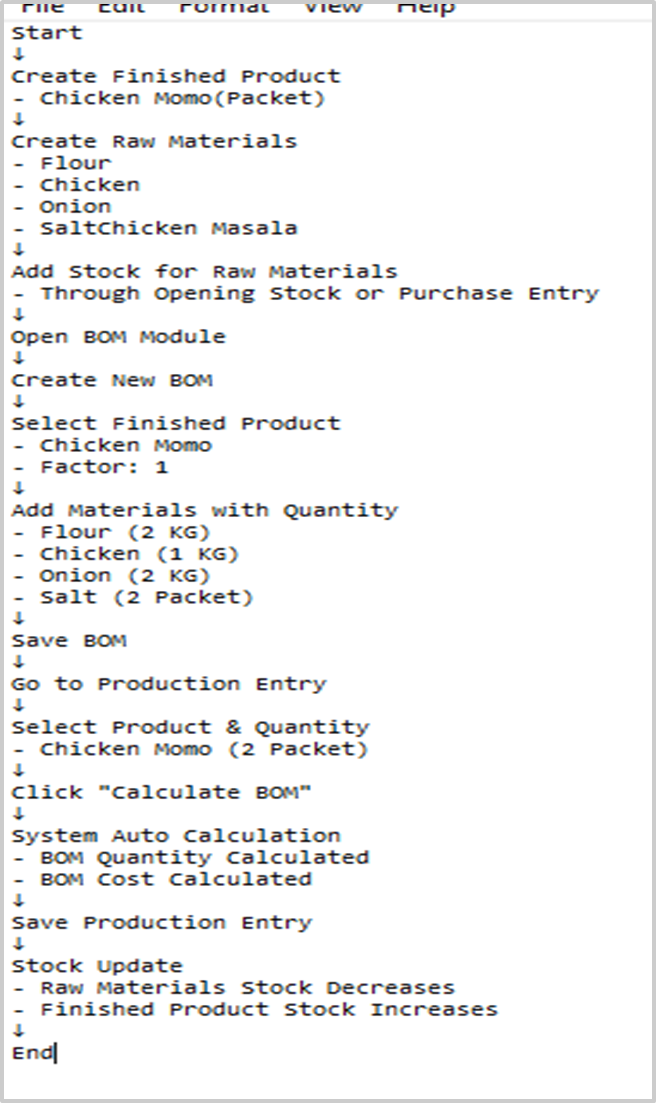
This flow diagram explains the BOM and Production process. First, a finished product like Chicken Momo (Packet) is created, followed by raw materials such as flour, chicken, onion, and salt, and their stock is added through opening stock or purchase entry. Then, in the BOM module, the finished product is linked with its required raw materials and quantities, and the BOM is saved. After that, In Production Entry, the user selects the finished product and quantity and clicks “Calculate BOM,” where the system automatically calculates the required BOM quantities and cost. Finally, when saved, the system updates inventory by reducing raw material stock and increasing finished product stock.
Steps to Create BOM and Calculate BOM with Production Entry
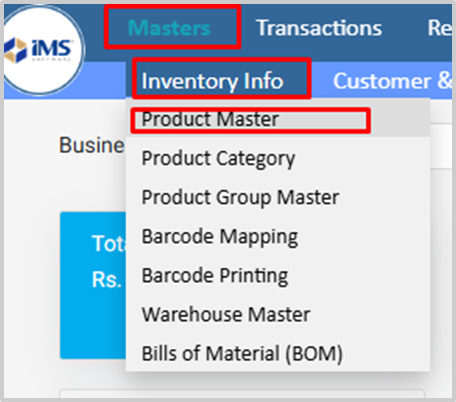
1. Go to the master menu and under the Inventory Info menu select the Product Master from the dropdown options to create the product ingredients required for BOM. For example, create items like mango, oil, salt, and spices, along with the finished product such as mango pickle.
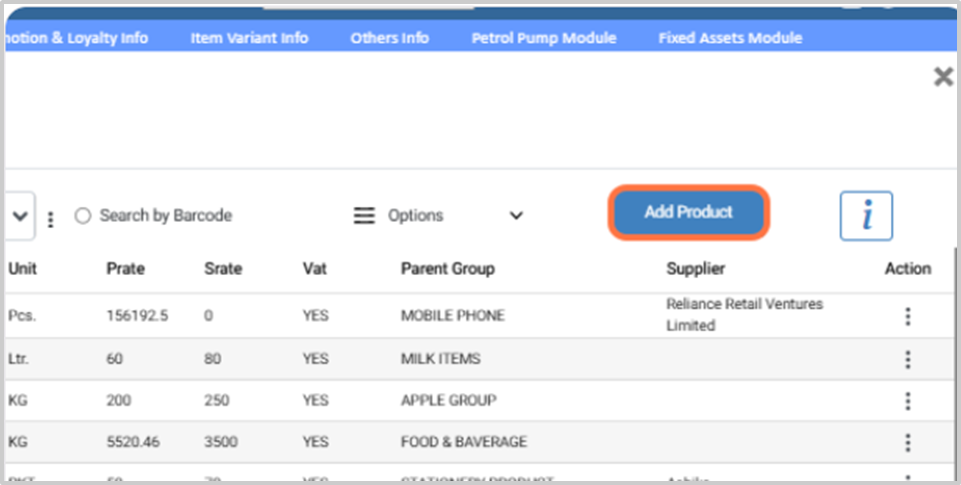
2. Click on the Add Product and choose the add Product Button.
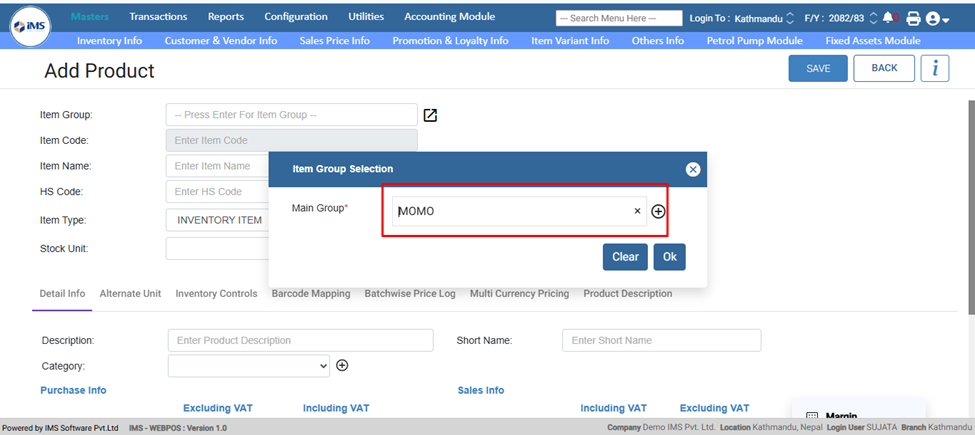
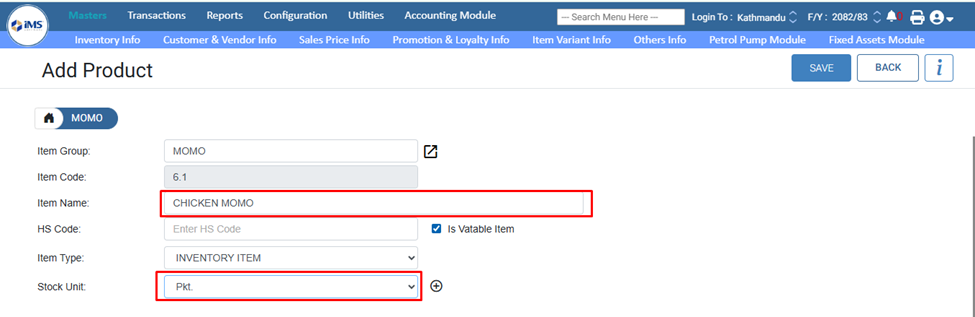
3. In the Item Group field, press Enter and select the Product Group from the Product Group Master. For example, select MOMO as the main group and choose a sub-group if available. Here, This group is used for the final product.
4. In the Product Name field, enter the product name (e.g., “Chicken Momo”), select PCs as the unit, and then click the Save button.
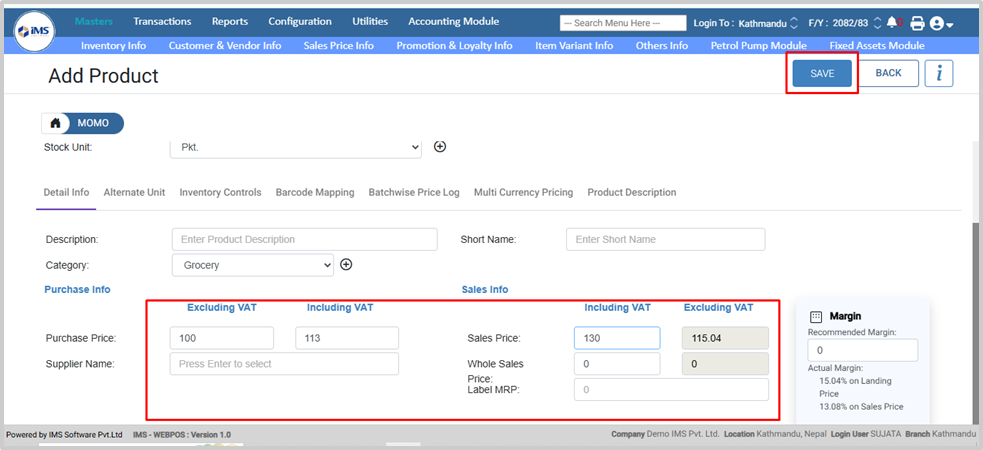
5. Enter the purchase and sales price of the product, then click on the Save button,
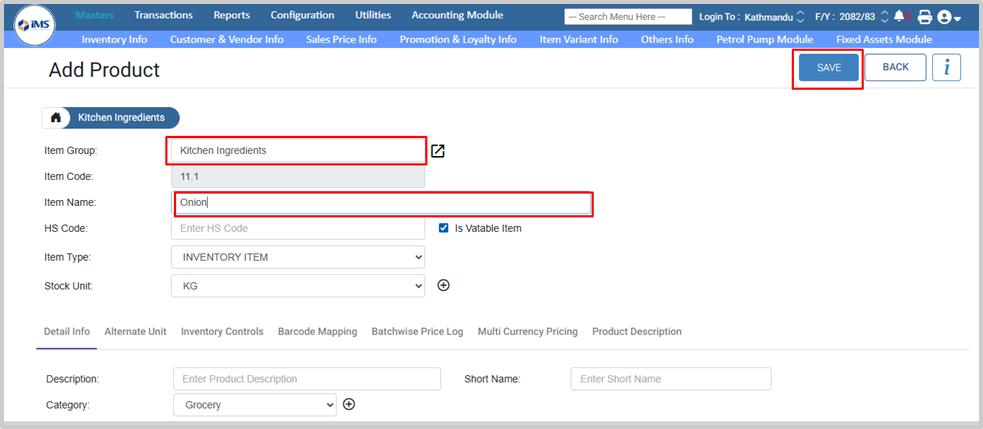
6. To add a BOM product,Again navigate to the Add Product button. Enter the Product Group as selected previously (e.g., Kitchen Ingredients). Then enter the product name, unit, purchase price, and sales price. After completing all required details, click on the Save button to add the new BOM materials.For example, under the Kitchen Ingredients group, you can add items such as chicken keema, onion, garlic, ginger, oil, and maida, selecting the appropriate unit and entering the required prices.
7. You can add multiple products by following the same steps.
Production Entry is the process of recording the conversion of raw materials into finished products in an inventory or manufacturing system.
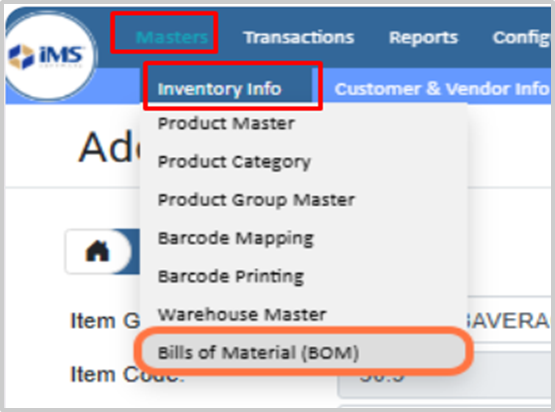
8. To map the product with BOM, click on Inventory Info and select the Bills of Materials (BOM) option from the dropdown list.
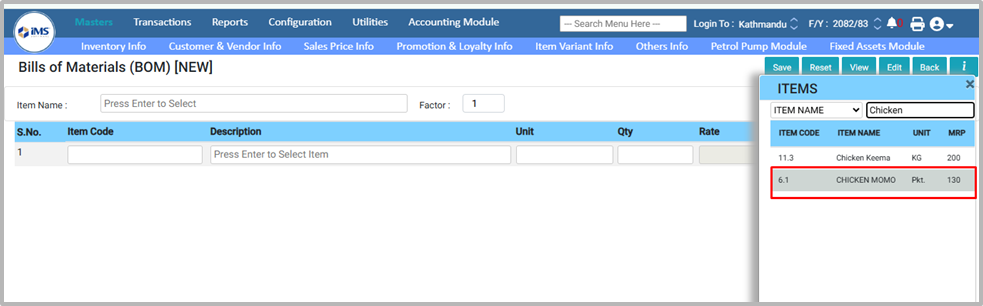
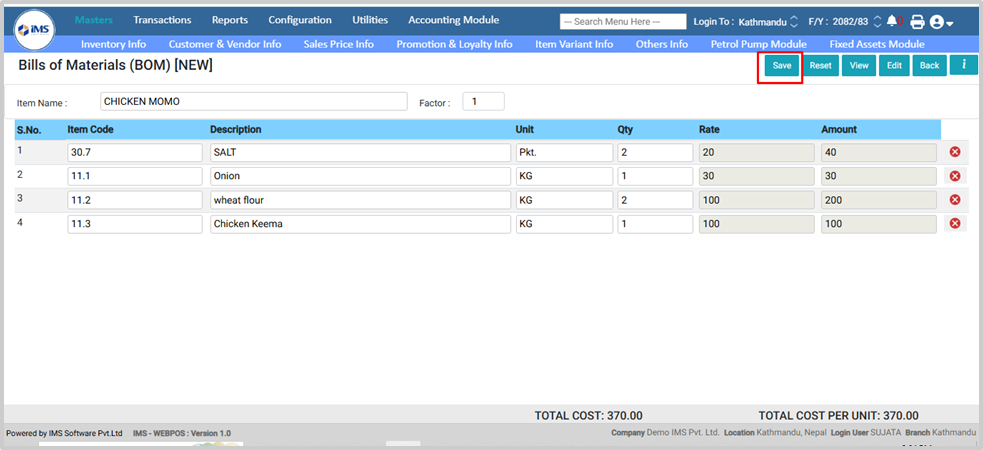
9. In the Item Name field, press Enter and select the final product that uses BOM components.For Example: Chicken MOMO
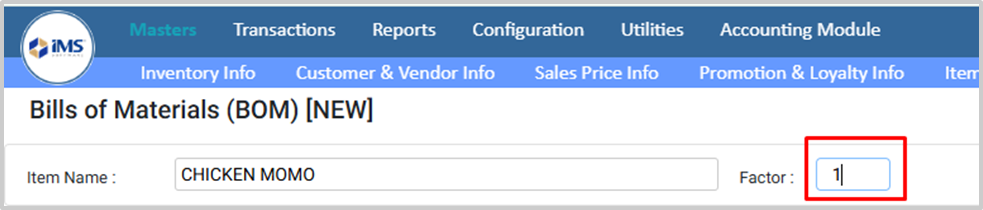
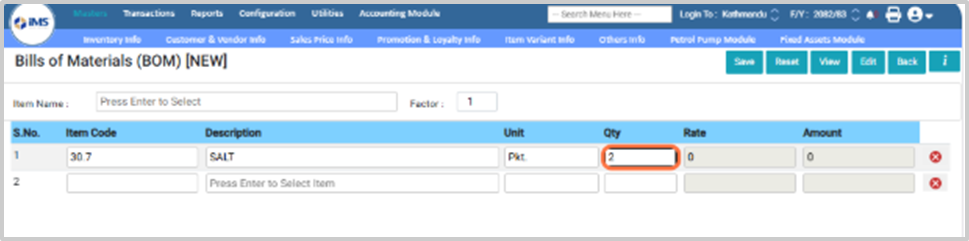
10. In the Factor field, enter the quantity (e.g., 1). Then, in the BOM product list below, select the item (e.g., Salt) and enter its quantity (e.g., 2). This means that to produce one unit of the final product (e.g., Chicken Momo), you need 2 packets of salt.
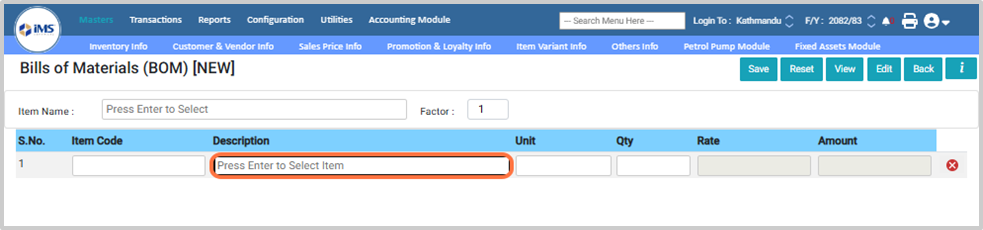
11. In the particular field, press Enter to select the item for BOM.
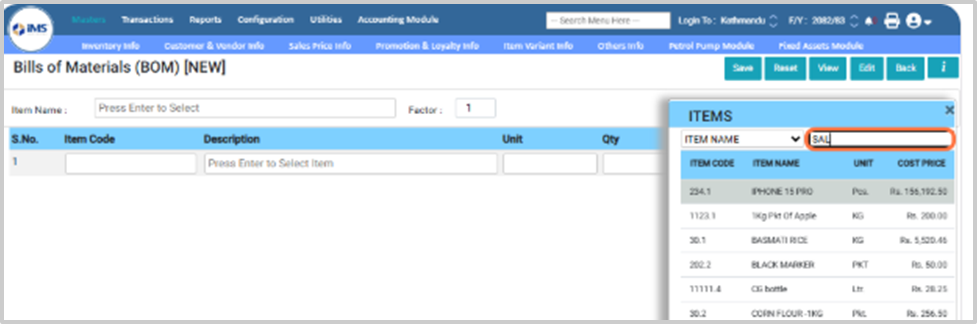
12. And Select the product from the pop-up list. For Example:Salt
13. Enter the product quantity required to produce the final BOM product.For Example 2
14. Follow the same steps to add another BOM product, and click the Save button to save the BOM.
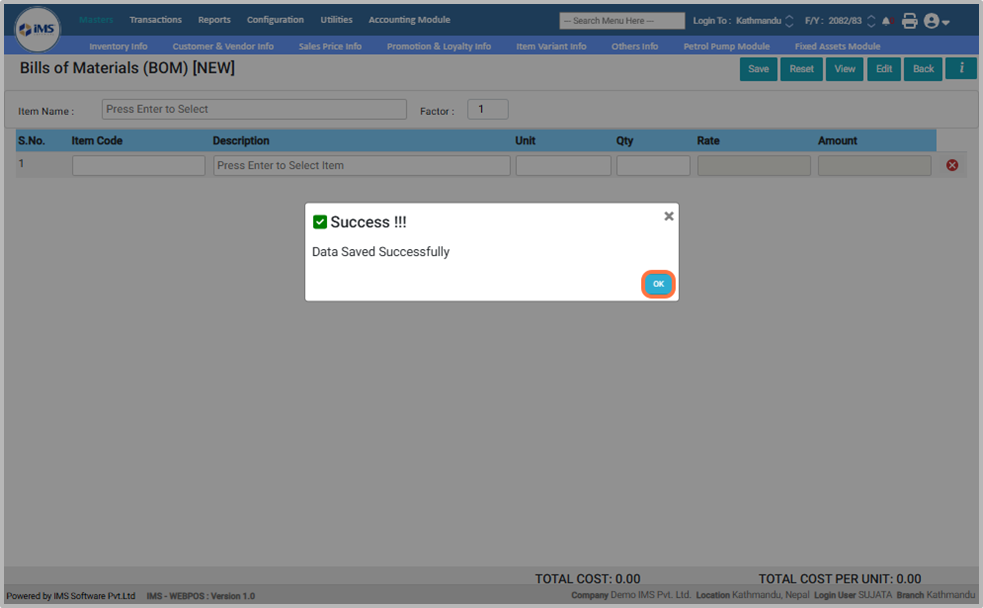
15. Click OK when the “Data saved successfully” pop-up appears.
16. Button Functions in BOM Module
● Save: Used to save the BOM entry in the system after defining all required materials and quantities.
● Reset: Clears all entered data and restarts the BOM creation process from the beginning.
● View: Allows you to view existing BOM entry details without making any changes.
● Edit: Enables you to modify or update an existing BOM entry in the system.
● Back: Helps you return to the home dashboard from the BOM dashboard.

● Before using BOM in Production Entry, the system requires that opening stock is added or BOM materials are purchased and available in the software stock.
Process to Add Production Entry:
17. Navigate to the Transaction module and select the Production Entry option from the Inventory Transaction module.
18. Enter the production entry bill reference number, for example 2002.
19. Select the production and consumption warehouse; for example, We use the Main Warehouse for both.
20. In the Particular field, press Enter and select the final product that was selected as the finished product in the BOM item selection process (e.g., Chicken Momo).
21. Enter the Product Quantity for the final product (e.g., 2).
22. When you enter the quantity, a pop-up will appear on your screen. Click on the “Calculate BOM” option to add the BOM for that product.
23. When you click on the “Calculate BOM” button, the system automatically calculates the required BOM quantities and cost based on the entered quantity.For example, if you want to produce 2 packets of Chicken Momo, the system will calculate the required BOM item quantities accordingly,
Ensure that the stock of all BOM items is greater than or equal to the required quantity before proceeding.
24. After that, click on the “Apply” button and the BOM price will be added to the final product.
25. Navigate to the Consumption Entry module. By default, you cannot make any changes here. To enable modifications, update the required settings in the System User Configuration.
Note: Consumption Entry can only be edited after enabling the appropriate system permissions.
26. Click the Save button to save the Production Entry in the software
27. Button Functions in Production Entry Module
● Save: Used to save the production entry in the software after completing all required details such as product selection, quantity, BOM calculation, and consumption details.
● Reset: Clears all entered production entry data and restarts the production entry process from the beginning.
● View: Allows you to view existing production entry details without making any changes.
● Edit: Enables you to modify or update an existing production entry in the system (if permission is enabled).
● Back: Helps you return to the home dashboard from the production entry screen.